Your first launch
There's nothing to set up before you start. Migraine Book opens on Home, ready to log, and keeps everything in your own iCloud.
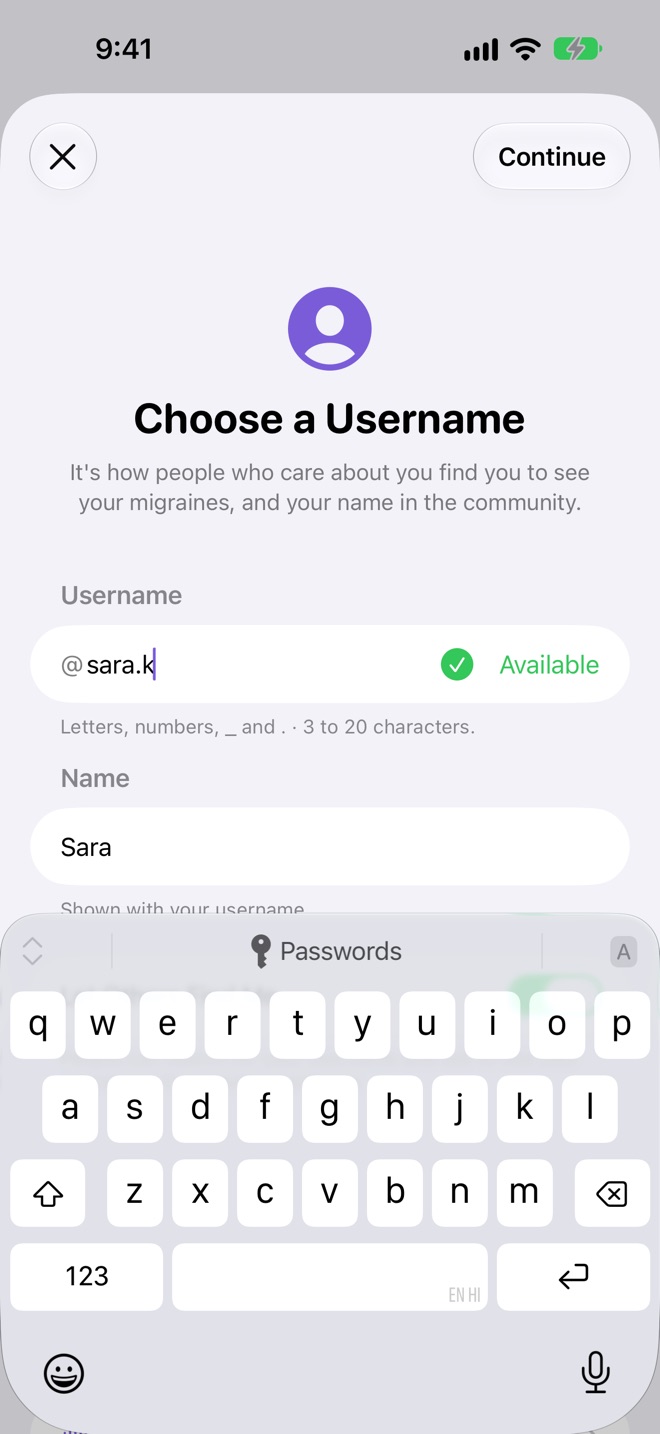
Choose a username
Signed in to iCloud, Migraine Book asks for a username once. It's how people who care about you find you to see your migraines, and your name in the Community. A green Available shows when nobody else has it. Add a name to show with it if you like. Tap Later to skip; you can choose one any time in Settings. See Your username.
The three tabs
| Tab | What it's for |
|---|---|
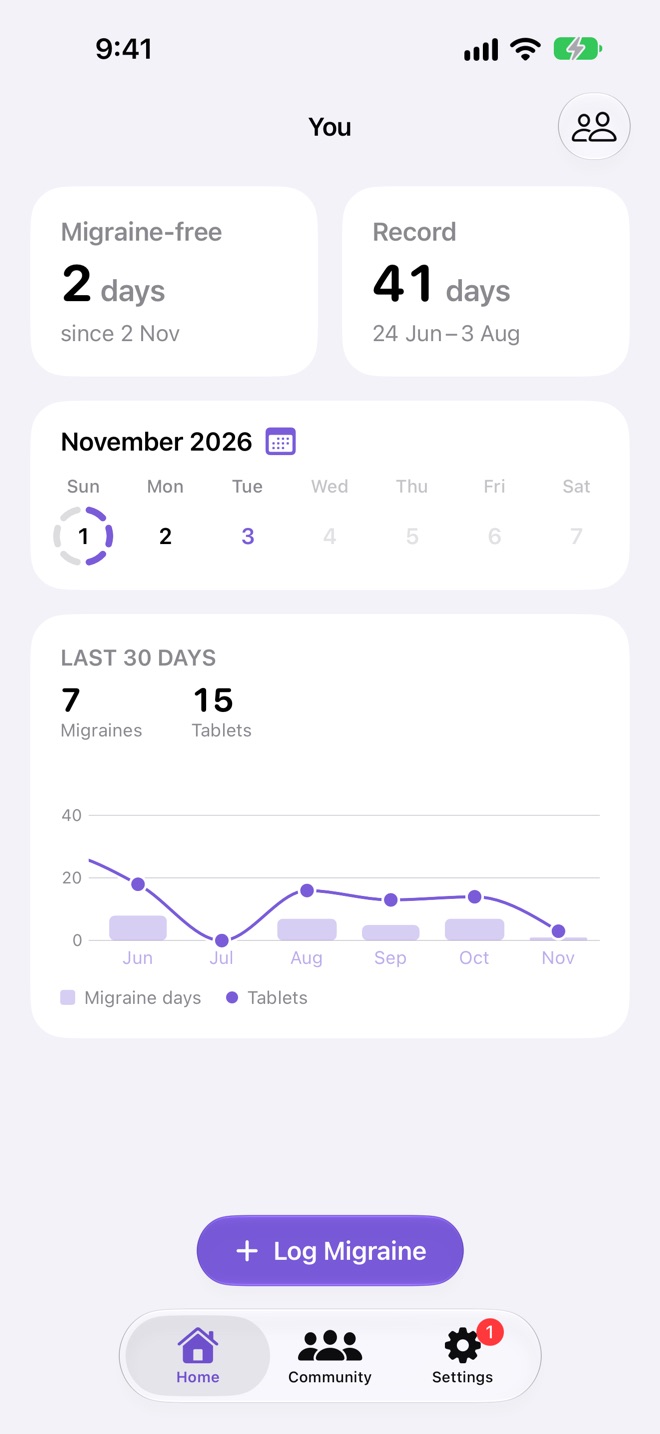
| Home | Your migraine-free days and record, this week, the last 30 days and every month. The people button switches to someone who shares their migraines with you. |
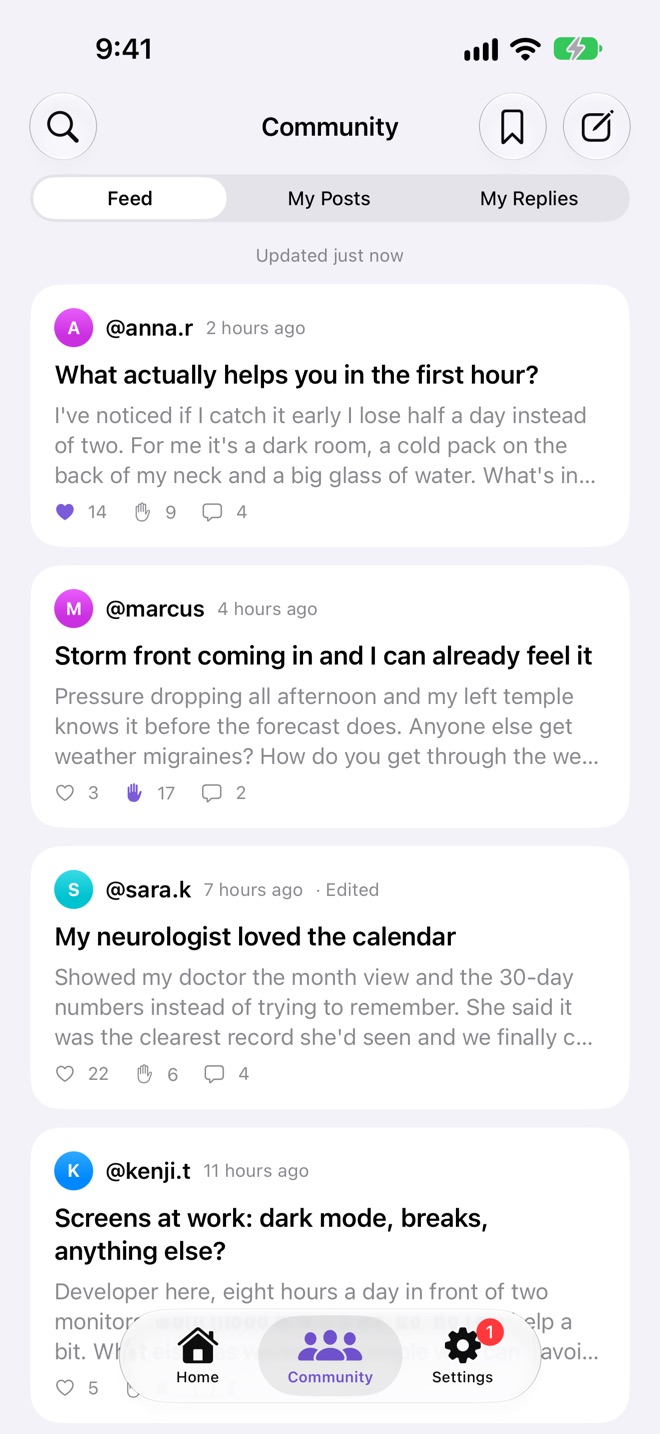
| Community | Posts from everyone who uses Migraine Book, your own posts and replies, saved posts and search. |
| Settings | Requests to see your migraines, your username, Migraine Plus, who you share with, Contacts, Siri and support. A red badge shows people waiting for you to approve them. |
Logging a migraine
Each day has one entry: a migraine, and the tablets you took for it, from none to six. A day without a migraine has no entry at all.
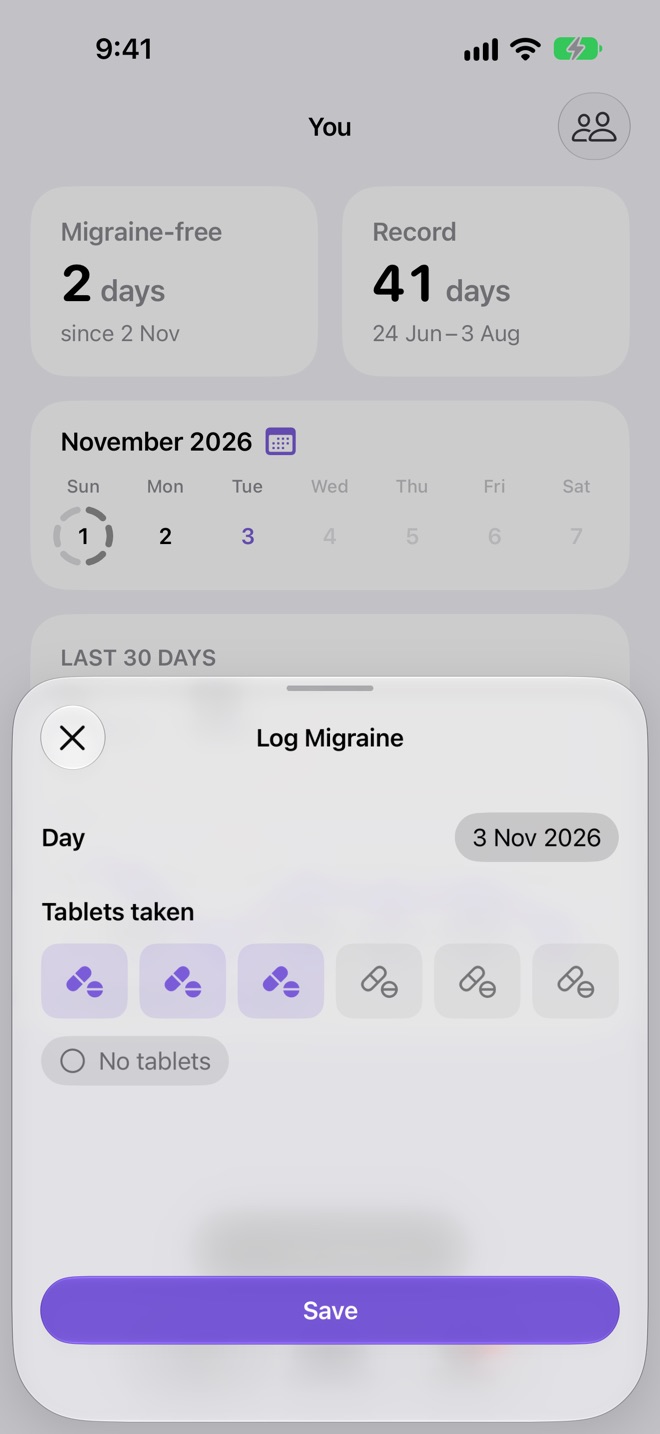
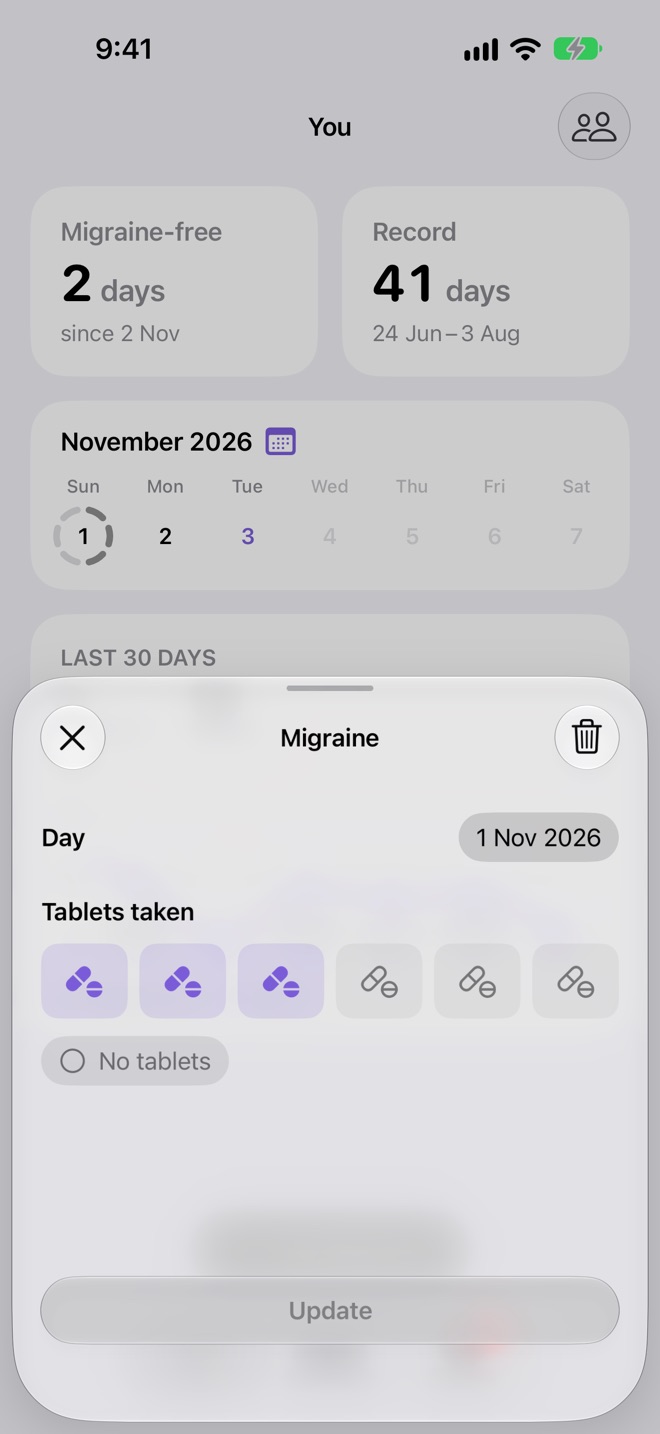
- Tap Log Migraine at the bottom of Home. It opens on today.
- Tap the tablets you took. Tapping the third fills three; No tablets is a migraine without any.
- Tap Save.
Once today is logged, the button says Edit Today · 2 tablets. Tap it to add the next tablet, and Update.
Another day
Tap any day up to today in the week on Home, or in the calendar, to log it. Tap Day in the sheet to pick a different date. Days still to come can't be logged.
Change or delete a day
Open a logged day, change its tablets and tap Update, or tap the bin to delete it. Changes sync to all your devices and to the people you share with.
Migraine-free days and the record
The two cards at the top of Home show how things are going.
- Migraine-free: the days since your last migraine, and the day the stretch began, like "2 days, since 2 Nov". On a migraine day it shows 0 days.
- Record: the longest stretch you've ever gone between two migraines, with its first and last day, like "41 days, 24 Jun – 3 Aug". When the stretch you're on now beats it, the record shows Right now.
Both count from the migraines you've logged, so the further back your diary goes, the truer your record. Without Migraine Plus the record still counts your whole history.
The last 30 days and the chart
Below the week, a card counts your migraine days and tablets over the last 30 days, over a chart of every month.
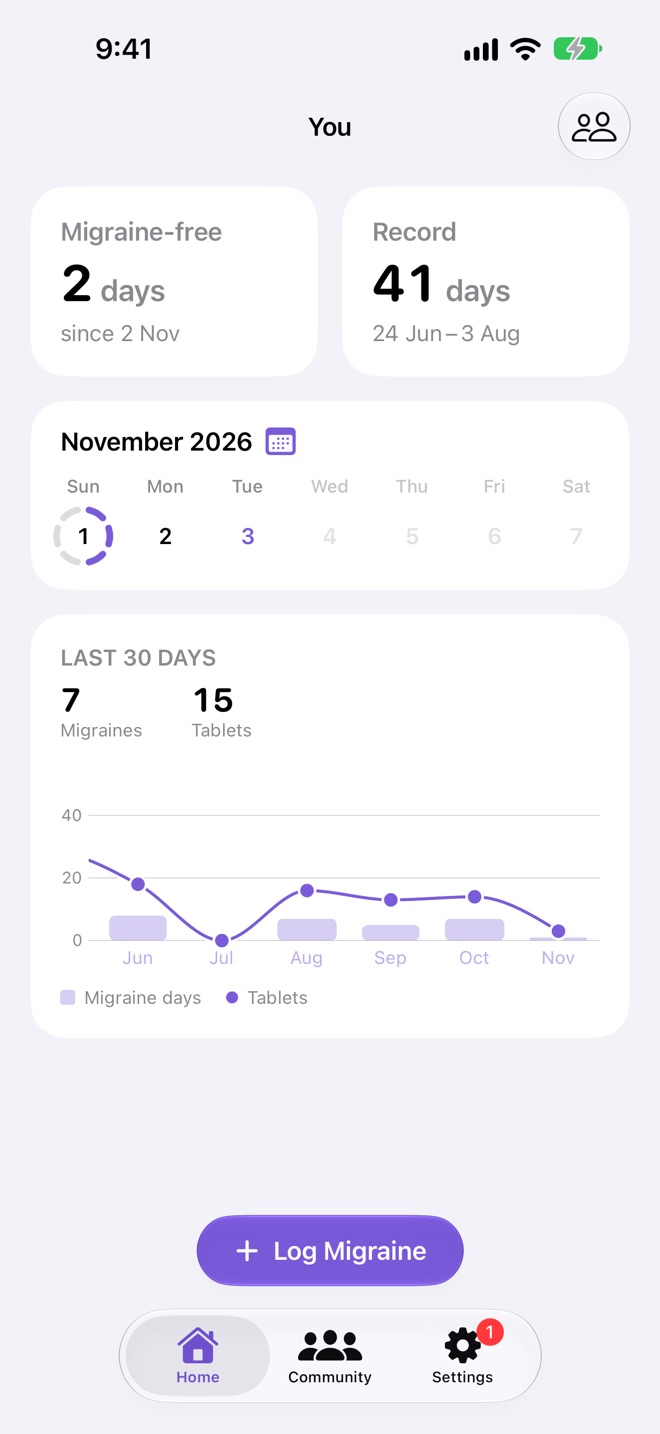
- Swipe the chart sideways to go back through the months.
- Tap a month to show its numbers in place of the last 30 days. Tap it again to go back.
- Migraine days and tablets share one axis, as most migraines take a tablet or two.
The week and the calendar
The week on Home rings each migraine day with its tablets: six arcs, one per tablet a day allows, as many filled in as you took. Today is tinted, days to come are dimmed.
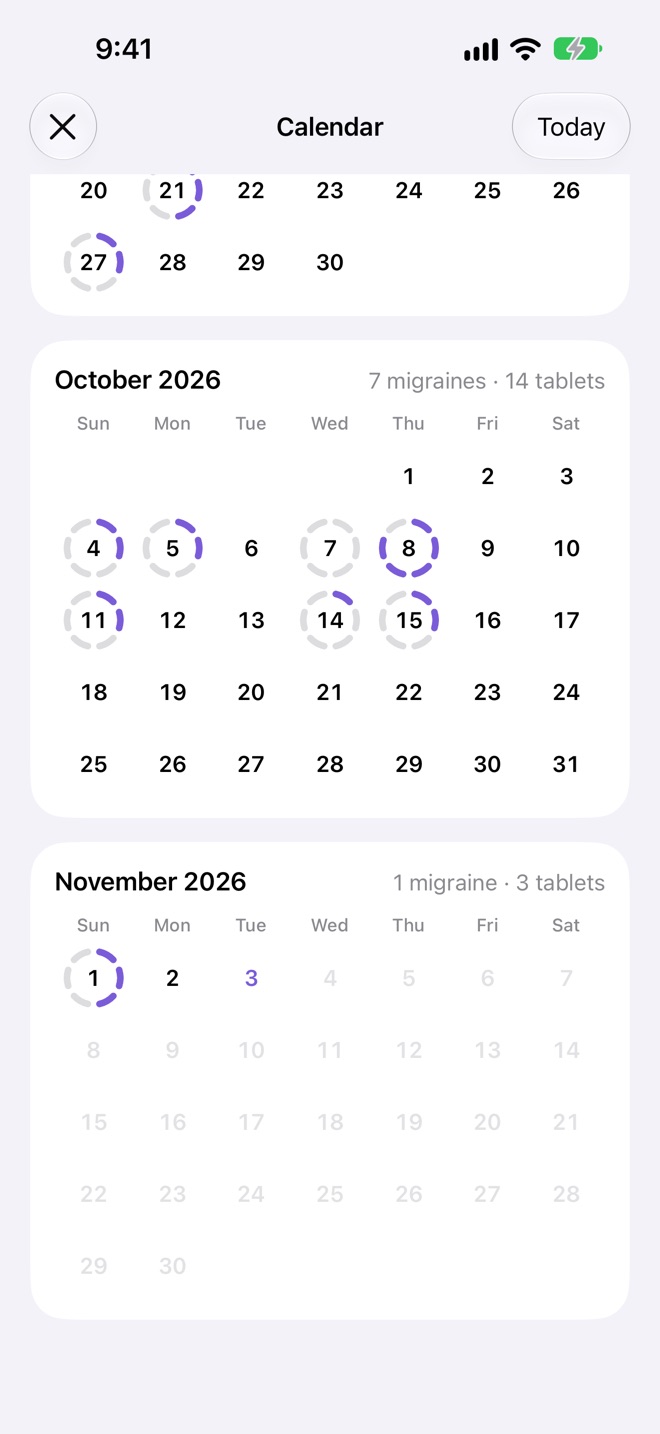
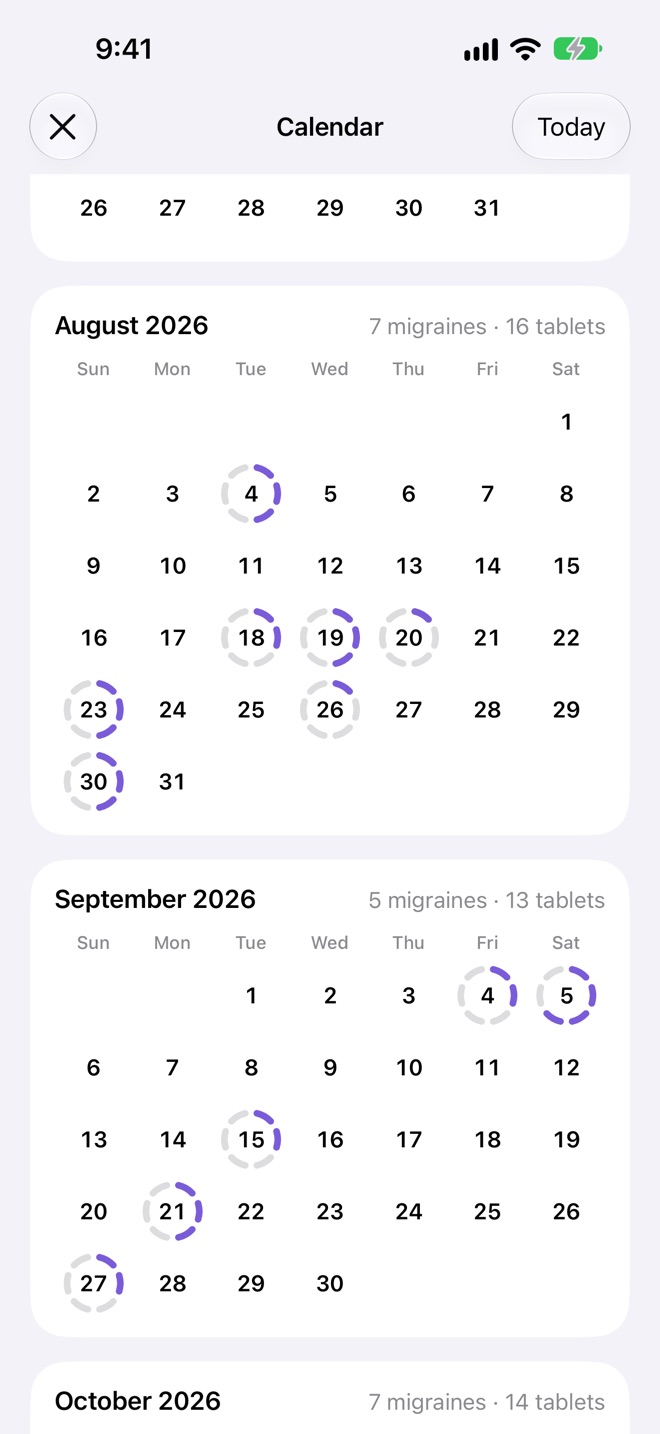
- Swipe the week to go a week back or forward. Its title, like November 2026, opens the calendar.
- Each month in the calendar has its totals, like "9 migraines · 12 tablets". Tap Today to jump back.
- Tap a day to log or change it, for migraines you can log.
- Without Migraine Plus the calendar shows the last six months; Show Earlier Months explains Plus.
Your username
A username lets people find you to ask to see your migraines, and is your name in the Community.
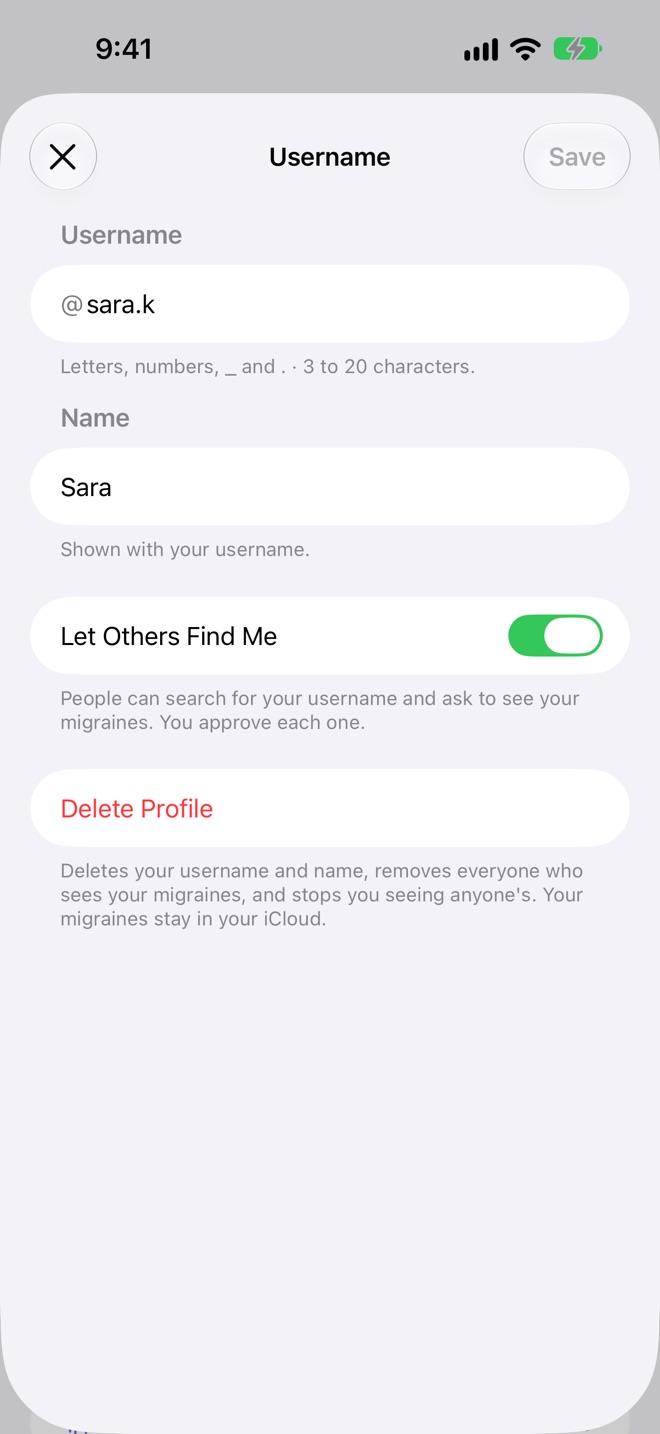
- Letters, numbers, _ and ., 3 to 20 characters. It's checked against everyone else's as you type.
- Name is shown with your username, on your profile and to people you share with.
- Let Others Find Me: turn it off and people can't search for you. You can still ask others to share.
- Delete Profile deletes your username and name, removes everyone who sees your migraines and stops you seeing anyone's. Your migraines stay in your iCloud.
Sharing your migraines
People who find your username can ask to see your migraines. Nobody sees them until you approve.
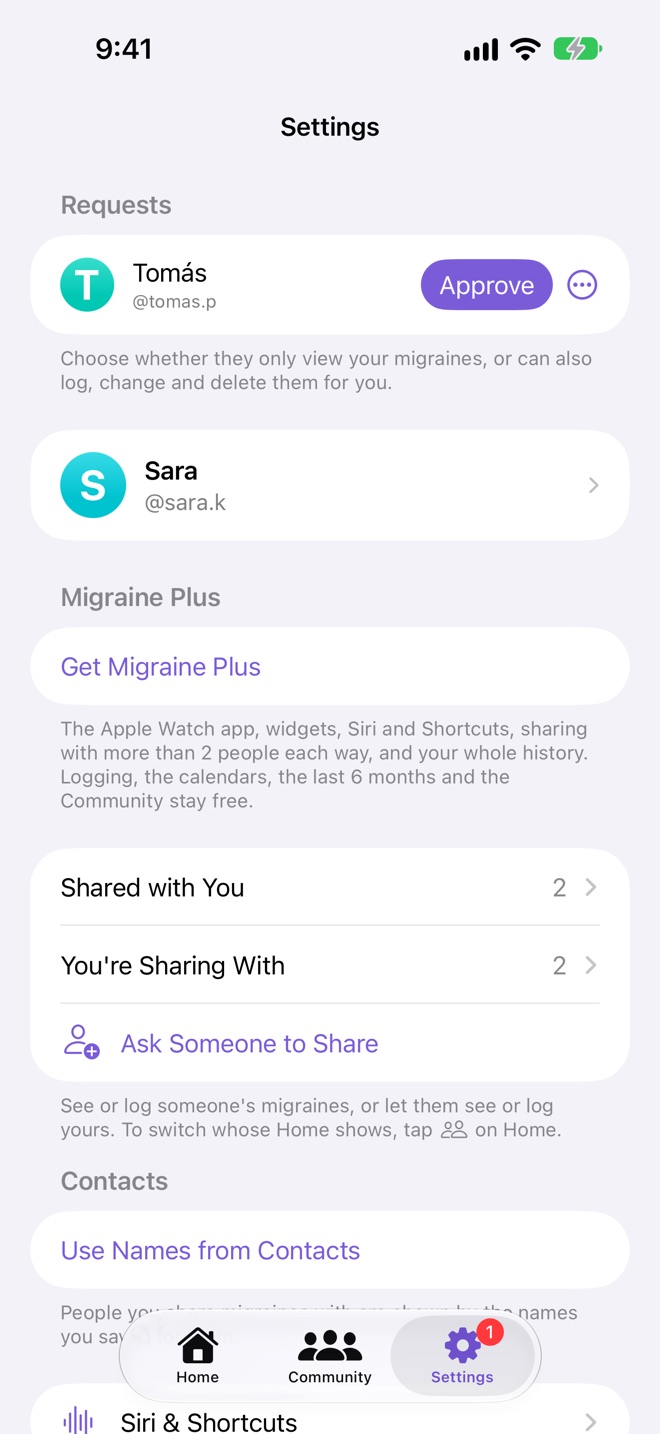
- When someone asks, they appear under Requests in Settings, and the Settings tab shows a badge.
- Tap Approve, or the More button to Decline or Block.
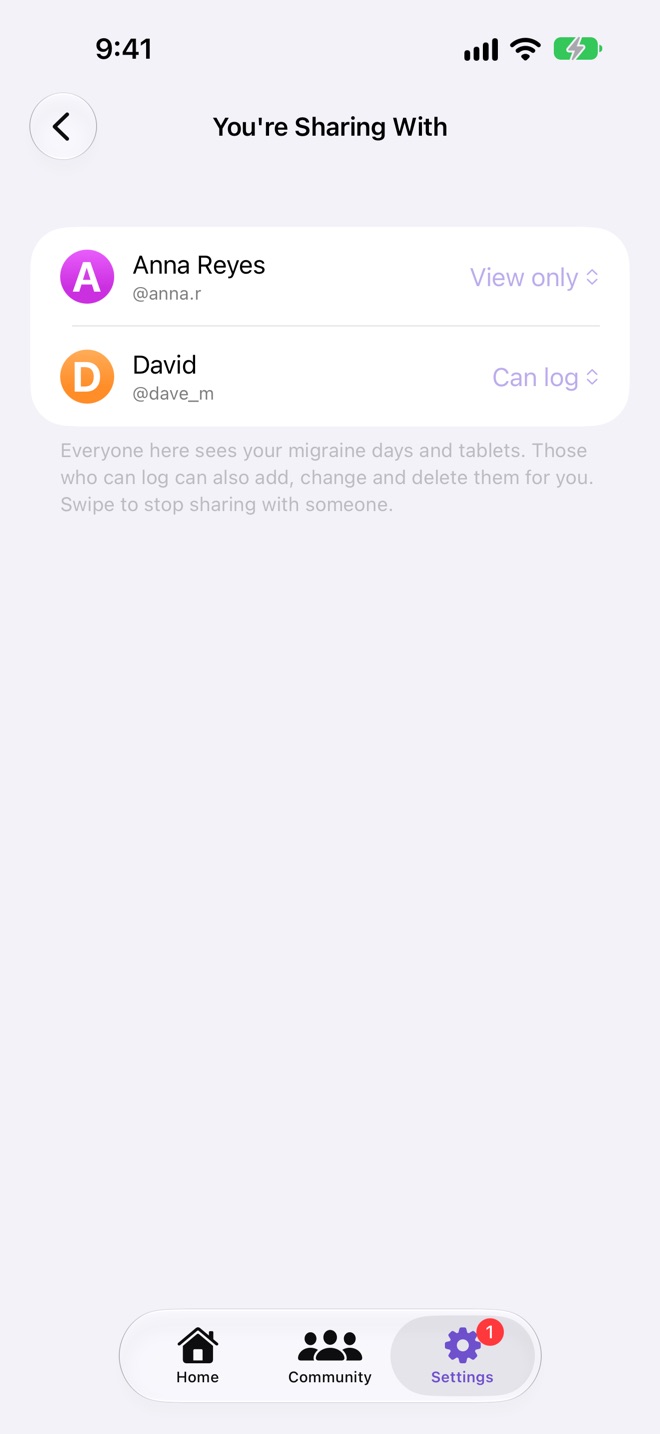
- In Settings → You're Sharing With, choose for each person: View Only, or Can Log, to also add, change and delete days for you.
Swipe someone to Stop Sharing, or to Block them from asking again. Everyone you share with sees your migraine days and tablets, nothing else: not your posts, saved posts or settings.
Seeing someone else's
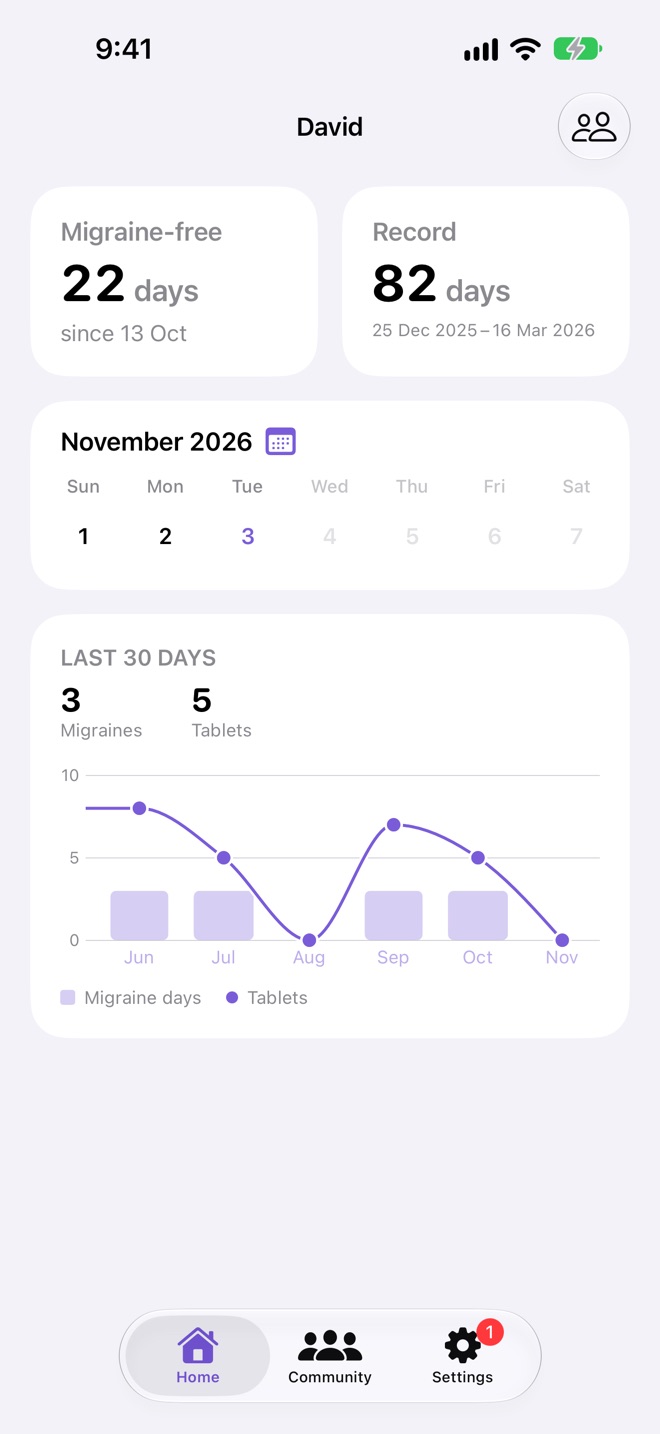
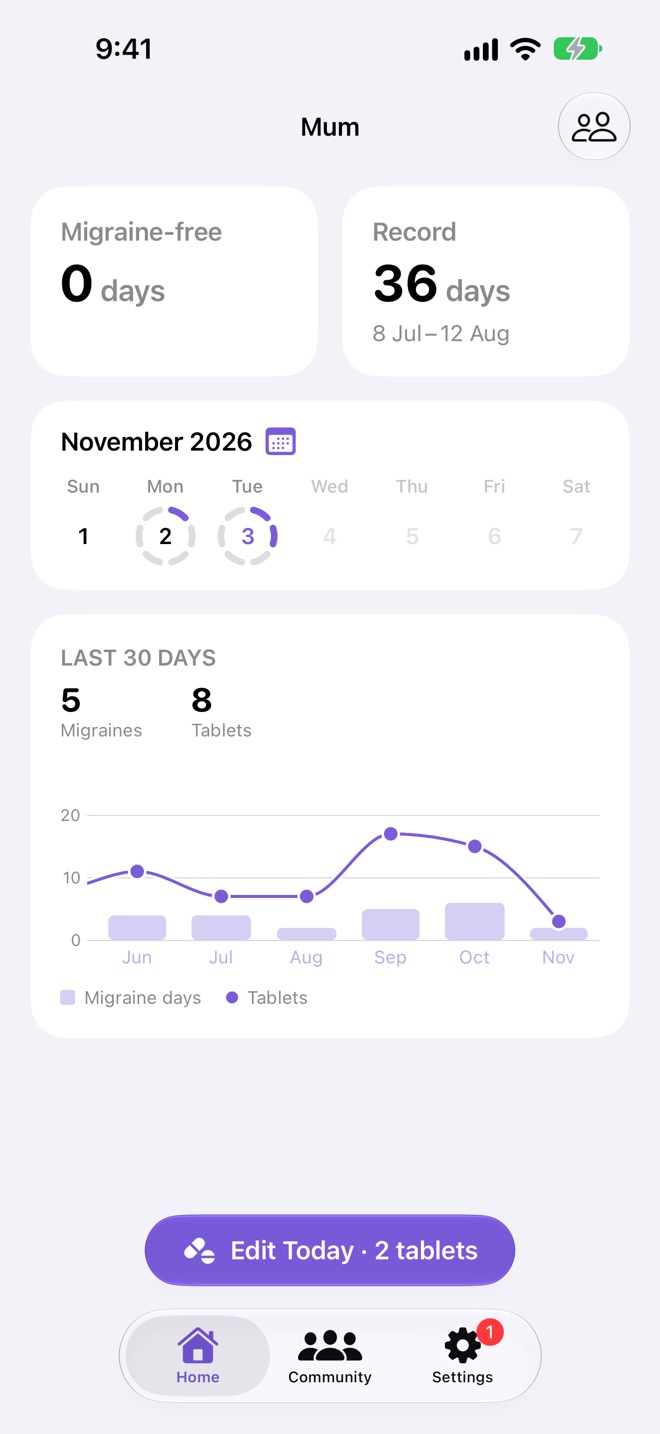
Ask a parent, partner or friend to share their migraines with you, and switch Home to theirs whenever you like.
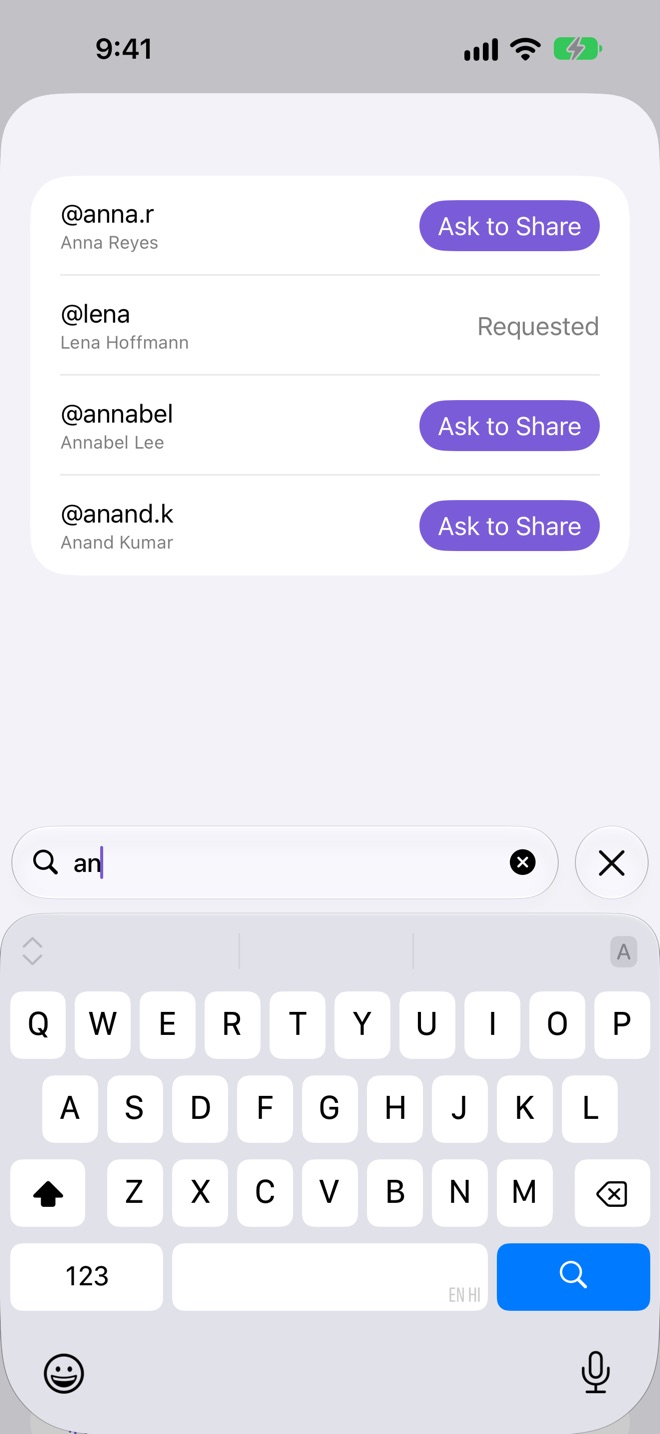
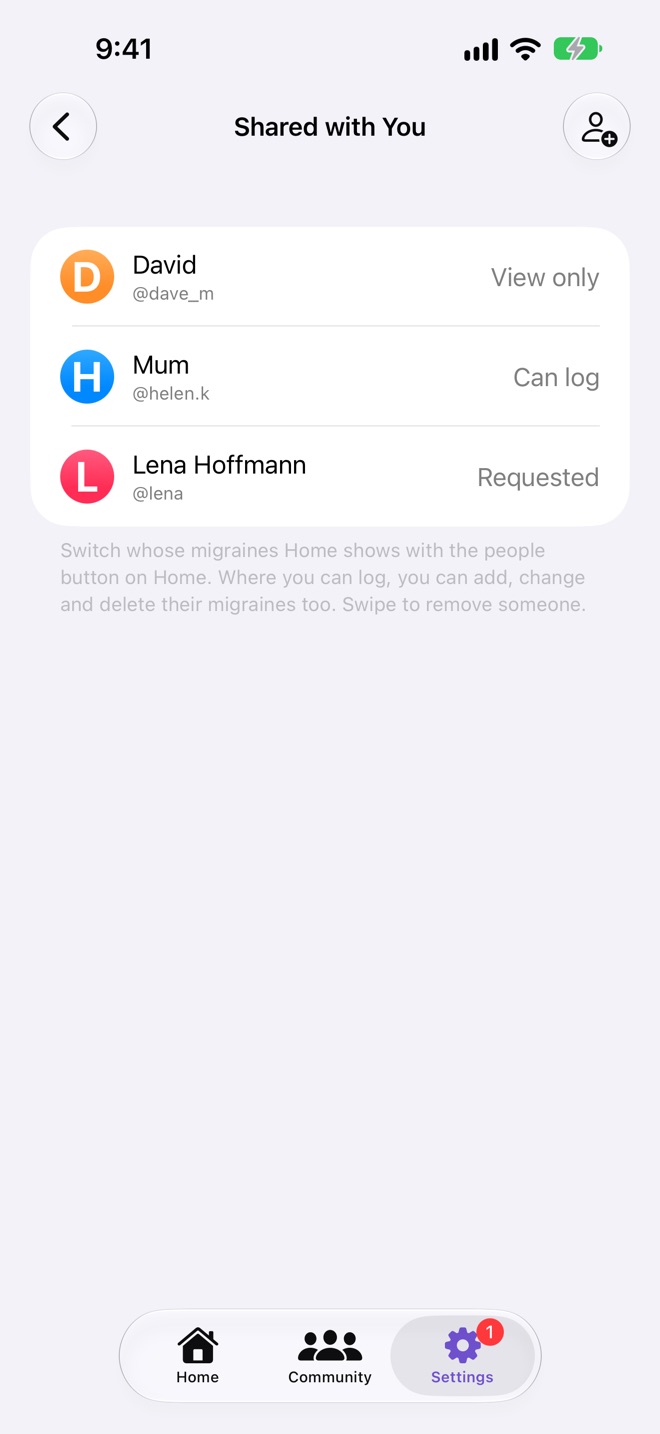
- Open Settings → Ask Someone to Share, search, and tap Ask to Share. You need a username so they know who's asking.
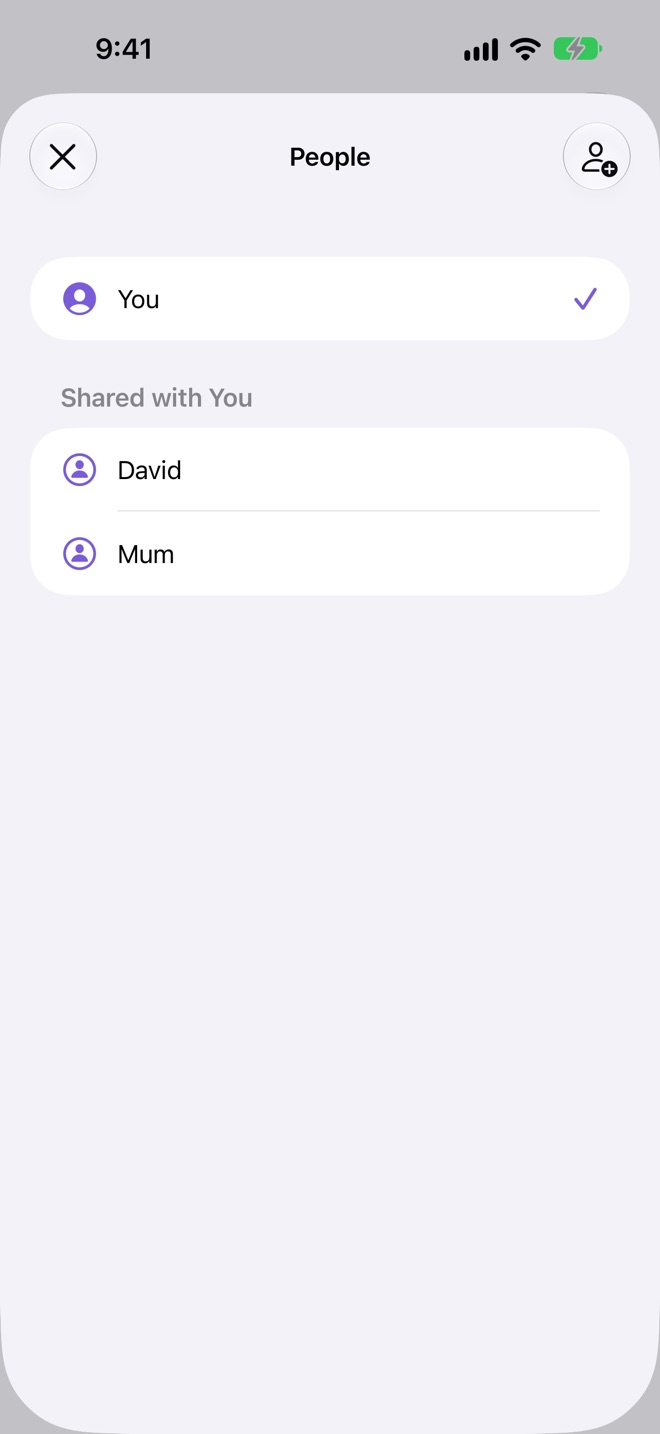
- Once they approve, they're in Settings → Shared with You and in the people button on Home. Swipe to remove someone, or to cancel a request.
- Home remembers who you picked, so it opens on their migraines every time, until you pick another.
- If they let you log, you can log, change and delete their days, and Siri can log for them too.
The Community
Everyone's posts, newest first. Reading needs nothing; posting and reacting need a username.
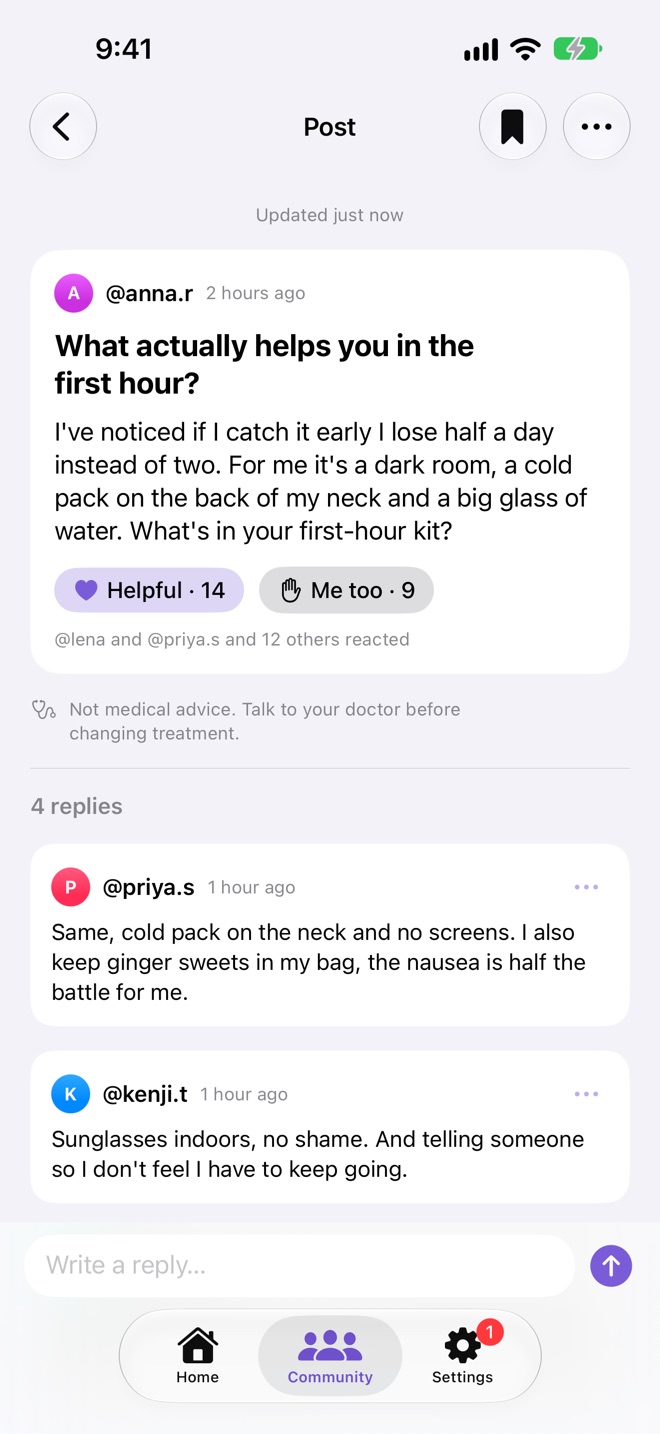
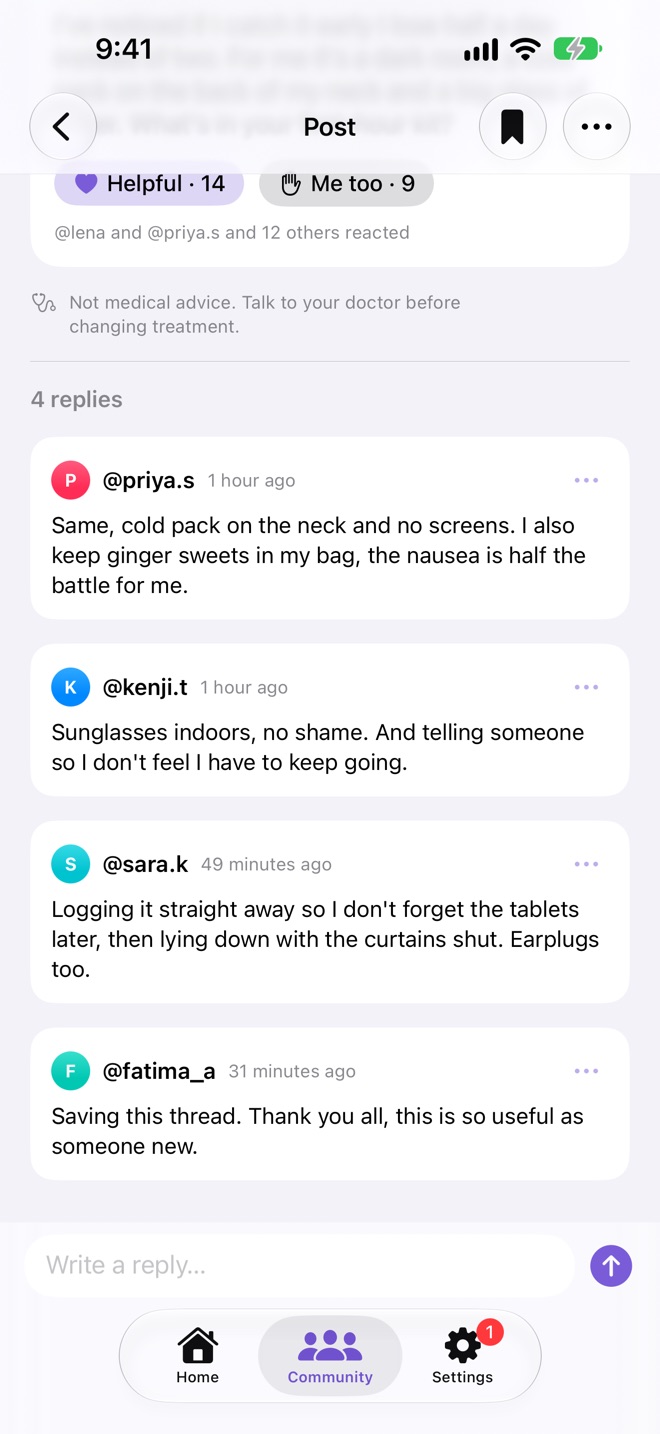
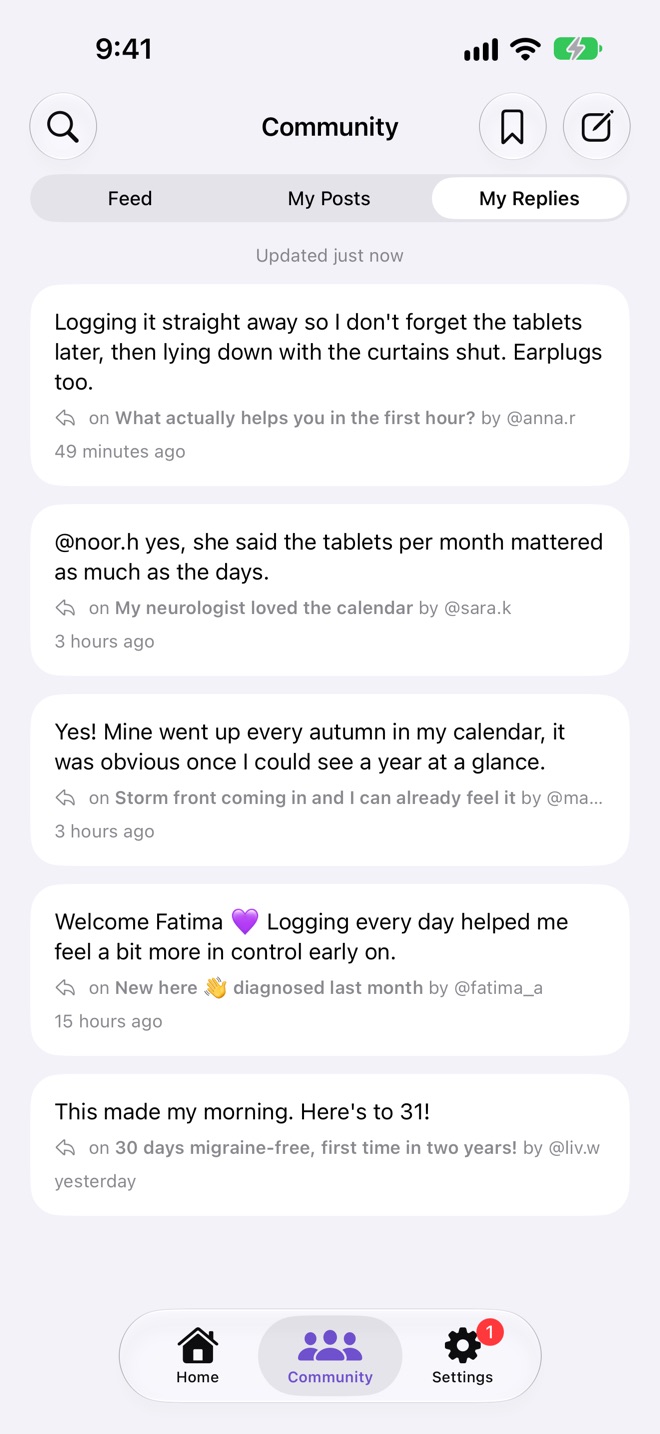
- Helpful and Me too are the two reactions: that someone's advice helped, or that you go through it too. Tap again to take it back.
- Pull down to refresh. Posts and replies that were changed say Edited.
- Tap someone's @username for their profile and all their posts.
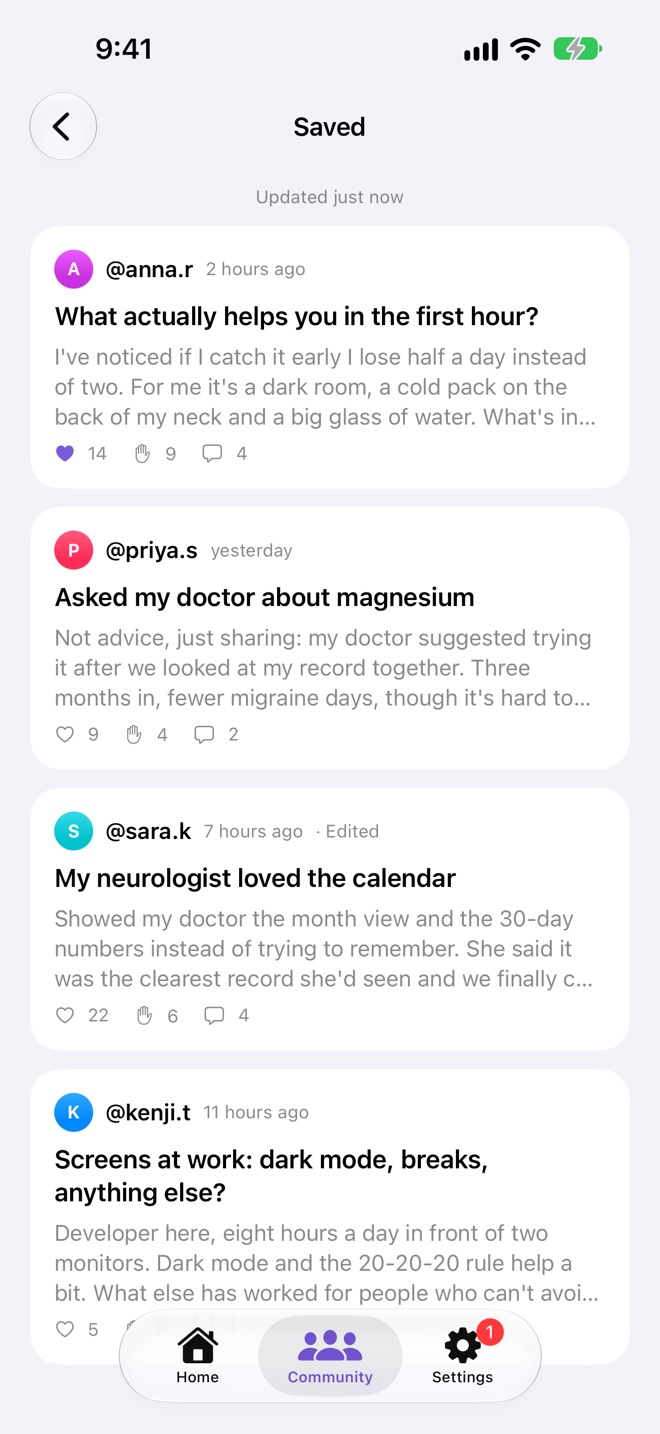
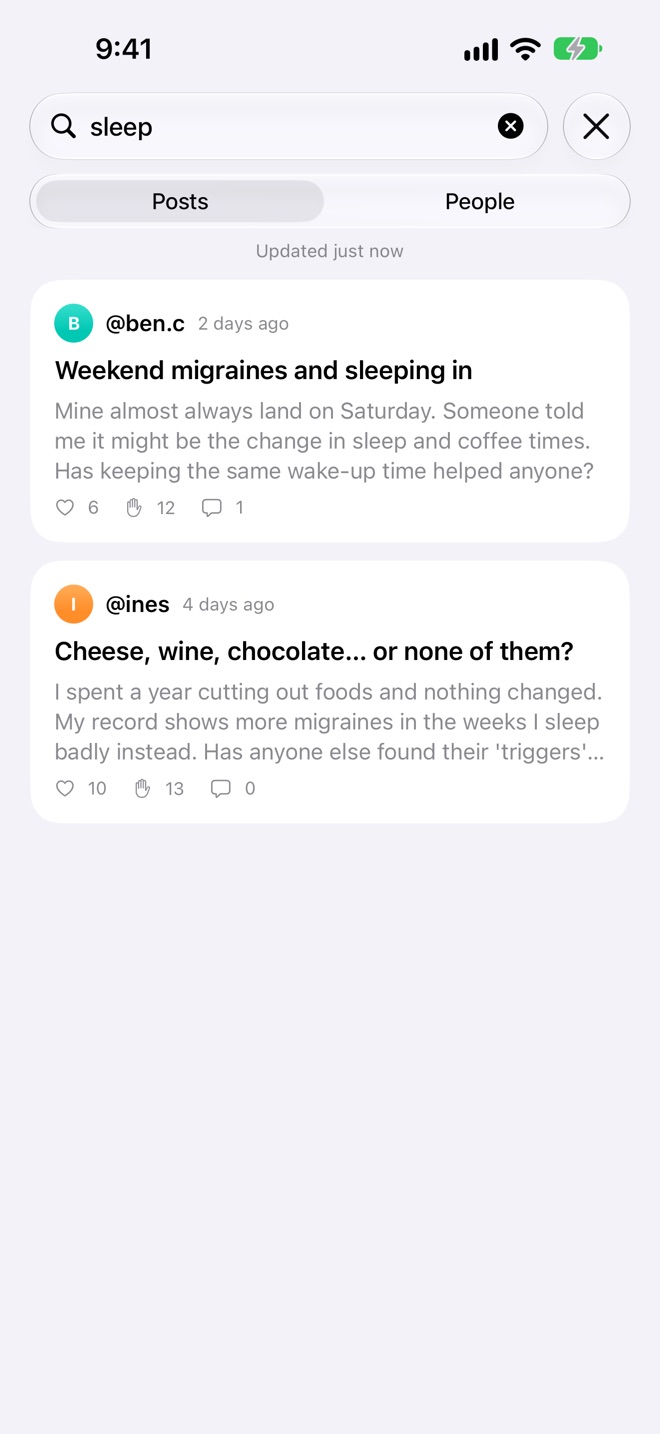
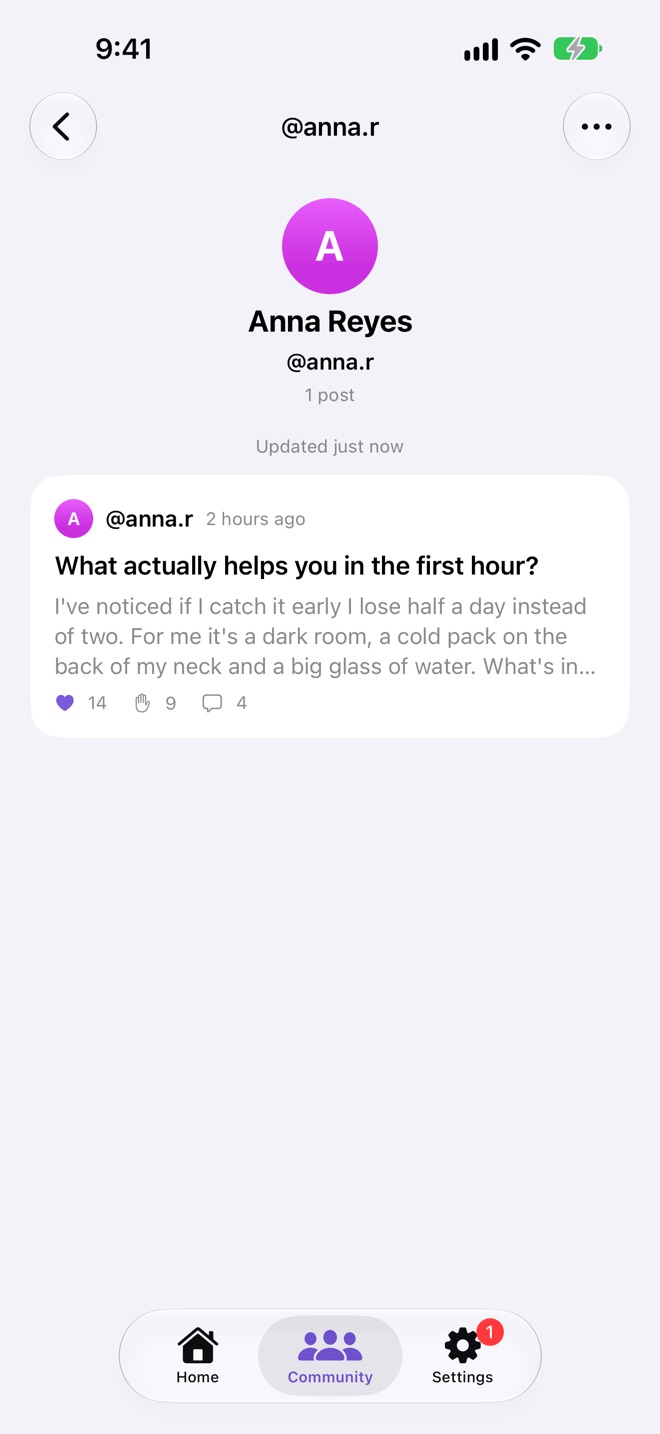
Saved posts sync between your devices, but aren't shared with anyone, not even the people who see your migraines.
Posting and replying
Posts are a title and what you want to say or ask, in text.
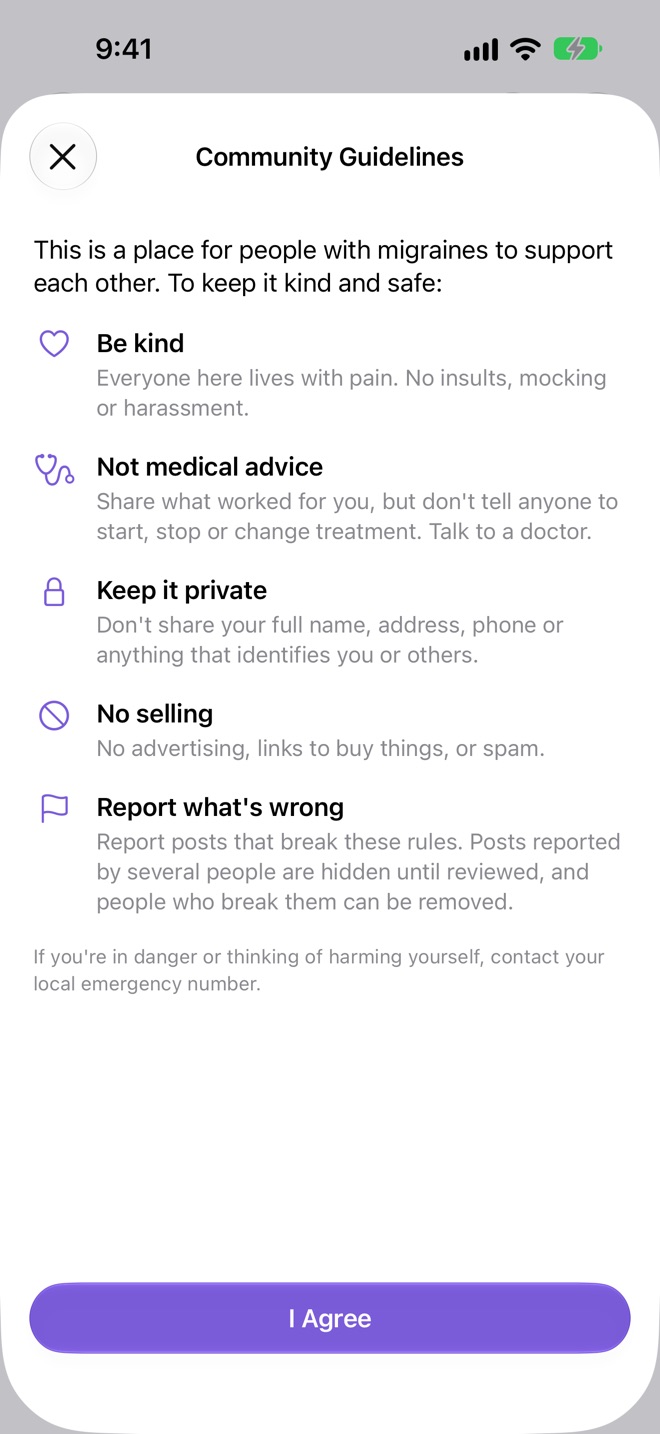
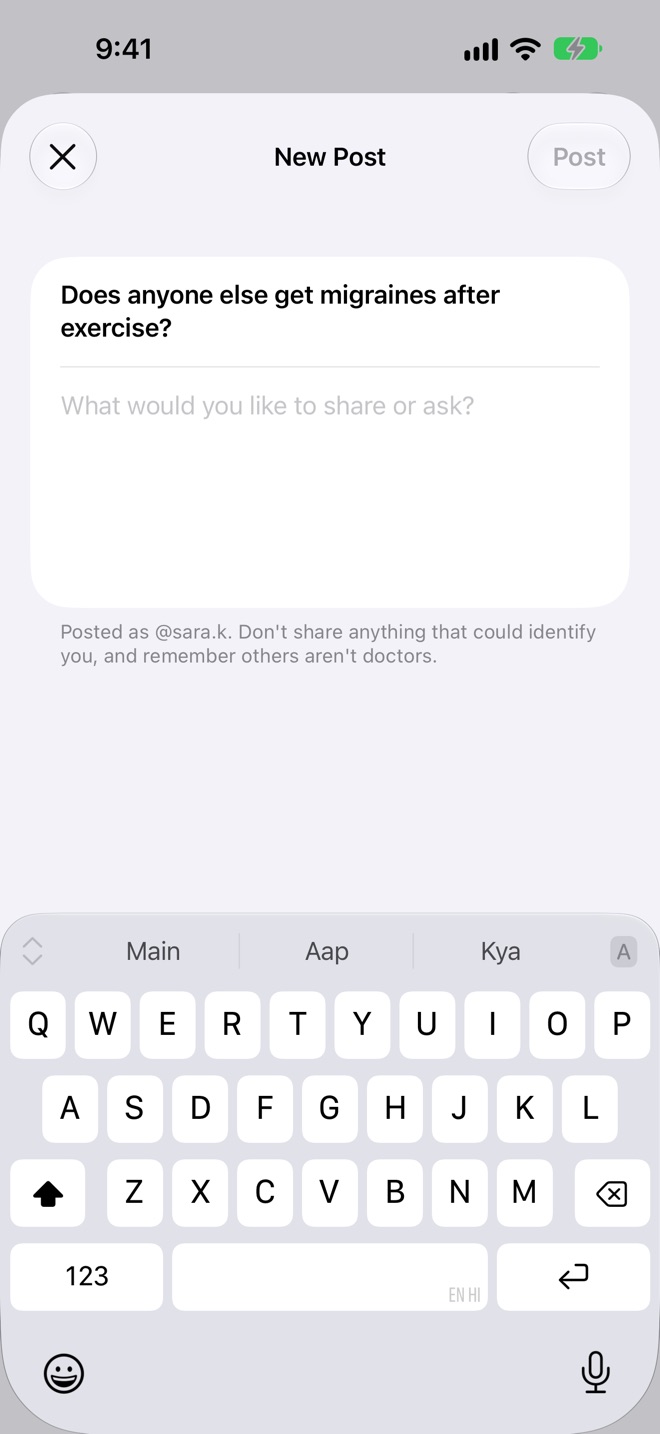
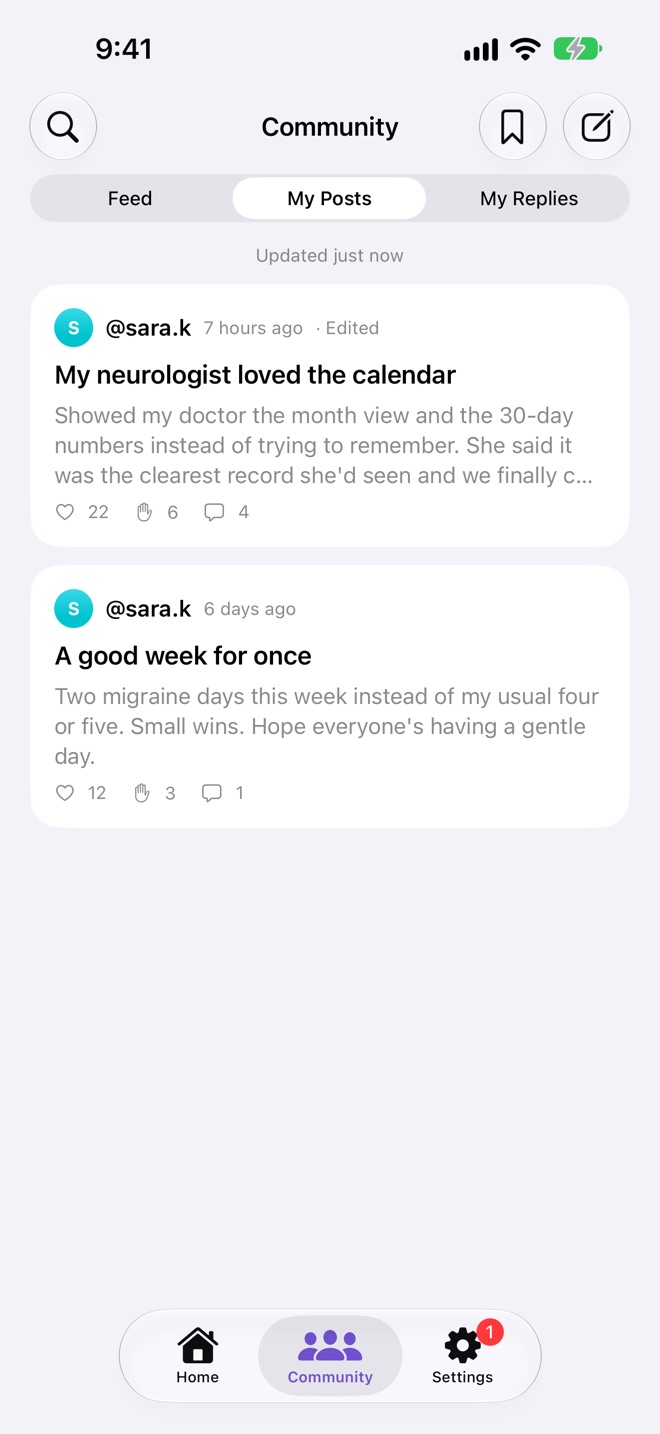
- Tap New Post at the top of the Community. The first time, read the guidelines and tap I Agree.
- Write a title and your post, and tap Post.
To reply, open a post and write in the box at the bottom. Edit or delete your own posts and replies from their menus; an edited post keeps its place in the feed.
Reporting, blocking and the guidelines
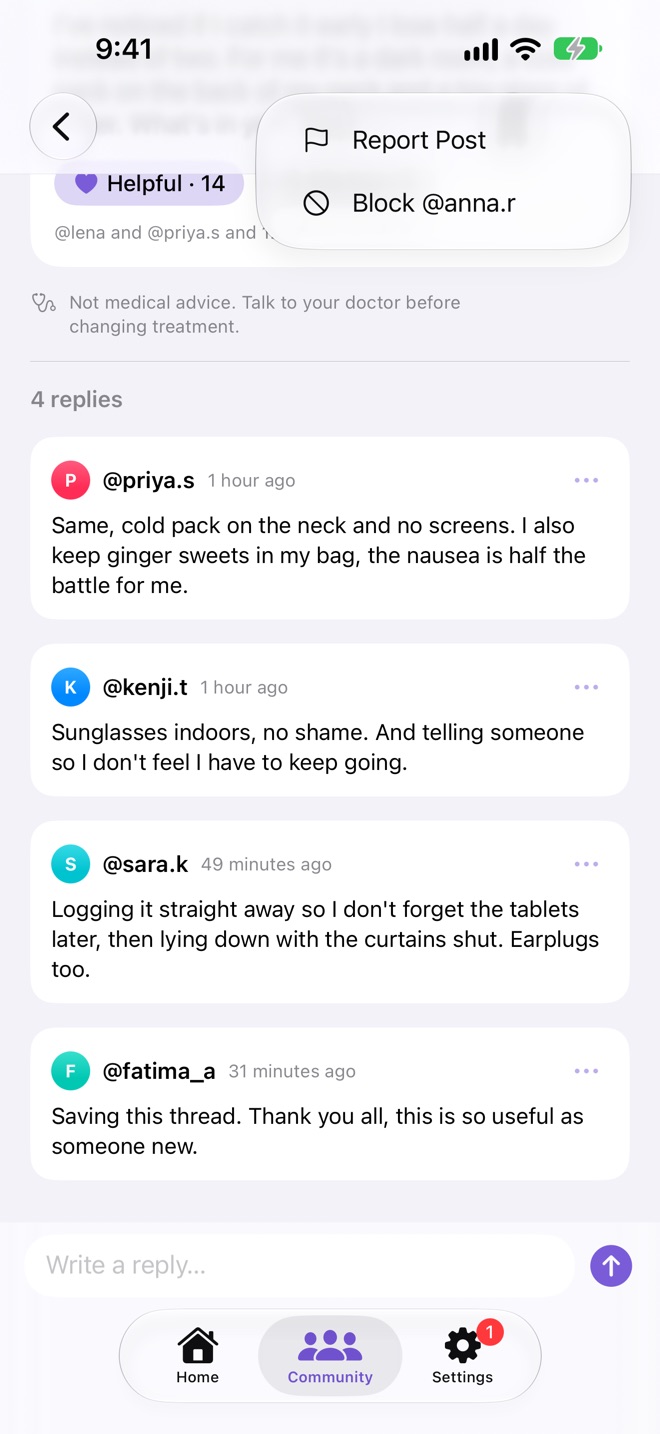
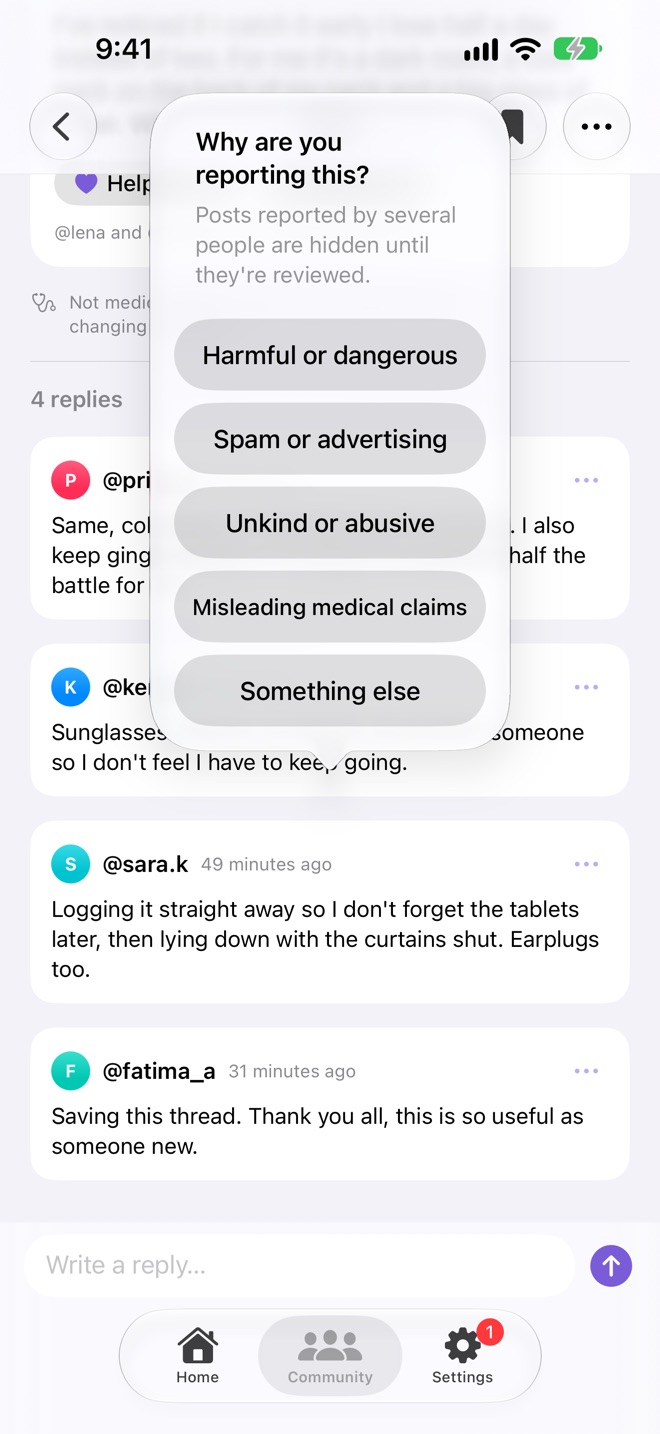
- Report a post or reply as harmful or dangerous, spam or advertising, unkind or abusive, misleading medical claims, or something else. Posts reported by several people are hidden until they're reviewed.
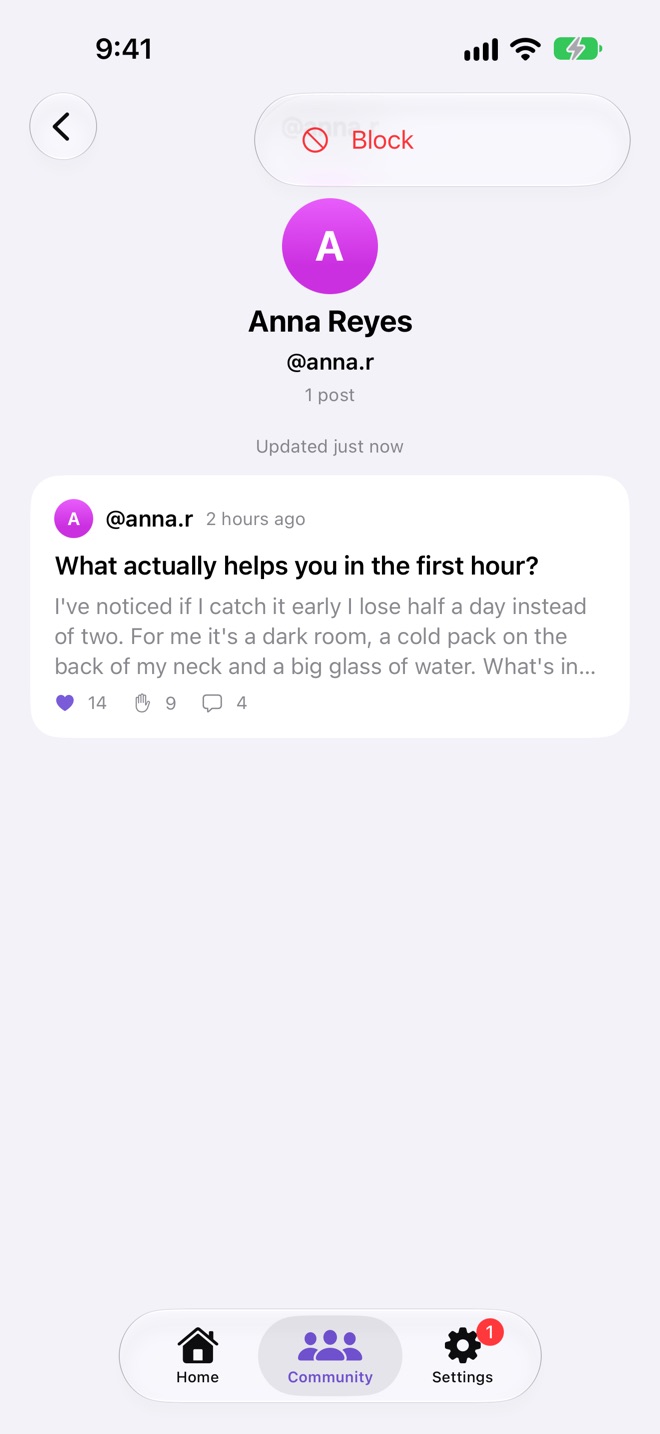
- Block someone and you won't see their posts or replies. Unblock them from their profile.
- The guidelines: be kind, not medical advice, keep it private, no selling, and report what's wrong. People who break them can be removed.
Siri and Shortcuts
Four shortcuts are ready as soon as Migraine Book is installed. Find them in Settings → Siri & Shortcuts, or in the Shortcuts app.
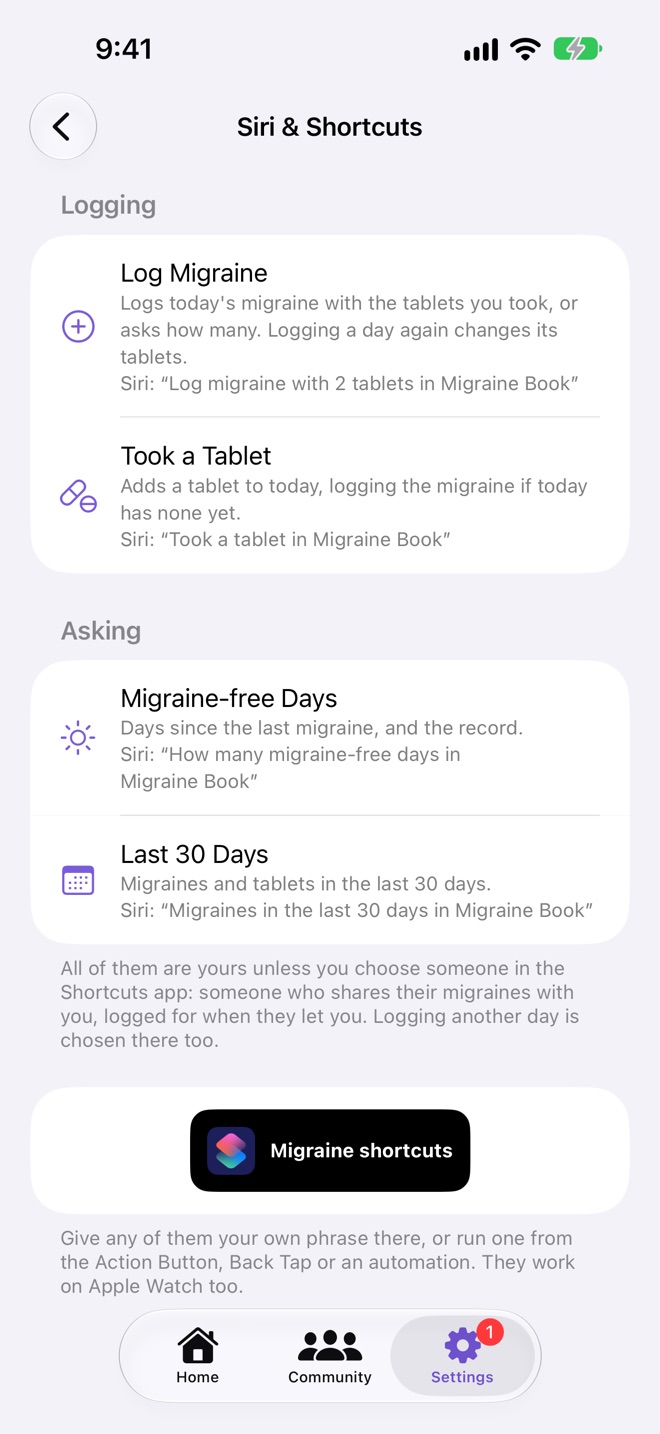
| Shortcut | Say | What it does |
|---|---|---|
| Log Migraine | Log migraine with 2 tablets in Migraine Book | Logs today's migraine with those tablets, or asks how many. Logging a day again changes it. |
| Took a Tablet | Took a tablet in Migraine Book | Adds a tablet to today, logging the migraine if it's the first. |
| Migraine-free Days | How many migraine-free days in Migraine Book | Days since the last migraine, and the record. |
| Last 30 Days | Migraines in the last 30 days in Migraine Book | Migraines and tablets in the last 30 days. |
All of them are yours unless you choose someone in the Shortcuts app: someone who shares their migraines with you, logged for when they let you. Logging another day is chosen there too. Give any of them your own phrase, or run one from the Action Button, Back Tap or an automation. They work on Apple Watch too.
Widgets
| Widget | Where | Shows |
|---|---|---|
| Migraine-free | Home Screen (small), Lock Screen, Mac desktop | Days since the last migraine, and the record |
| This Week | Home Screen (medium), Mac desktop | Migraine-free days, the last 30 days, and this week's rings |
| Last 30 Days | Lock Screen | Migraines and tablets in the last 30 days |
| Migraine-free, Last 30 Days | Apple Watch face and Smart Stack | The same, on your wrist |
Touch and hold a widget and choose Edit Widget to pick whose migraines it shows: Same as App follows Home, or choose someone who shares with you. Tap a widget to open Home.
Apple Watch
The watch app syncs with iCloud on its own, so it works without your iPhone nearby. Swipe sideways between Home, the Community and Settings.
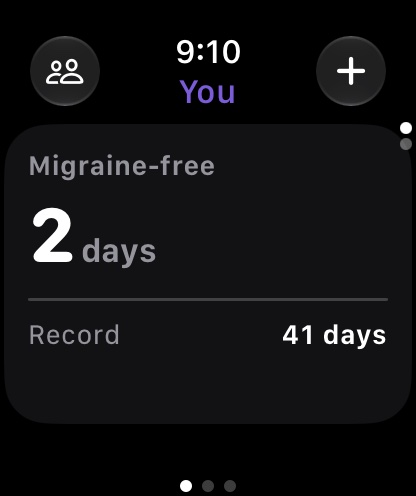
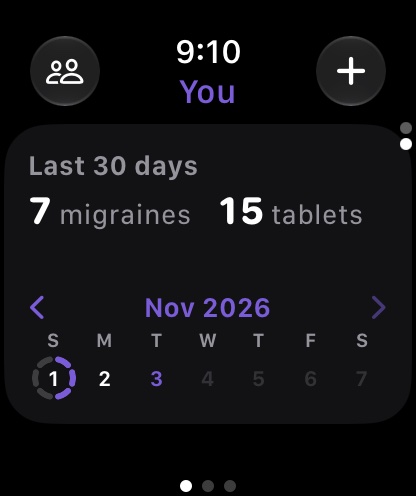
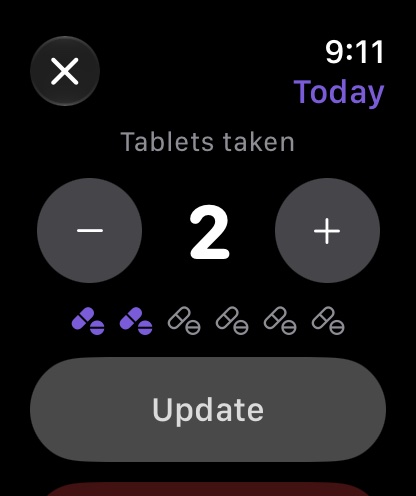
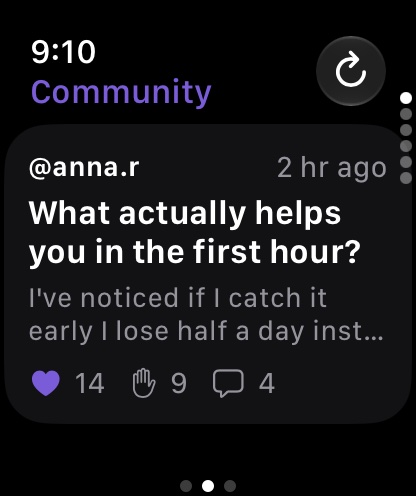
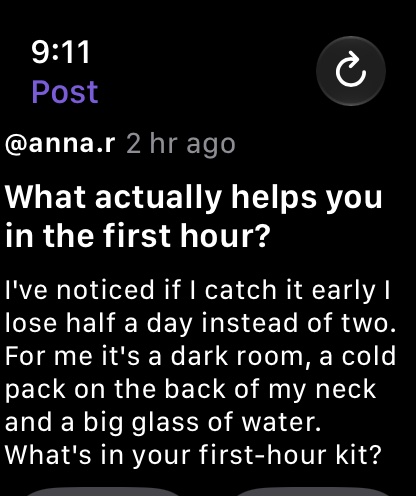
- + logs today; tap a day in the week to log or change it. Pick the tablets with the Digital Crown or the − and + buttons.
- The people button shows someone who shares with you; those who let you log are marked.
- On the Community page, read posts and give Helpful or Me too. Posting and replying are on your iPhone.
iPad and Mac
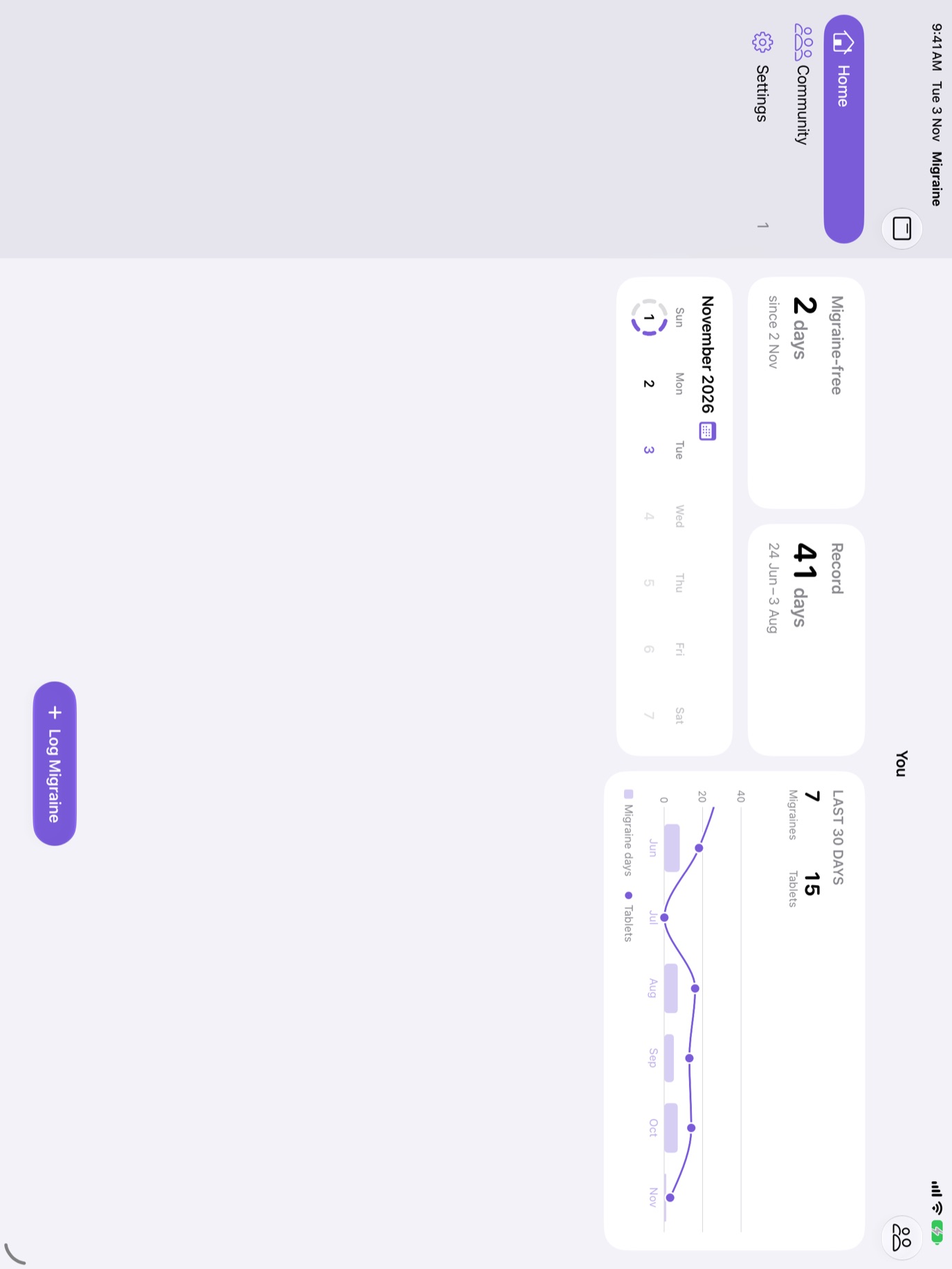
- The tabs become a sidebar, and Home puts the cards and week beside the chart.
- On a Mac, and an iPad with a keyboard: Log Migraine ⌘N, New Post ⇧⌘N, Search Community ⌘F, and a shortcut for each tab.
iCloud and syncing
Migraine Book syncs through your own iCloud account: sign in with the same Apple Account on each device. Everything is saved on your device first, so it works offline and syncs when you're back online. If something's wrong, like iCloud storage being full, Settings says so; your migraines are kept on the device until there's space.
If you sign in to a different iCloud account, Migraine Book asks before removing the other account's data from the device, and warns you if any of it hadn't reached iCloud yet.
Coming from the old Migraine Book
The first time Migraine Book syncs with your iCloud, it brings in every migraine you logged in the old app, once, on whichever of your devices gets there first. The old data is only read, never changed. Siri shortcuts you made with the old app, like "Log Migraine with 3 tablets", keep working.
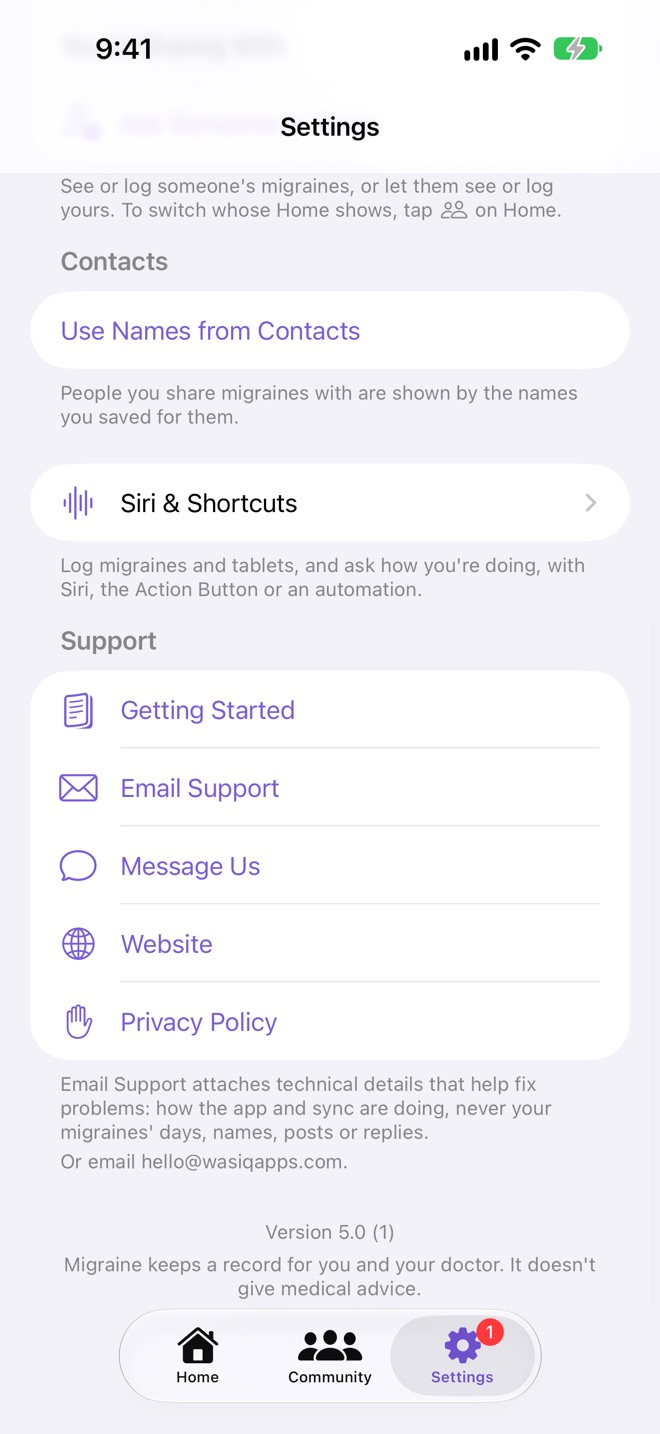
Every setting, explained
| Setting | What it does |
|---|---|
| Requests | People asking to see your migraines: Approve, Decline or Block. |
| Your card | Your username and name, Let Others Find Me, and Delete Profile. Choose a Username if you haven't. |
| Migraine Plus | See Plans, or Manage Subscription. |
| Shared with You · You're Sharing With | Who you see, and who sees you. Ask Someone to Share. |
| Contacts | Use Names from Contacts, to show people by the names and photos you saved for them. |
| Siri & Shortcuts | Each shortcut, and what to say. |
| Support | Getting Started (this guide), Email Support, Message Us, Website and Privacy Policy. |
Migraine Plus
Everyone gets a free week of Migraine Plus from the day they first download. After it, logging, the calendars, the last six months and the Community stay free. Plus adds:
- The Apple Watch app
- Home Screen and Lock Screen widgets
- Siri and Shortcuts
- Seeing more than two people's migraines, and sharing yours with more than two
- Your whole history, before the last six months
It's $2.49 a year, or $9.99 once for life, and one purchase covers your Family Sharing group. Prices may vary by country.
Help and troubleshooting
My migraines aren't on my other device
Check that both are signed in to the same iCloud account and online, and that Settings doesn't say iCloud needs attention.
I can't find someone to ask
They need a username with Let Others Find Me turned on. Search part of their username or name.
I can't log someone's migraines
They've shared View Only. Ask them to change you to Can Log in Settings → You're Sharing With.
I can't post
Posting needs iCloud, a username, and the guidelines agreed to.
Still stuck? Tap Settings → Email Support. It attaches technical details that help us fix problems, never your migraines' days, names, posts or replies. Or email [email protected].