Your first launch
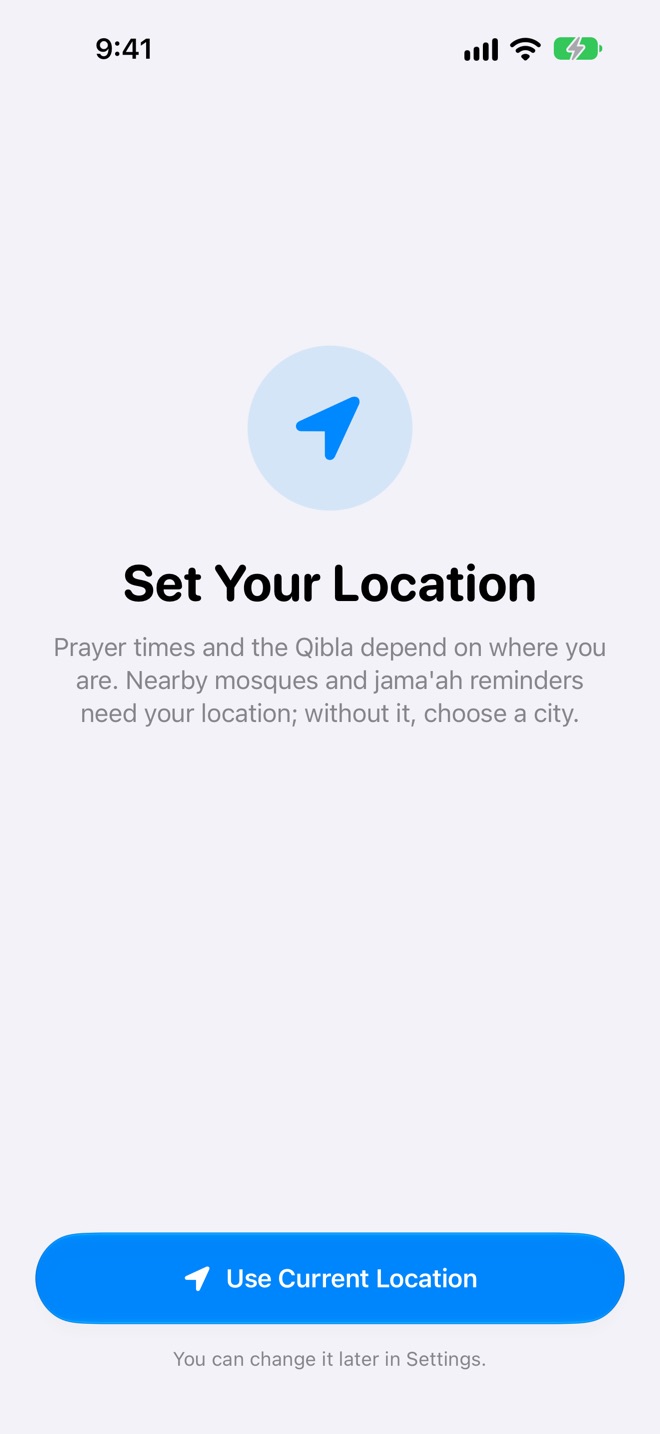
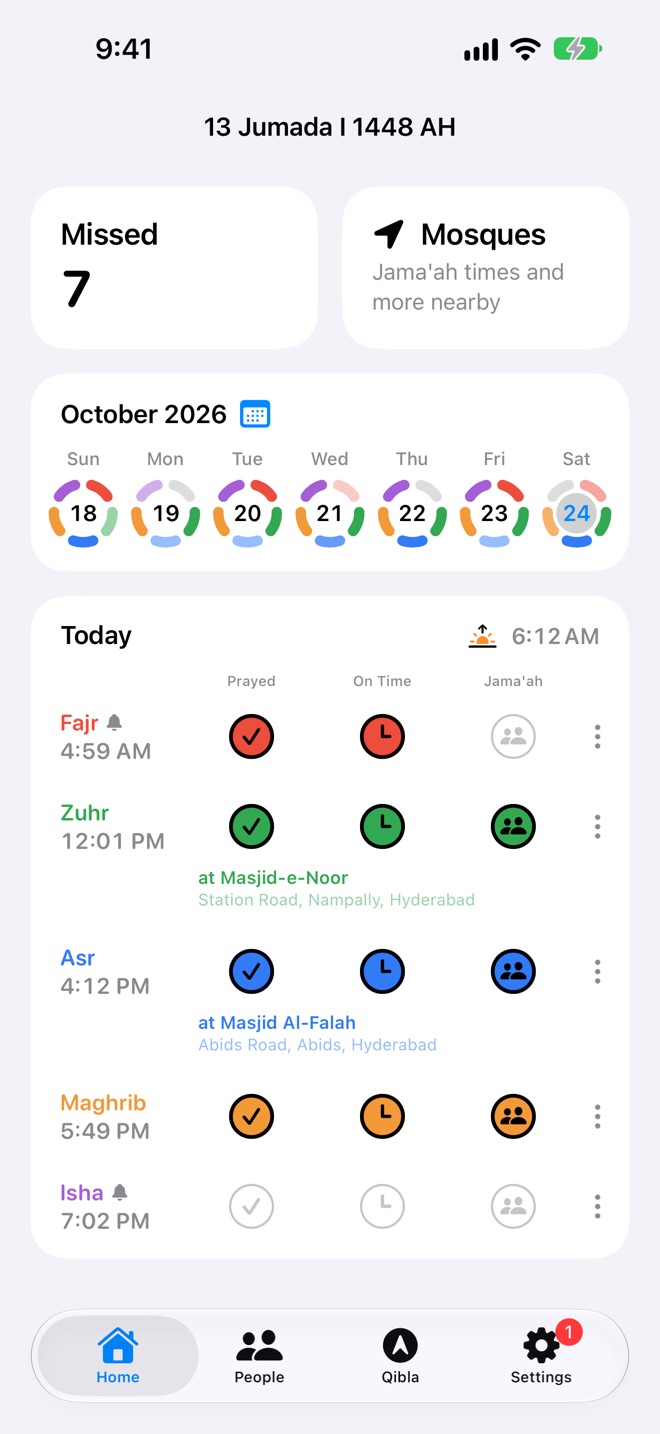
Prayer times and the Qibla depend on where you are, so Salah Book starts by asking for your location. After that you're on Home, with today's five prayers ready to log.
Set your location
- Use Current Location asks for location access. With it, Salah Book follows you: open the app somewhere new and the prayer times, alerts and Qibla move with you.
- Choose a City appears when location access is off. Search for your city and pick it. Prayer times, alerts and the Qibla all work from a city. Nearby mosques and jama'ah reminders need your real location.
You can change either later in Settings → Prayer Times → Location.
Choose a username
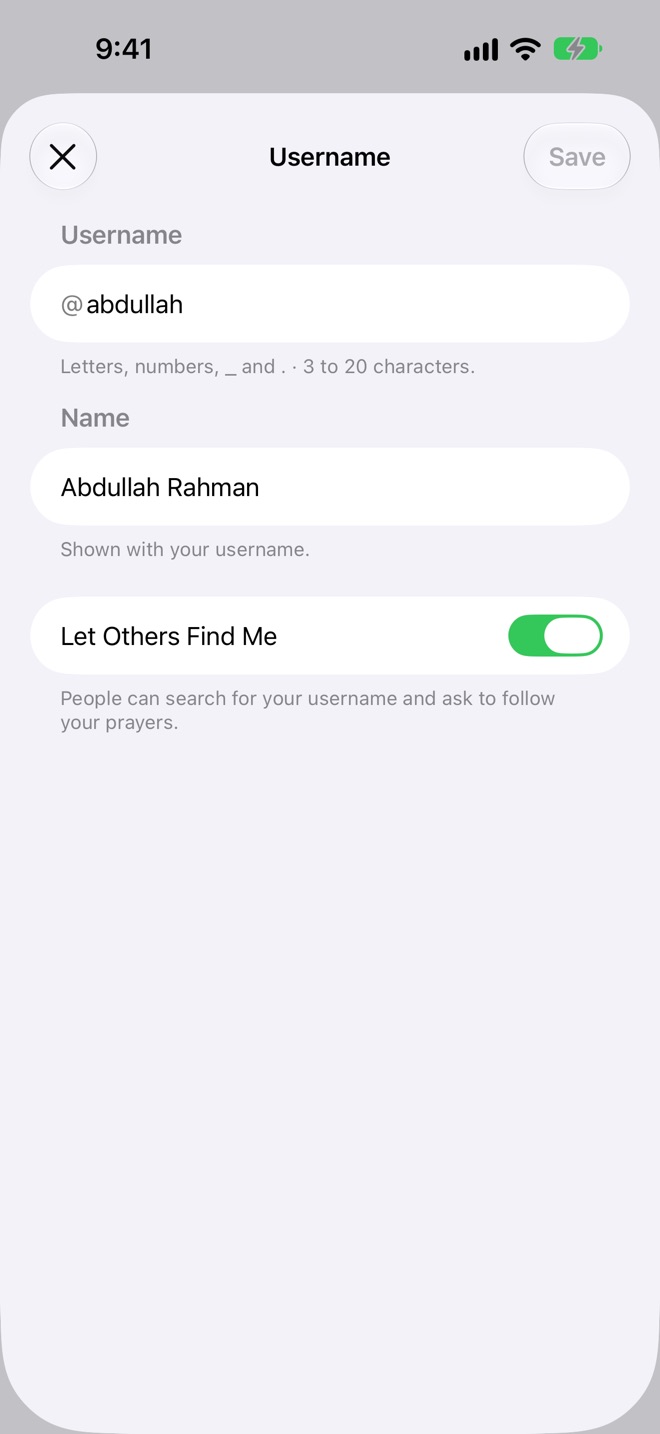
Once you're signed in to iCloud, Salah Book asks for a username. It's how people find you to follow your prayers, and how your mosque edits are credited. Tap Later to skip it; you'll be asked again when you edit a mosque. See Your username.
The four tabs
| Tab | What it's for |
|---|---|
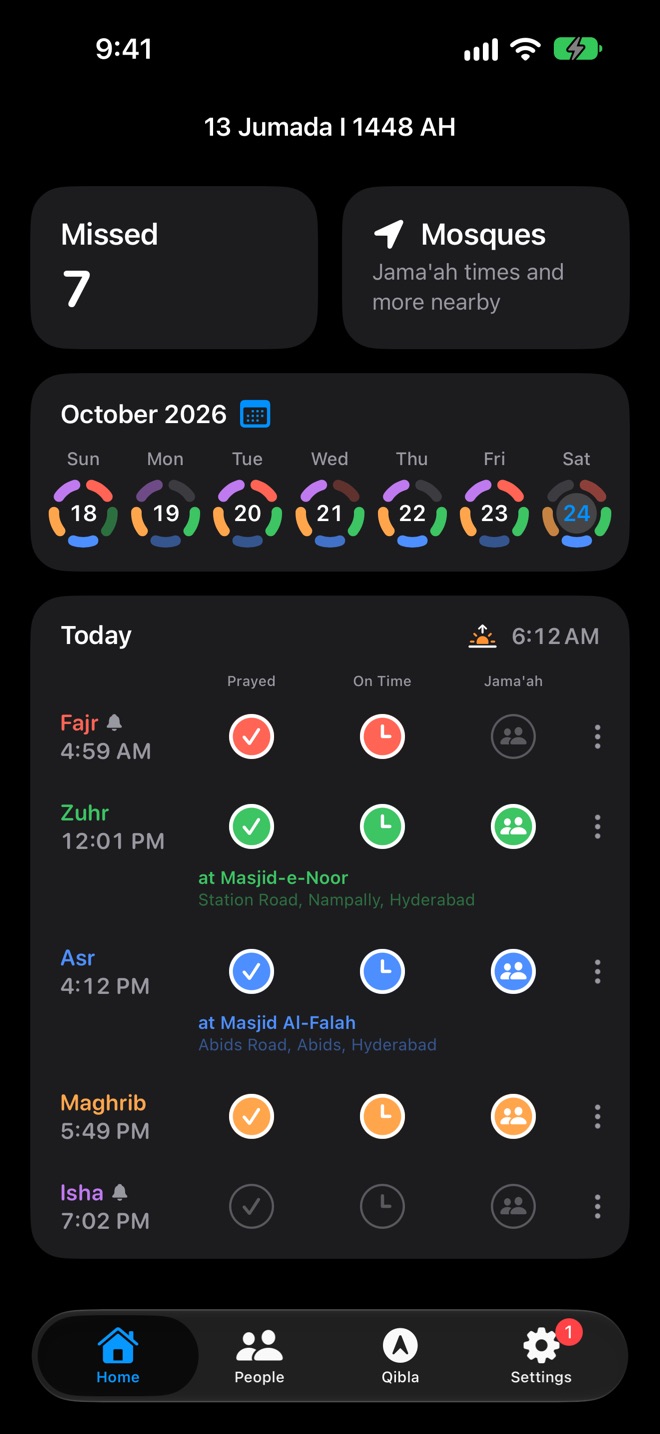
| Home | Today's prayers and their times, the week's progress, your missed prayers, and the mosques near you. The title is the date in the Hijri calendar. |
| People | Your own card and the cards of the people you follow, with each month's prayers. |
| Qibla | A compass pointing to the Kaaba. Not on a Mac, which has no compass. |
| Settings | Your account, Salah Plus, people, prayer times, alerts, reminders, Siri, missed prayers and Contacts. A red badge shows people waiting to follow you. |
Prayer times and your location
Salah Book works out the five prayer times, and the sunrise, on your device for where you are. It needs no connection to do it. Fajr and Isha depend on the convention you choose, and Asr on the school.
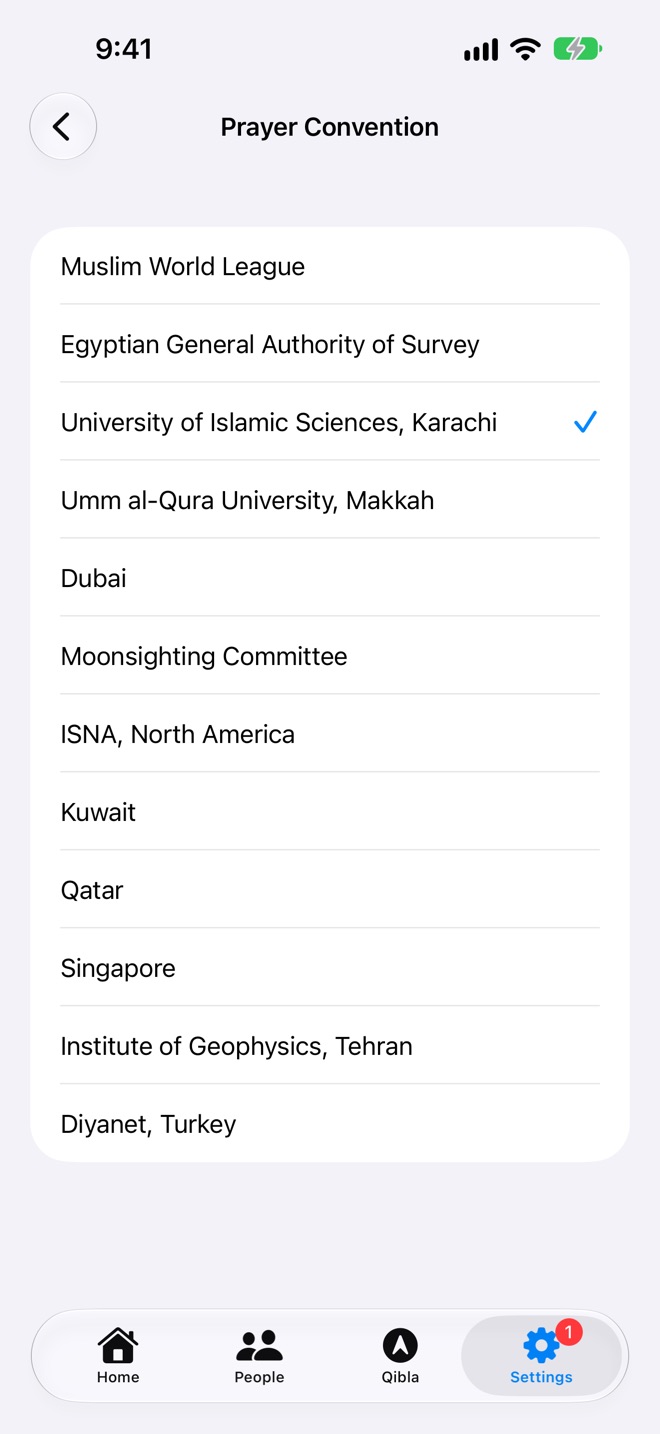
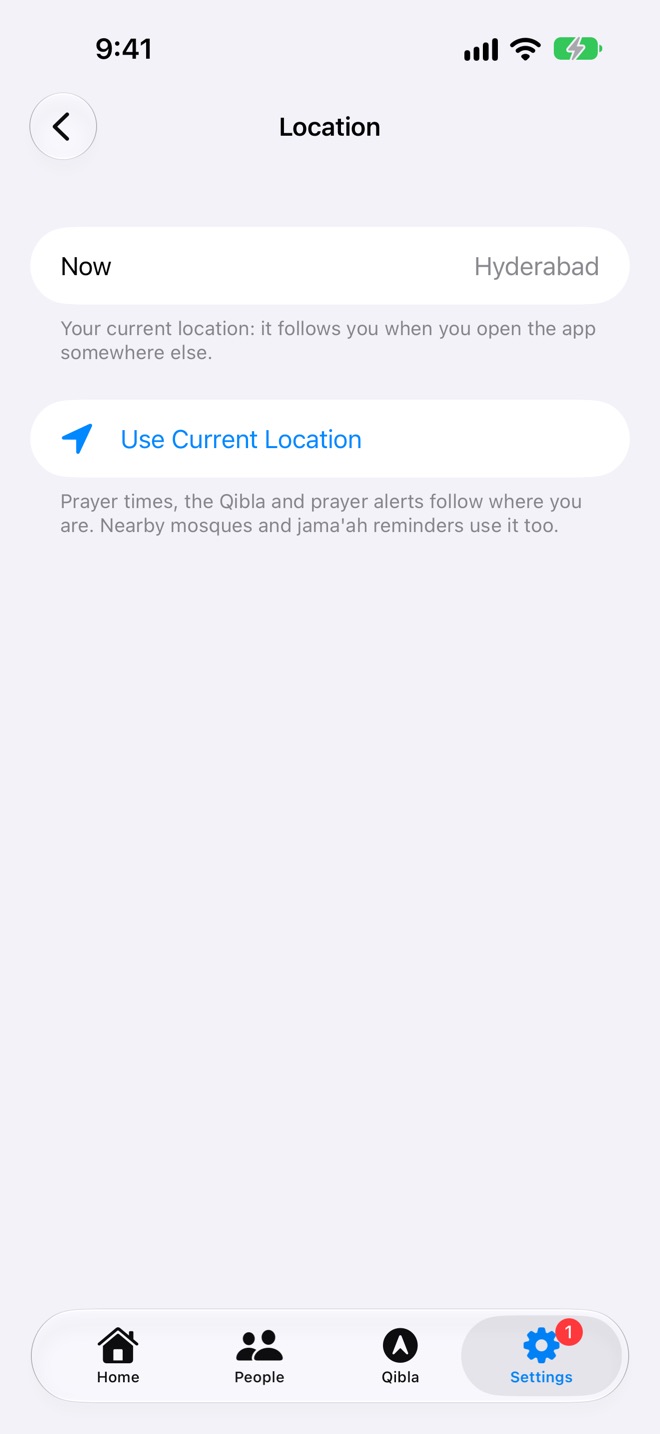
Prayer Convention
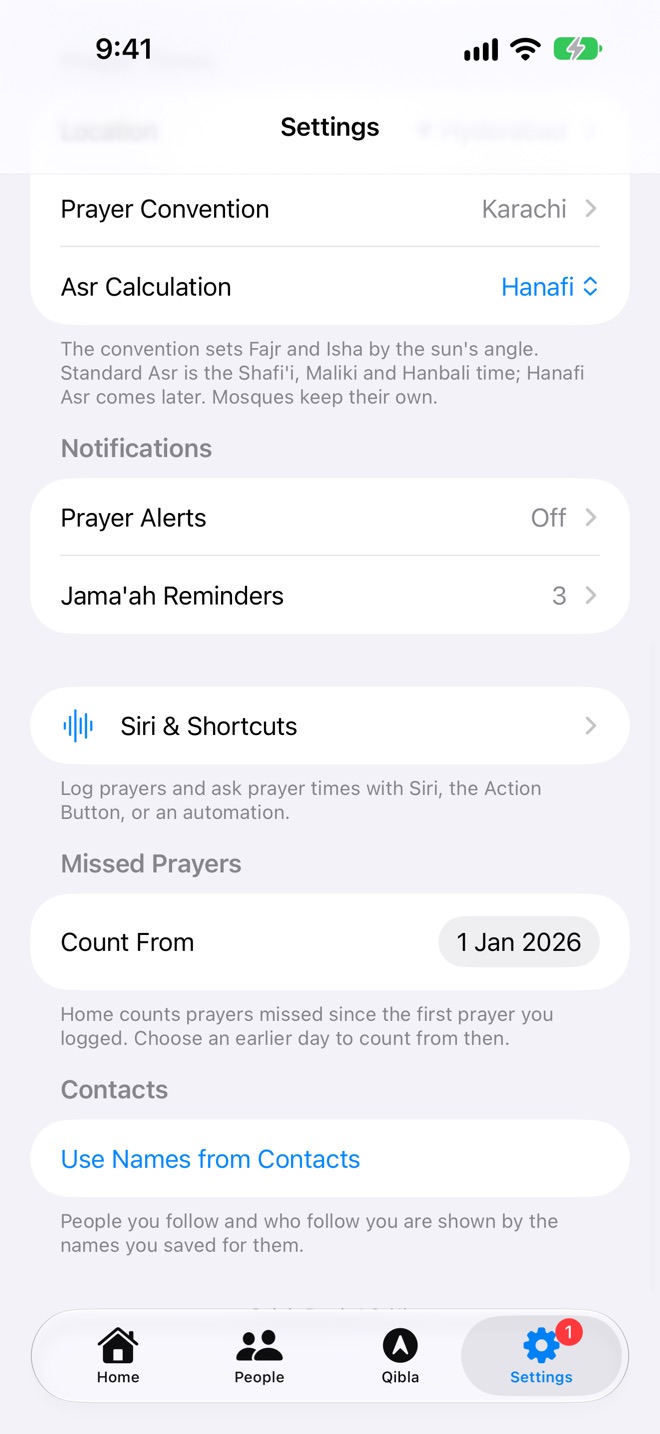
The convention sets Fajr and Isha by the sun's angle below the horizon. Pick the one your community or mosque uses. Your choice syncs to all your devices.
Far north or south, where the sun barely sets in summer, Fajr and Isha are adjusted automatically using the middle of the night.
Asr Calculation
- Standard: the Shafi'i, Maliki and Hanbali time. The default.
- Hanafi: the later Asr.
Location
Settings → Prayer Times → Location shows where the times are for. A location arrow next to the city means it follows you. With location access, Salah Book checks where you are each time you open it, and if you've moved, the times and alerts follow. Without access, Choose a City sets a city that stays until you change it.
Logging prayers
Each prayer on Home has three circles: Prayed, On Time and Jama'ah. Tap the one that says how you prayed. Each level includes the ones before it, so Jama'ah fills all three.
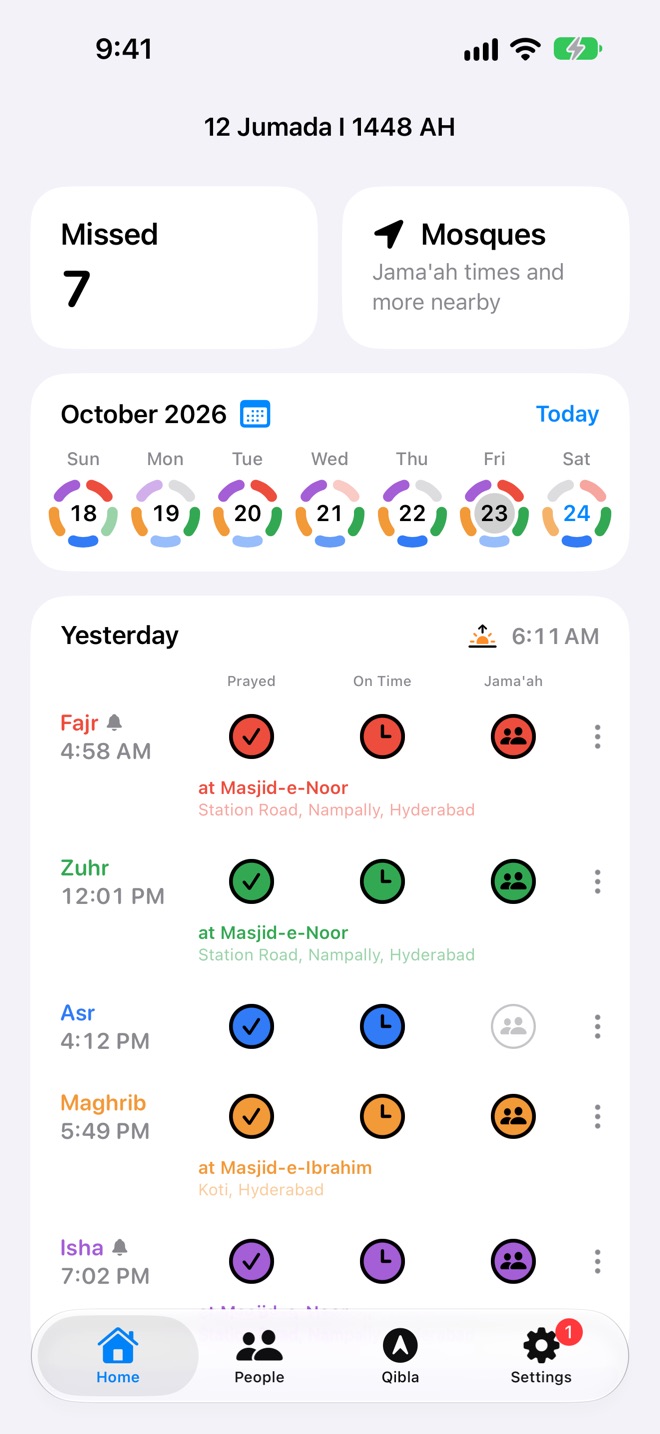
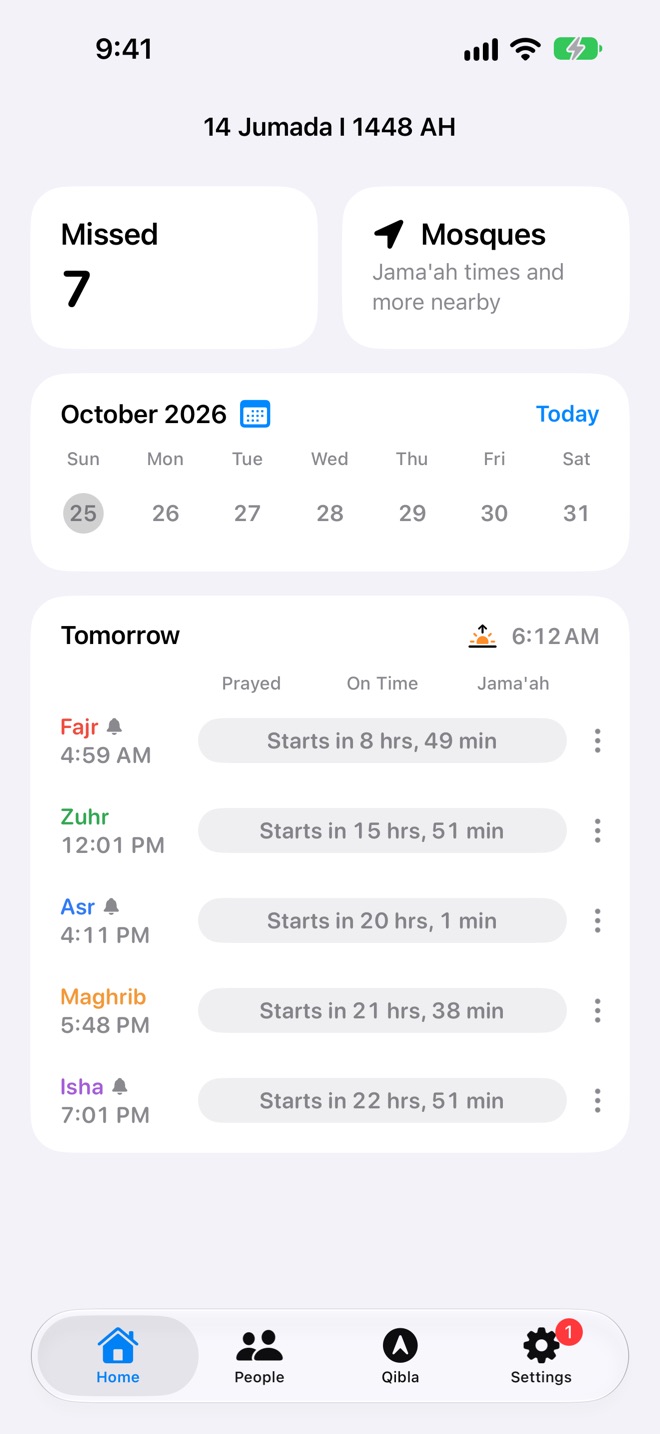
Each prayer keeps its colour everywhere in Salah Book, under its name and start time. The day card's heading shows Today, Yesterday, Tomorrow or the date, and the sunrise time.
The three levels
| Tap | Means |
|---|---|
| Prayed ✓ | You prayed it. |
| On Time 🕒 | You prayed it in its time. |
| Jama'ah 👥 | You prayed it on time, in congregation. |
Tap the level that's already filled to clear the prayer. Logging again replaces what was there: there's one log per prayer per day.
Add the mosque you prayed in
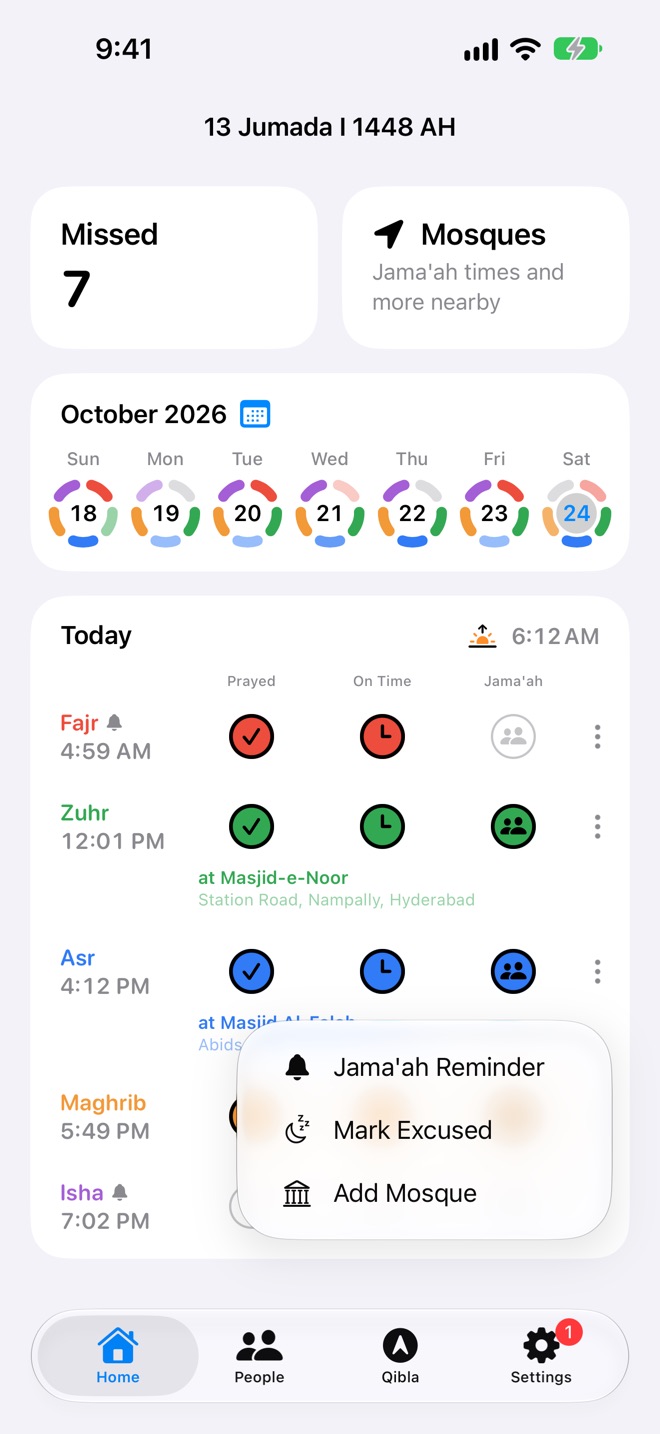
Open the prayer's ⋯ menu and choose Add Mosque. Where did you pray Asr? lists the mosques near you, with each one's jama'ah time that day, as a list or on a map. Pick one and the prayer is logged in jama'ah at that mosque. Its name and address appear under the prayer, and it counts on your People card.
- Not listed? Add a New Mosque at the bottom adds it for everyone, and logs the prayer there. See Editing and adding mosques.
- To take the mosque off, choose Remove Mosque in the menu, or tap the mosque's name. Removing it clears the prayer's log, so log it again as you prayed it.
- Adding a mosque needs location access, to find the mosques around you.
Excused
For prayers that don't apply that day, such as during menses, tap the prayer's name (or choose Mark Excused in the menu). The circles give way to a pink Excused label. An excused prayer isn't counted as missed, and isn't counted against your month on People. Tap the name again, or Clear Excused, to undo it.
Upcoming prayers
A prayer whose time hasn't come yet shows Starts in… with a live countdown instead of circles, and can't be logged yet. It becomes loggable the moment its time arrives. Its menu still offers a jama'ah reminder.
The ⋯ menu
| Item | What it does |
|---|---|
| Remind for Jama'ah | Sets a reminder before the jama'ah at a mosque. It shows a bell next to the prayer, and reads Jama'ah Reminder once set. See Jama'ah reminders. |
| Mark Excused | Marks the prayer excused, or Clear Excused. |
| Add Mosque | Logs the prayer in jama'ah at a mosque, or Remove Mosque. Not on excused or upcoming prayers. |
Other days
Swipe the day card left or right to move a day at a time, up to ten years back and a year ahead. Tap a day on the week strip above, or open the calendar, to jump straight there. Today brings you back.
The week and the calendar
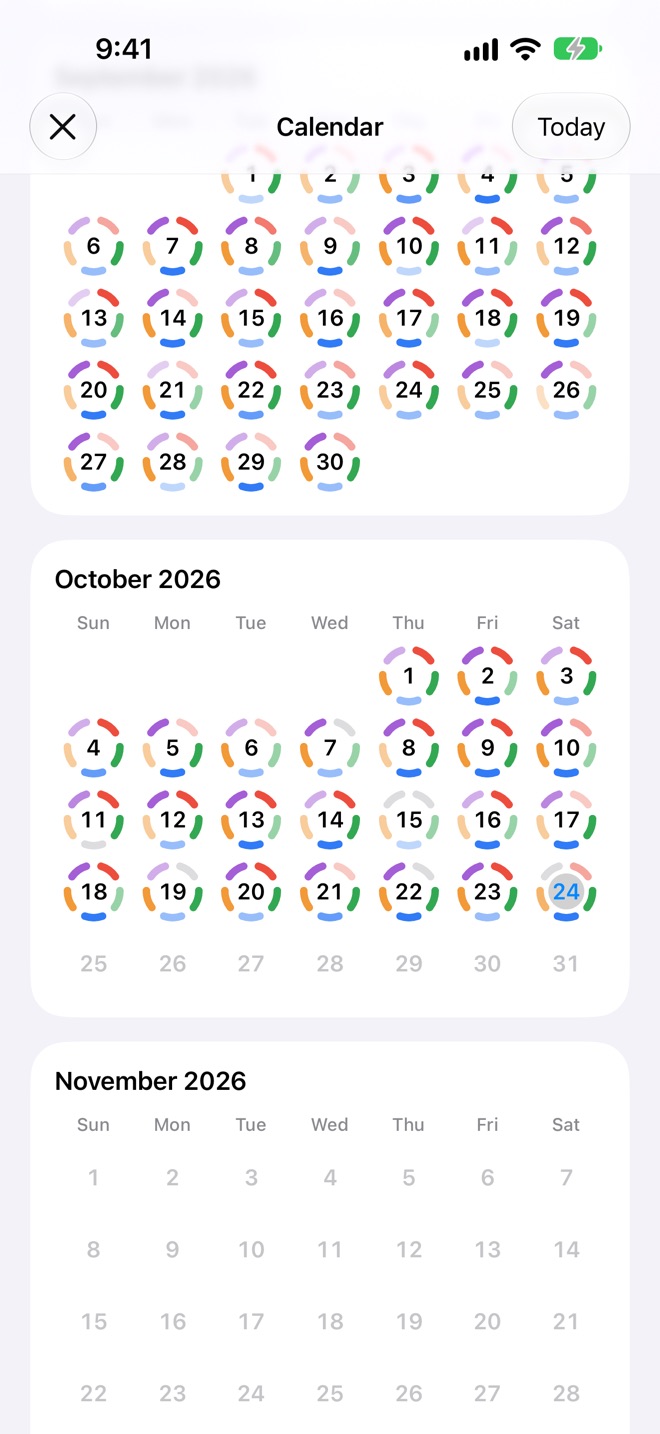
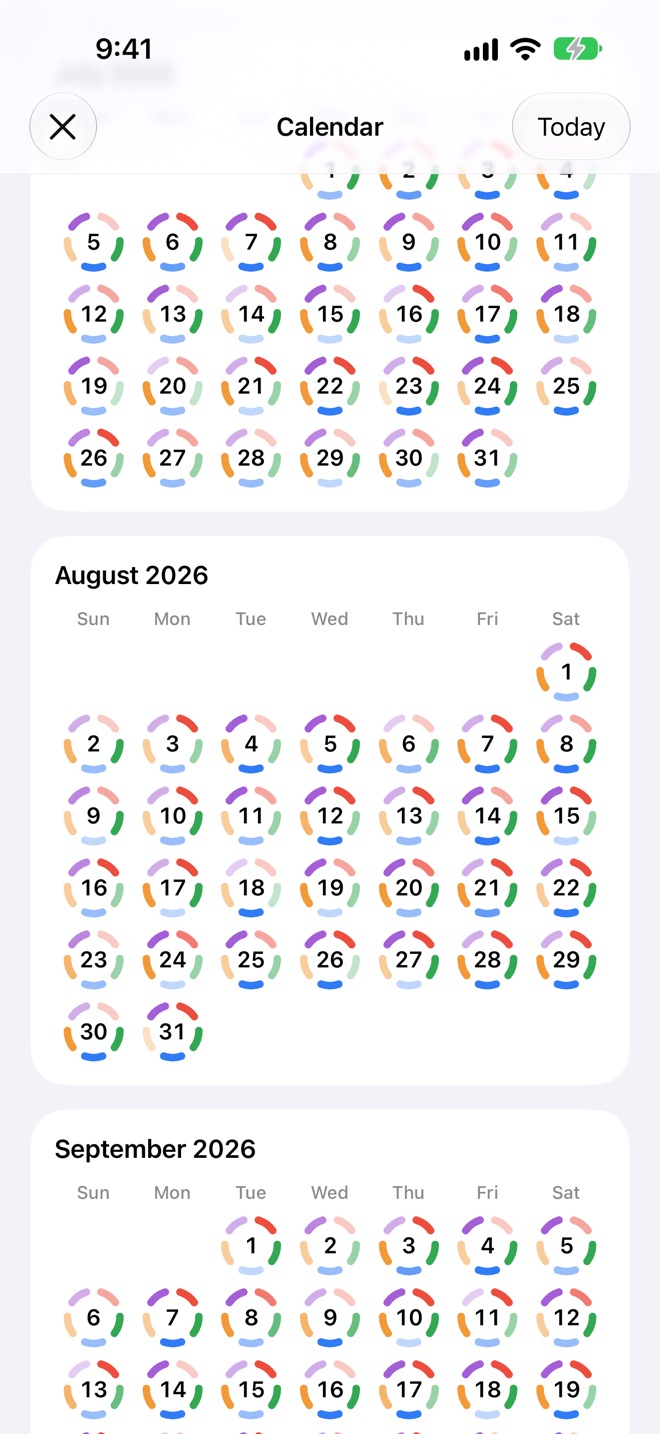
Every day you've lived through is drawn as a ring of five arcs, one per prayer, clockwise from Fajr at the top. The deeper the colour, the better that prayer went.
The week strip
- Swipe it to move a week at a time. The week starts on your region's first day of the week.
- Tap a day to see its prayers below. Today's date is tinted; future days have no arcs.
- Today appears whenever you're looking at another day.
- Tap the month name, or the calendar icon beside it, to open the calendar.
The calendar
Months scroll up and down, like the Calendar app, each day with its arcs. Tap a day to go to it on Home. Today scrolls back to this month.
Missed prayers
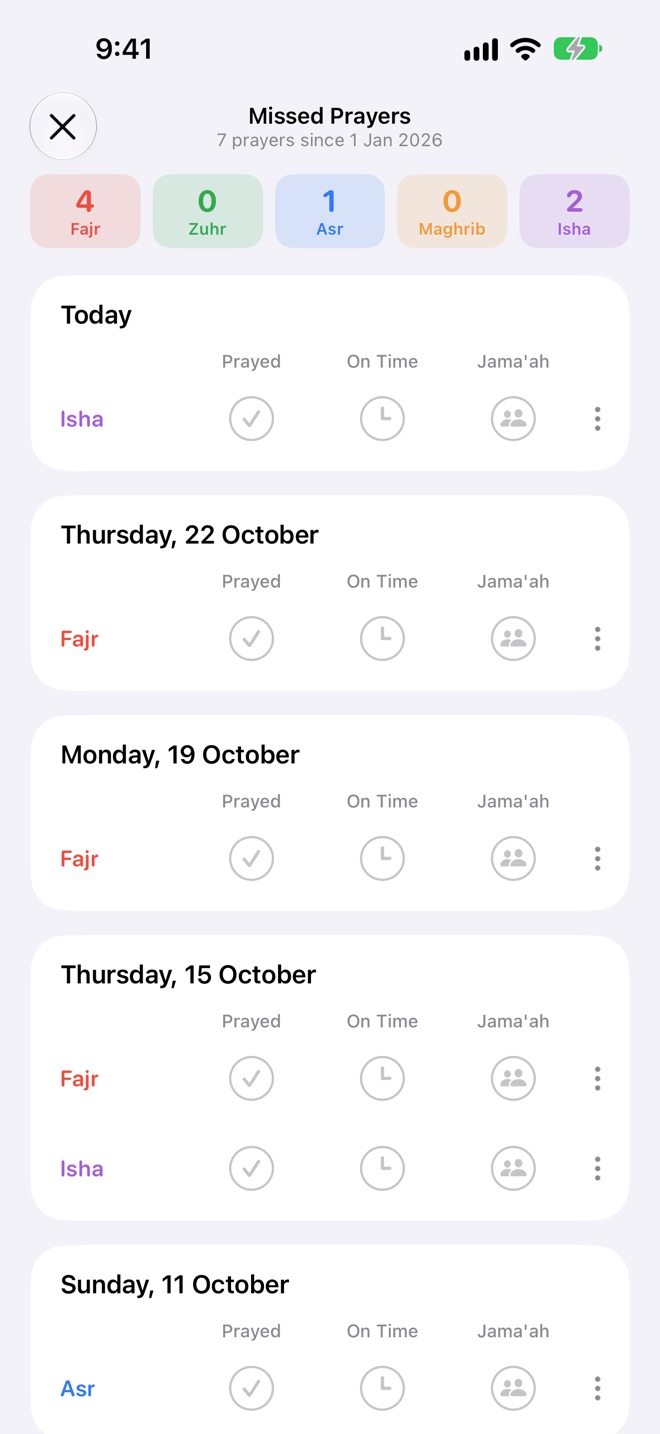
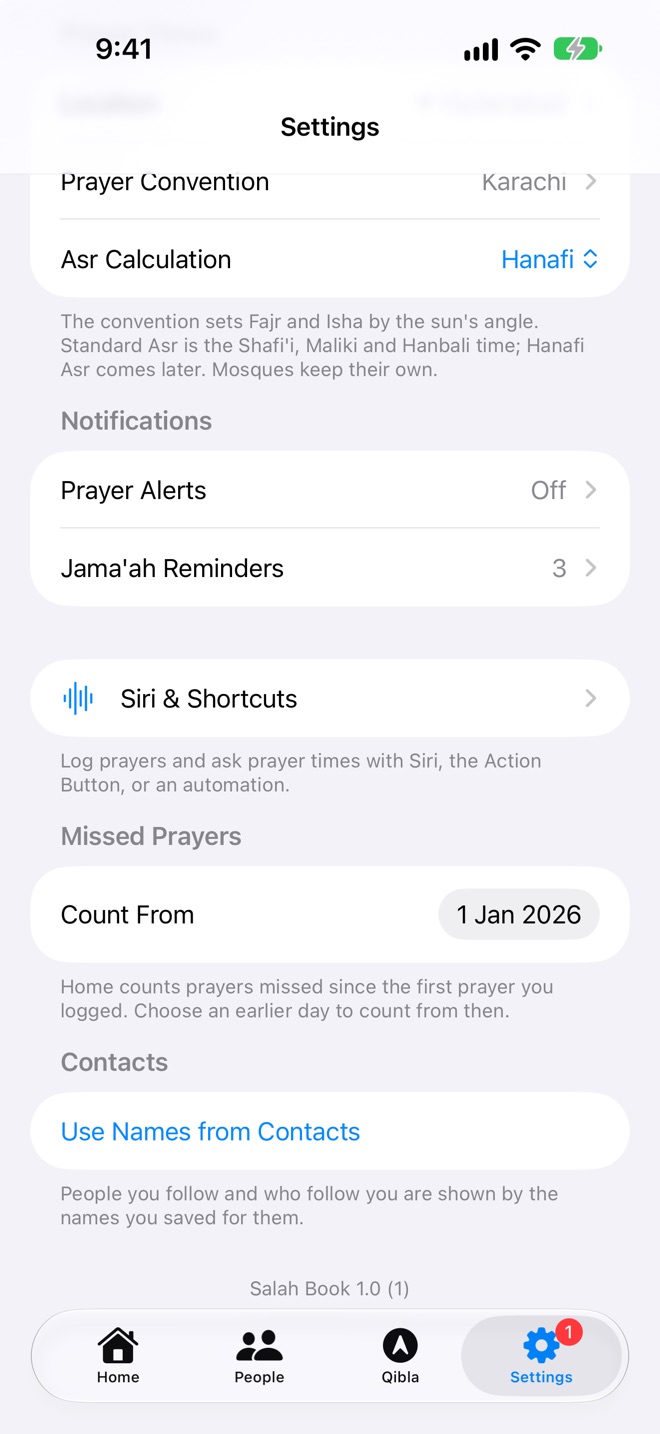
The Missed box on Home counts every prayer you haven't logged, from the first prayer you logged up to now. Tap it to see them day by day, and log each one as you make it up.
How they're counted
- Every prayer from the start day to now that isn't logged as prayed or excused counts as missed. A day with nothing logged misses all five.
- Today's prayers only count once their time has begun.
- The start day is the day of the first prayer you logged, unless you choose another.
Choose where to count from
In Settings → Missed Prayers, set Count From to an earlier day, for example the day you started praying regularly, to count the prayers missed since then. Count From First Logged Prayer goes back to the default. The day is the same on all your devices.
Making them up
The Missed Prayers screen lists each day with only its missed prayers, newest first, and a coloured count for each prayer at the top. Log a prayer right there with the circles, mark it excused, or add a mosque. The counts go down as you go. A prayer you've just logged stays on screen so you can change it, and is gone next time.
When there's nothing left, Home shows a green All caught up.
Nearby mosques
Tap Mosques on Home to see the mosques around you, closest first. Each shows its jama'ah for the prayer that's due now, in that prayer's colour.
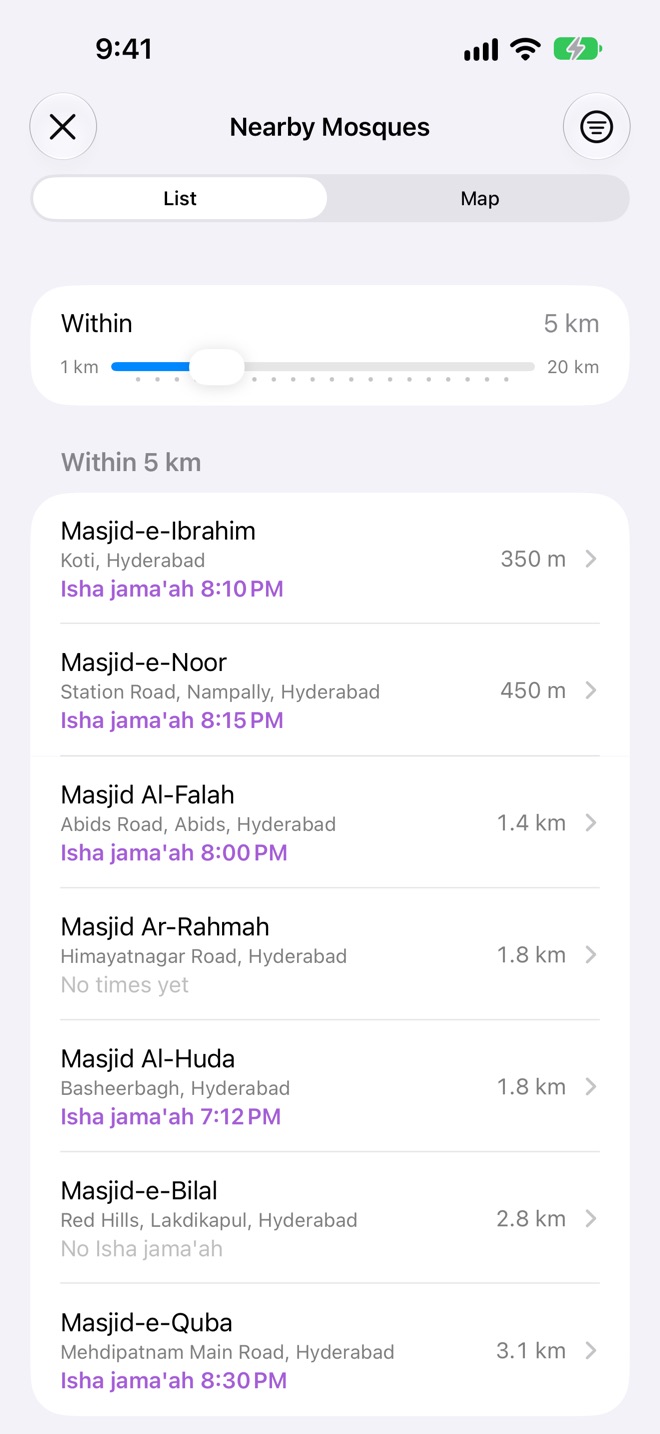
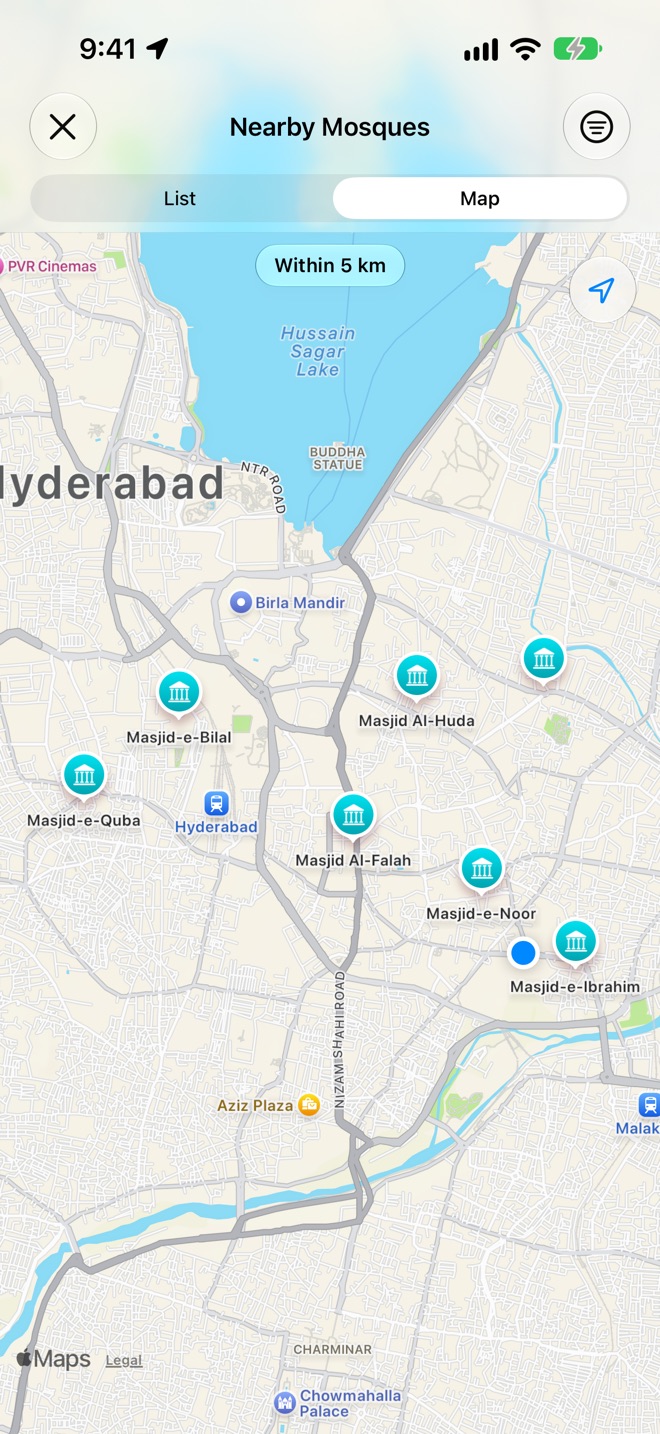
- Within: drag the slider from 1 to 20 km (5 km to start). Salah Book remembers it, and uses it when you add a mosque to a prayer or set a reminder too.
- List or Map: on the map, tap a pin for the mosque's next jama'ah, then tap the card to open it.
- A row says No Asr jama'ah when the mosque doesn't hold one, and No times yet when nobody has added them. You can add them: see Editing.
- Add a New Mosque at the bottom, for one that isn't listed.
Filters
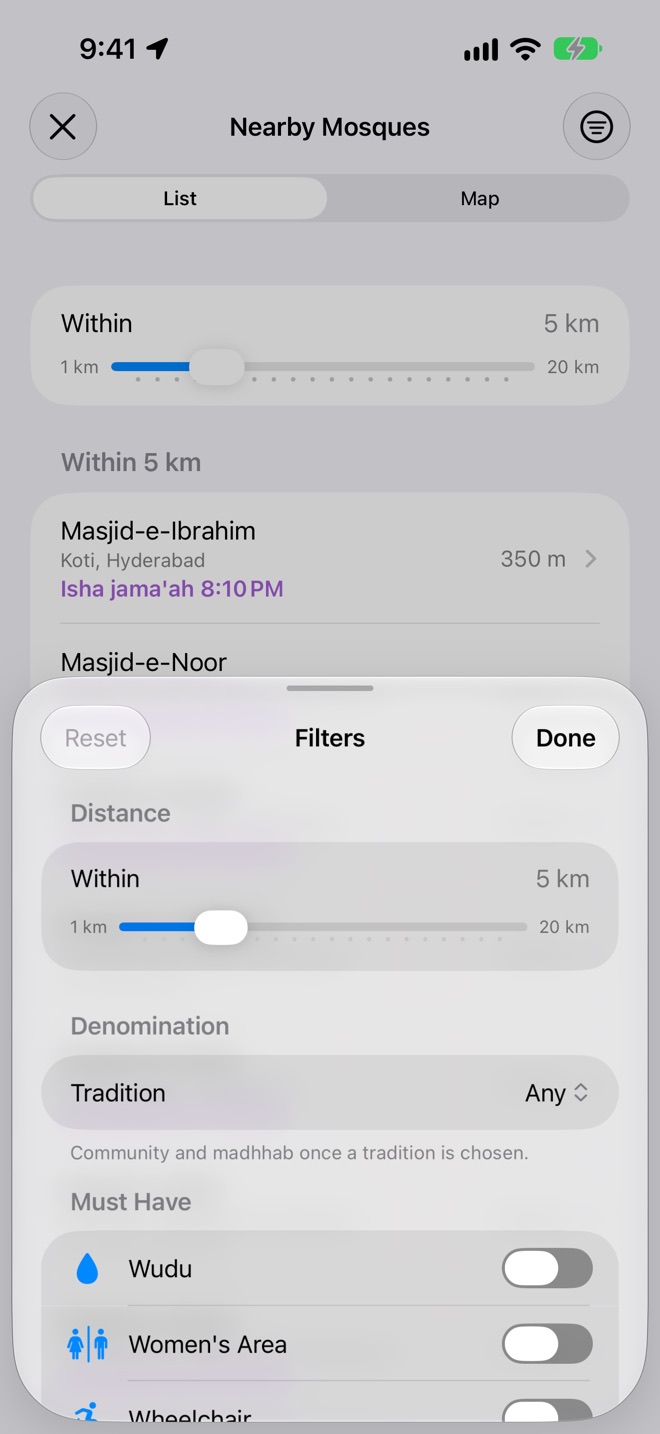
Tap the filter button at the top right. Changes apply as you make them; Reset clears them all.
| Filter | Choices |
|---|---|
| Distance | 1 to 20 km. |
| Tradition | Sunni, Shia, Ibadi, Ahmadiyya, Other. |
| Community | Sunni: Barelvi (Ahl-e-Sunnat), Deobandi, Ahl-e-Hadith, Salafi, Tablighi Jamaat, Jamaat-e-Islami. Shia: Twelver, Ismaili, Nizari Ismaili, Musta'li Ismaili, Dawoodi Bohra, Sulaymani Bohra, Alavi Bohra, Zaydi. |
| Madhhab | Sunni: Hanafi, Shafi'i, Maliki, Hanbali. Shia: Ja'fari, Ismaili, Zaydi. Ahmadiyya: Hanafi. |
| Must Have | Wudu, Women's Area, Wheelchair, Toilets, Drinking Water, Car Parking, Two-Wheelers, Air Conditioned, Shoe Storage. Only mosques known to have them are shown. |
A line above the list sums up what's on, like Within 5 km · Sunni · Hanafi · Wudu and Car Parking. If nothing matches, Clear Filters starts over.
A mosque's page
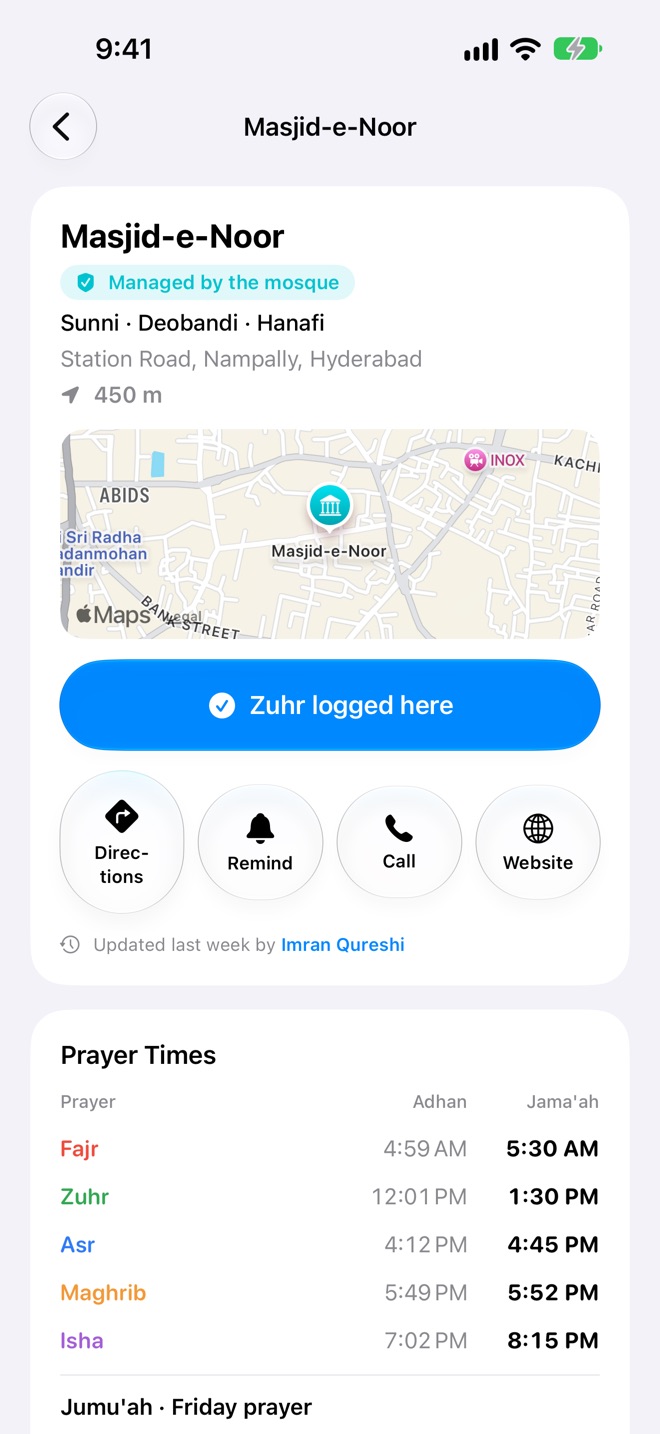
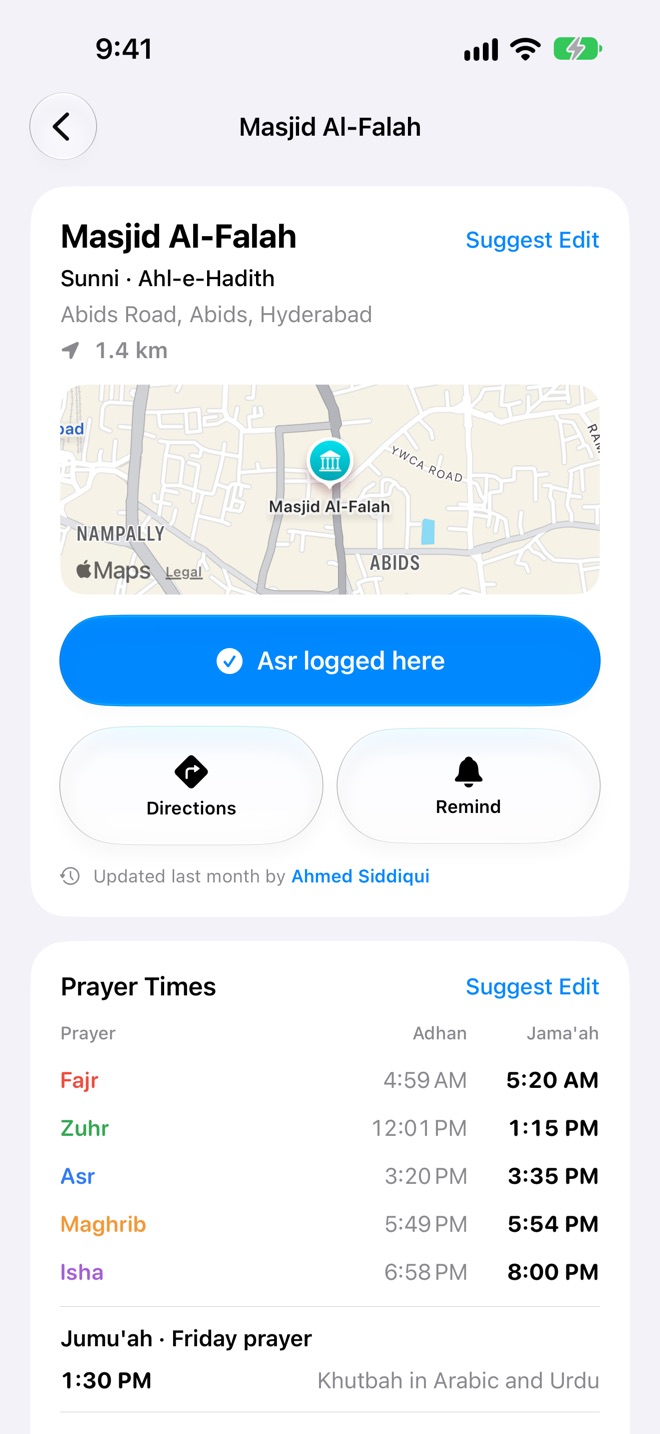
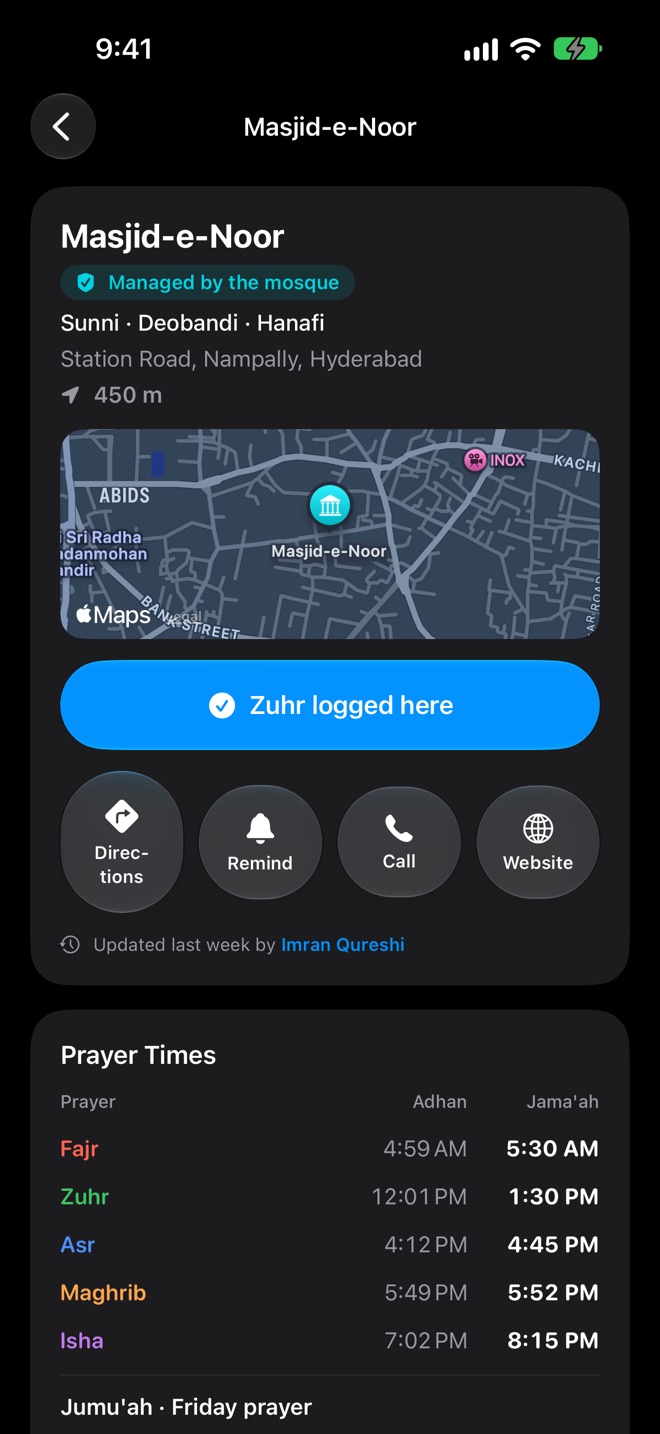
Tap a mosque to see everything known about it: where it is, its prayer times, its facilities, and, for mosques that run their page, their imam, classes and services.
At the top
- The name, its tradition, community and madhhab (like Sunni · Deobandi · Hanafi), the address, how far it is, and a map.
- Managed by the mosque when the mosque runs its own page. Tap the badge to learn what it means.
- I Prayed Here: log a prayer at this mosque. After you do, it reads Zuhr logged here. See I Prayed Here.
- Directions opens Apple Maps. Remind sets a jama'ah reminder here. Call and Website appear when the mosque has them.
Prayer Times
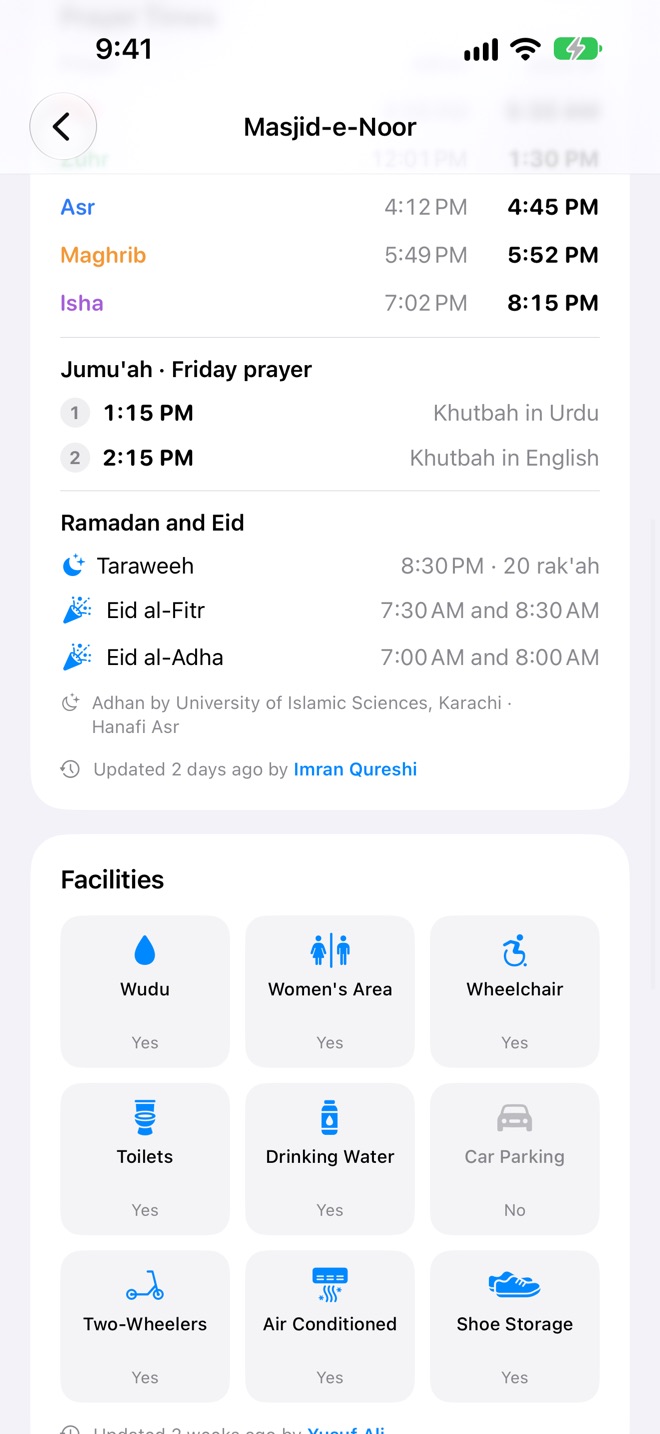
A table of each prayer's Adhan and Jama'ah today. A dash means no time yet; None means the mosque holds no jama'ah for that prayer. Below it:
- Jumu'ah · Friday prayer: each jamaat's time and the language of its khutbah, or Not held.
- Ramadan and Eid: Taraweeh with its time and rak'ahs, and the Eid al-Fitr and Eid al-Adha jamaats.
- Which convention and Asr the mosque's adhan follows.
Facilities
Nine tiles, each Yes, No or Don't Know: Wudu, Women's Area, Wheelchair, Toilets, Drinking Water, Car Parking, Two-Wheelers, Air Conditioned and Shoe Storage.
Religious Activities and Community Services
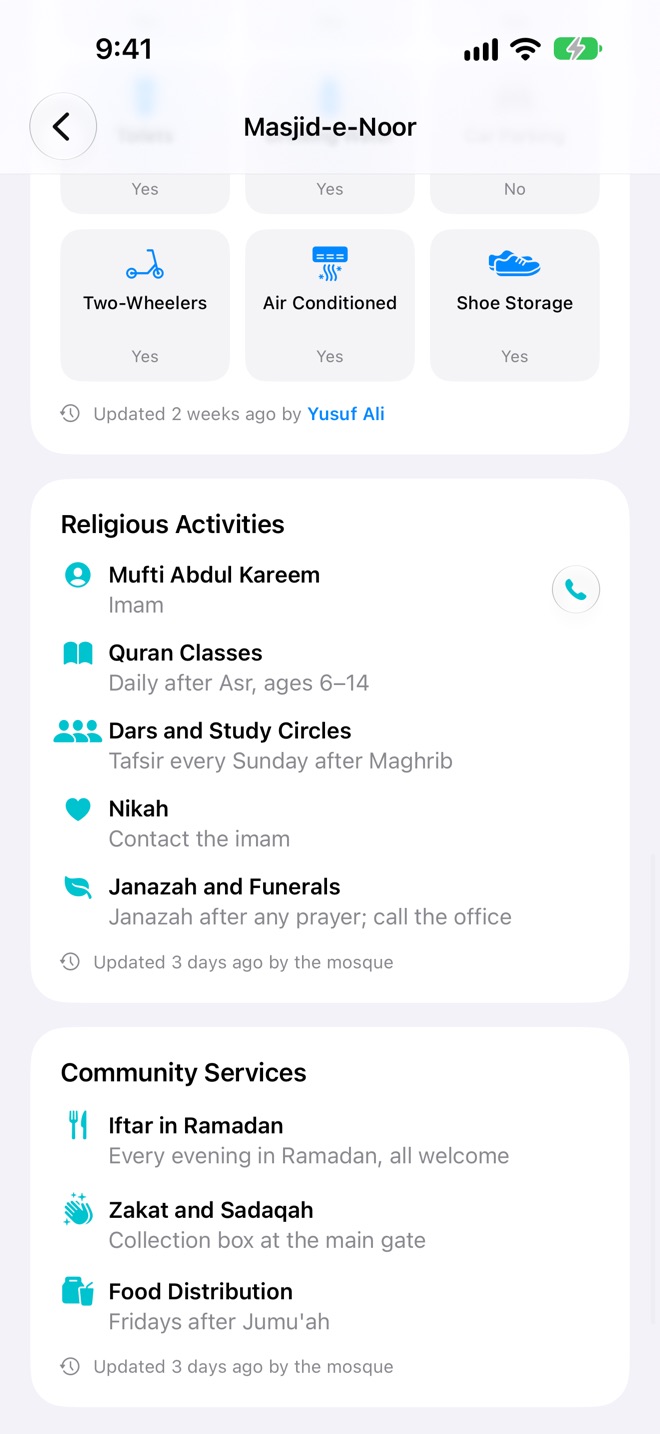
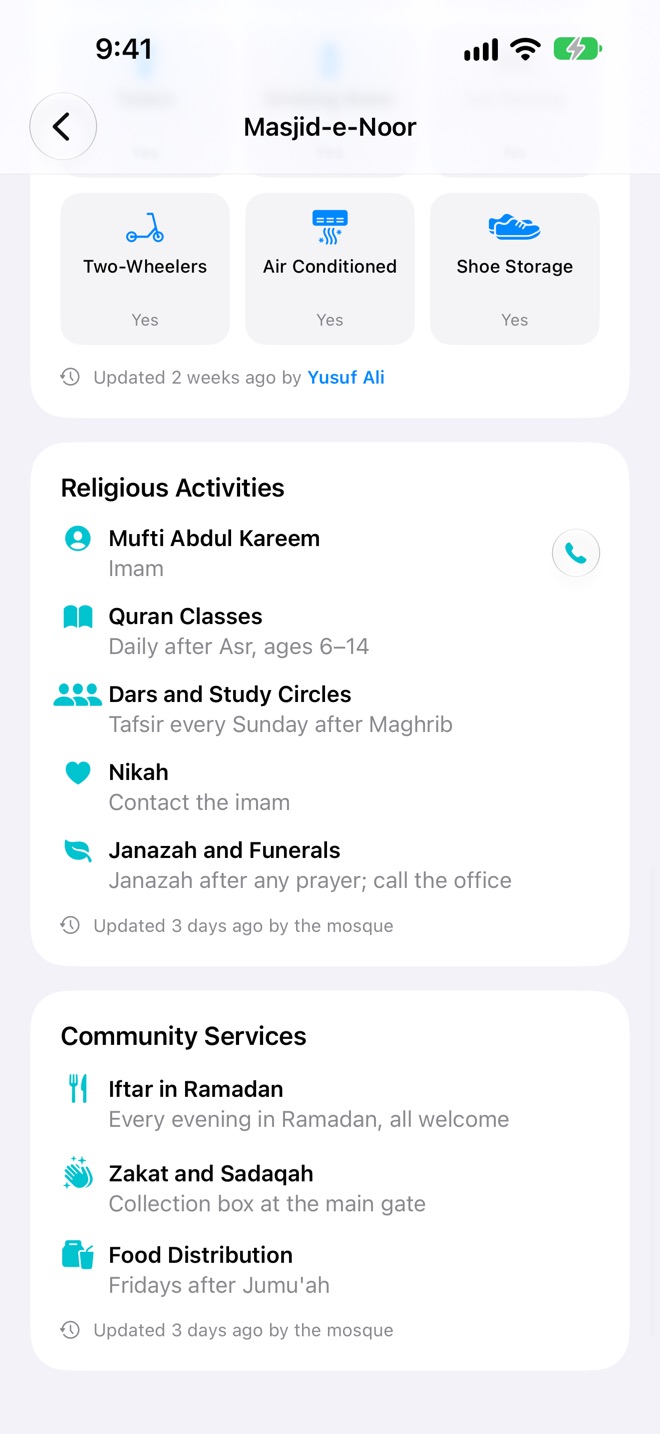
Only for mosques that manage their page. Activities can list the imam (with Call the Imam), Quran classes, madrasa, dars and study circles, nikah, and janazah and funerals. Services can list iftar in Ramadan, zakat and sadaqah, food distribution, counselling, volunteering, and lost and found, each with its days, times or who to contact.
Who updated it
Each card ends with when it was last updated and by whom, like Updated 2 days ago by Imran Qureshi, or by the mosque. Tap the name to see that person and ask to follow them.
I Prayed Here
At the mosque? Open its page and tap I Prayed Here. Salah Book shows the prayers you could have prayed there, with this mosque's jama'ah times, and marks the one you most likely just prayed as Suggested.
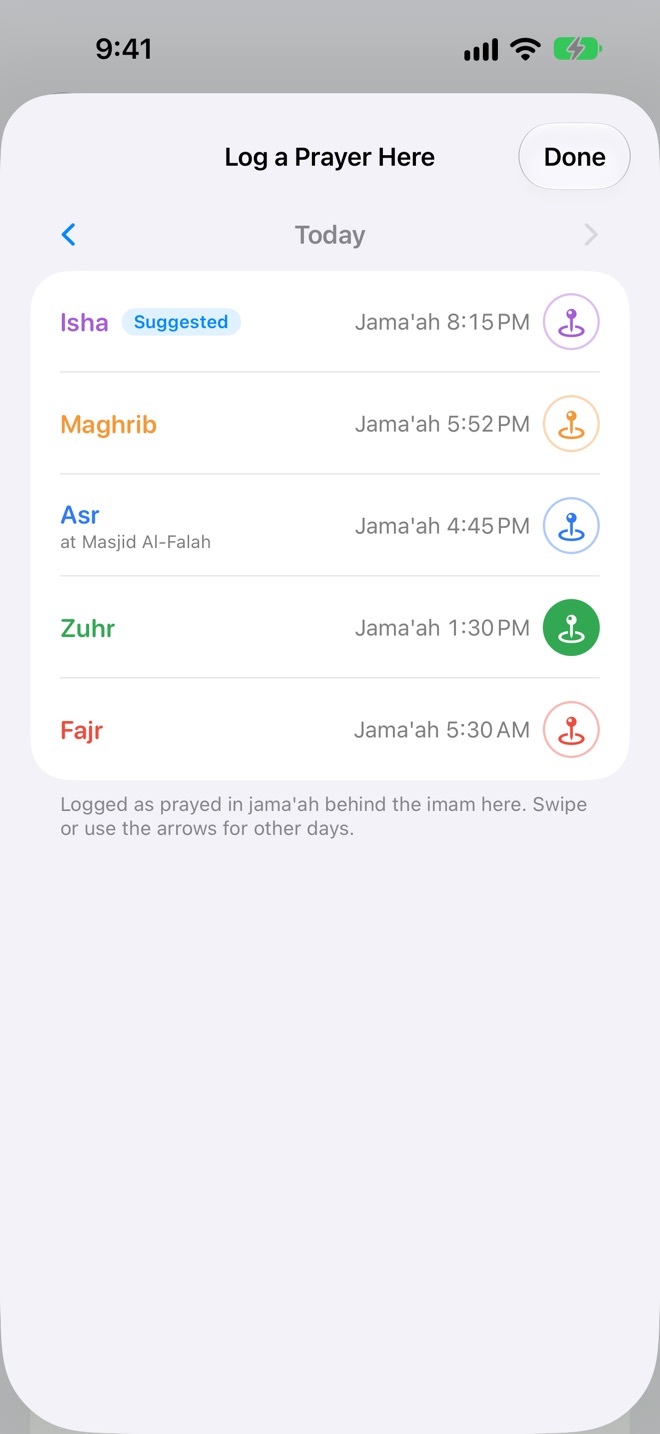
- Tap a prayer's circle to log it in jama'ah behind the imam here. Tap it again to undo it.
- Today shows the prayers that have begun; earlier days show all five. Swipe, or use the arrows, to go back up to a year.
- If the prayer is already logged at another mosque, Salah Book asks before moving it here.
- If you're more than 1 km away today, it asks you to confirm, in case you tapped the wrong mosque.
- The sheet stays open, so you can log several prayers. Tap Done when finished.
Editing and adding mosques
Salah Book's mosques are kept by the people who pray in them. If a time is wrong or missing, fix it: everyone sees your change straight away, with your name on it.
Who can edit
| The mosque is | Who can change it |
|---|---|
| Not managed | Anyone with a username, using Suggest Edit on a card. The change applies at once. |
| Managed by the mosque | Only its administrators, using Edit. Everyone else sees no edit buttons. |
Editing needs a username, iCloud and a connection. Each card saves on its own, so two people fixing different cards both keep their changes. Every edit adds to your contributions, shown on your People card.
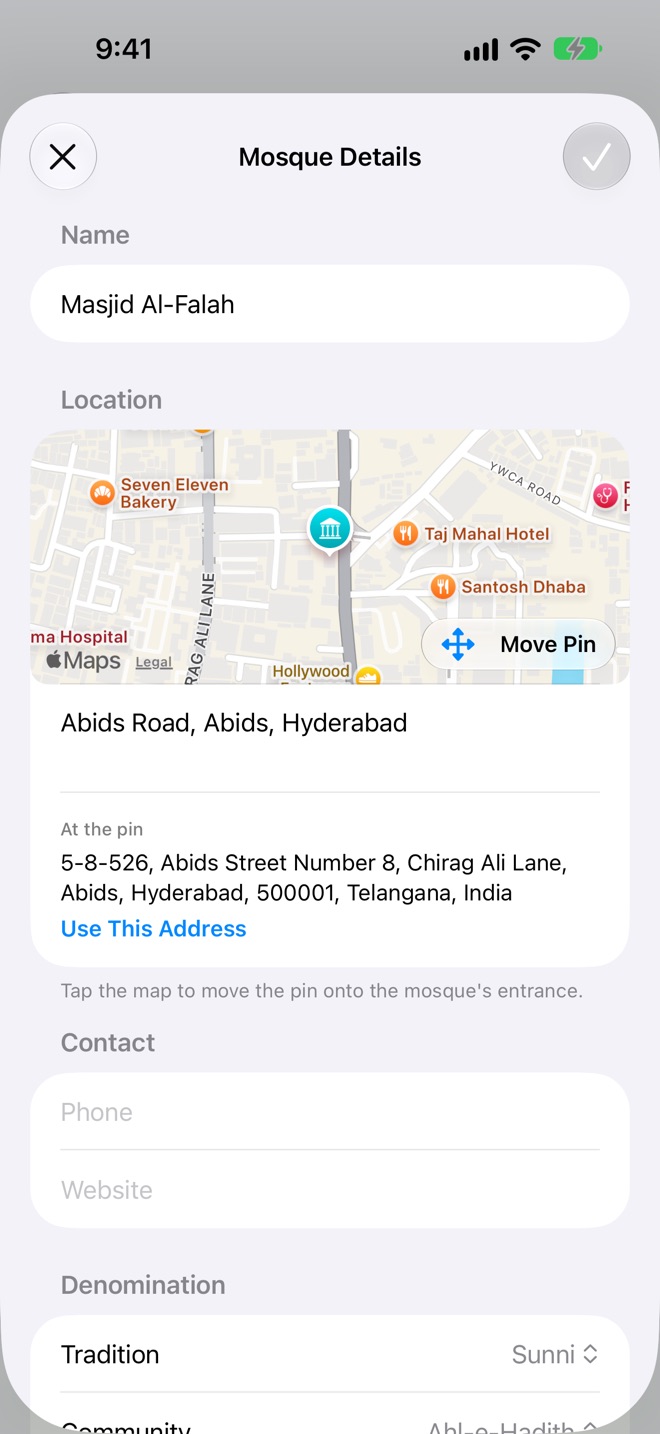
Mosque Details
The name, the pin on the map, the address (tap Use This Address to take the one at the pin), phone, website, and the tradition, community and madhhab.
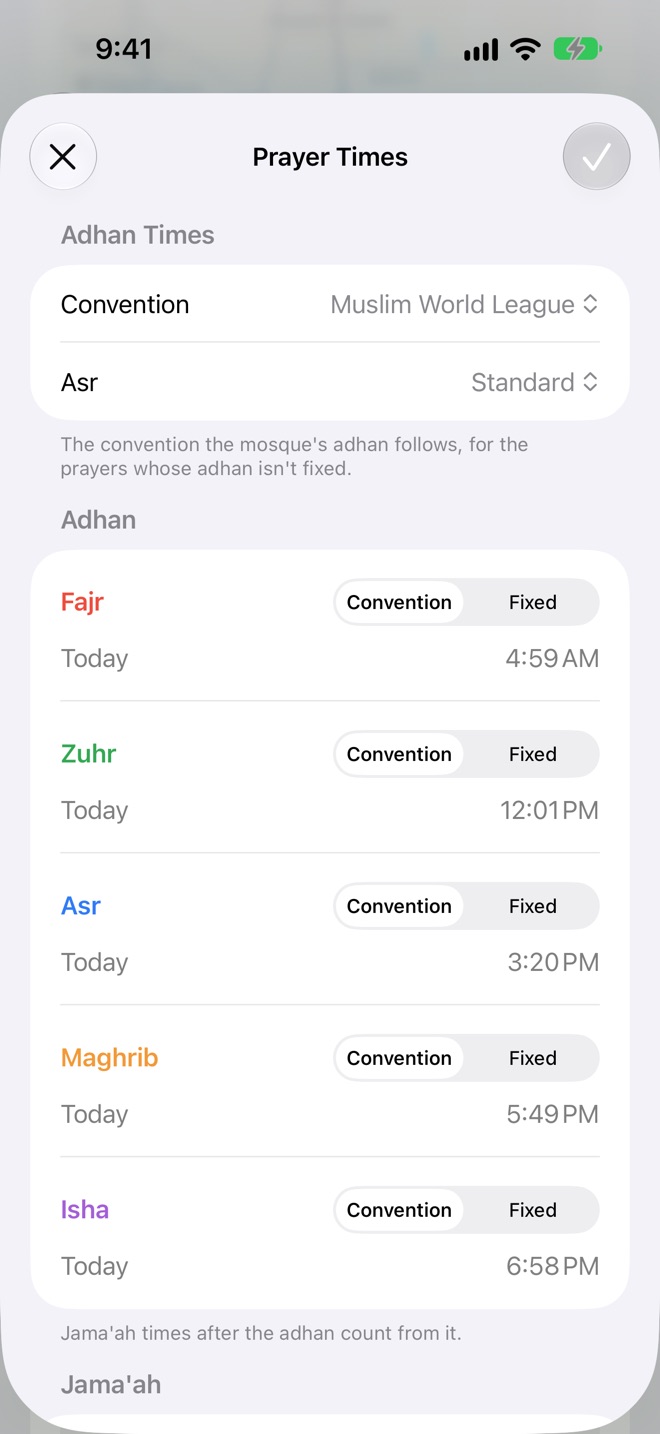
Prayer Times
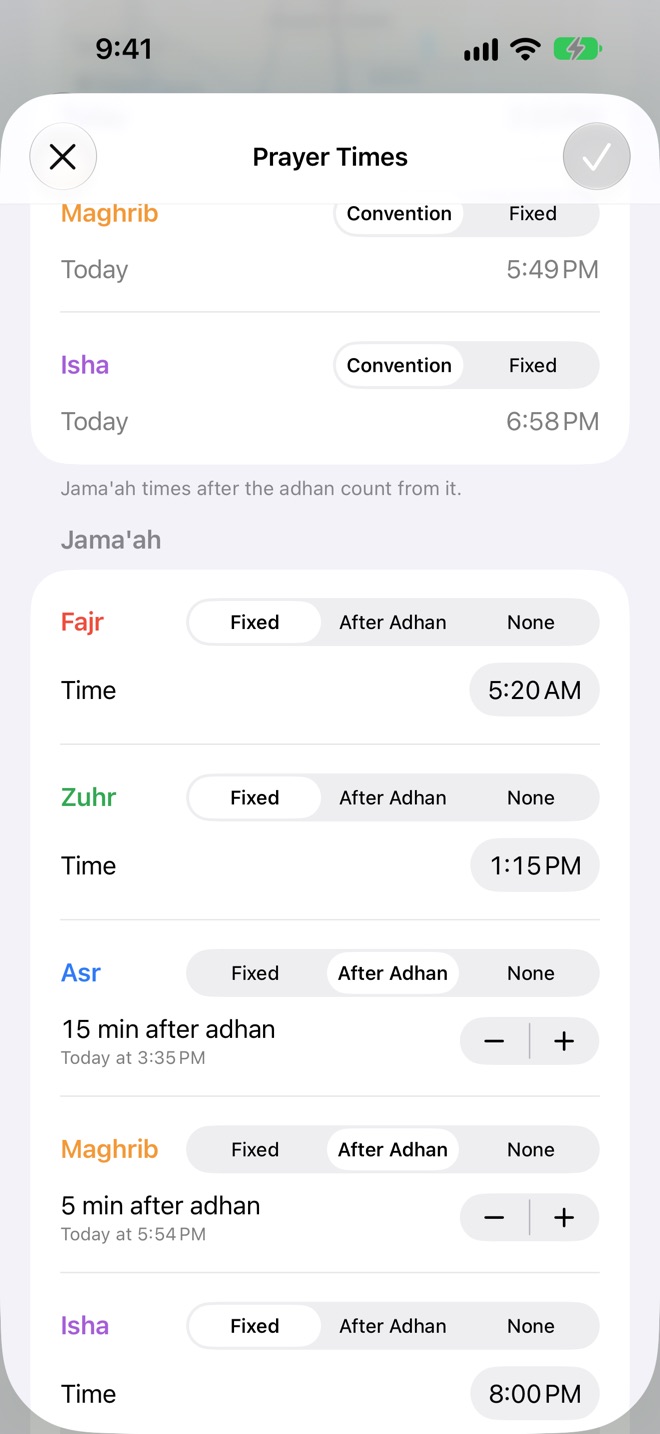
- Adhan Times: the convention and Asr the mosque follows, and for any prayer, Convention or a Fixed time.
- Jama'ah, for each prayer: Fixed at a time, After Adhan by 1 to 60 minutes (so it follows the prayer through the year), or None when the mosque holds no jama'ah for it. Add Jama'ah Time starts at 10 minutes after the adhan.
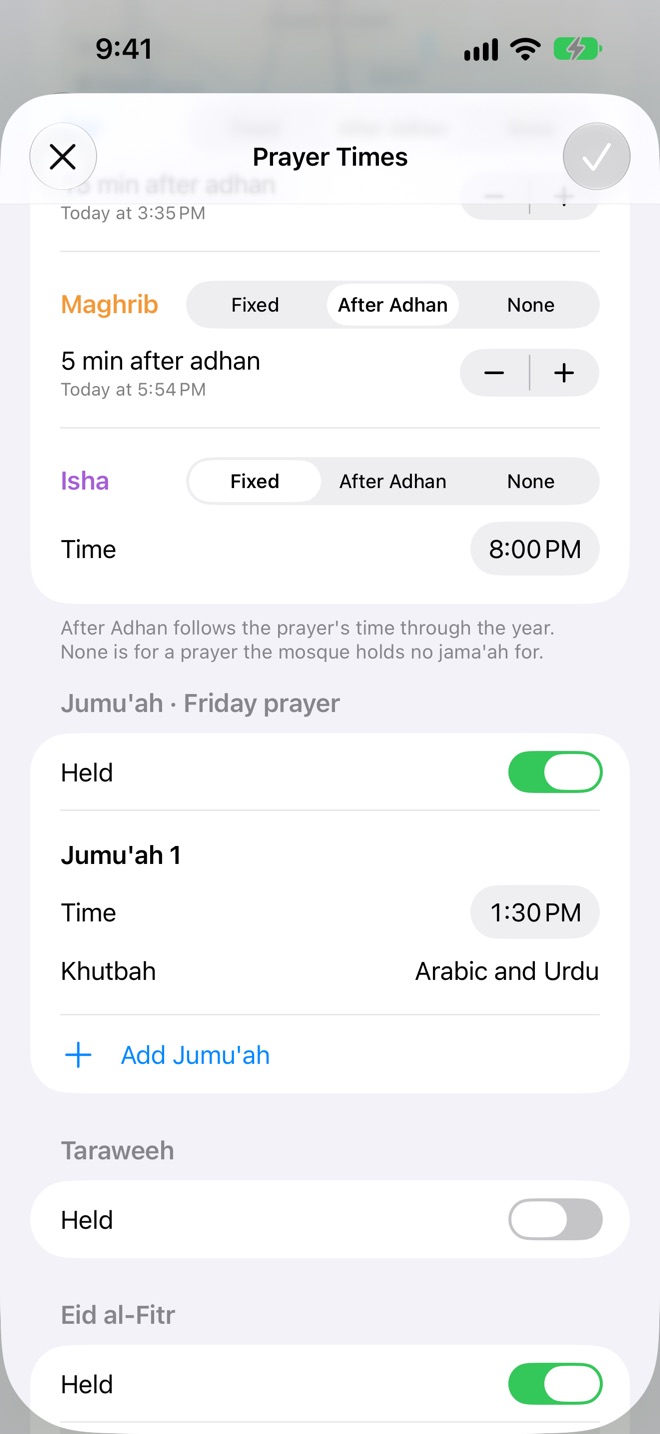
- Jumu'ah: Held, then each jamaat's time and khutbah language. Add Jumu'ah for another.
- Taraweeh: Held, its time and its rak'ahs, 2 to 36.
- Eid al-Fitr and Eid al-Adha: Held, and each jamaat with Add Jamaat.
Facilities
Each one Yes, No or Don't Know. Only mark what you've seen yourself.
Add a mosque
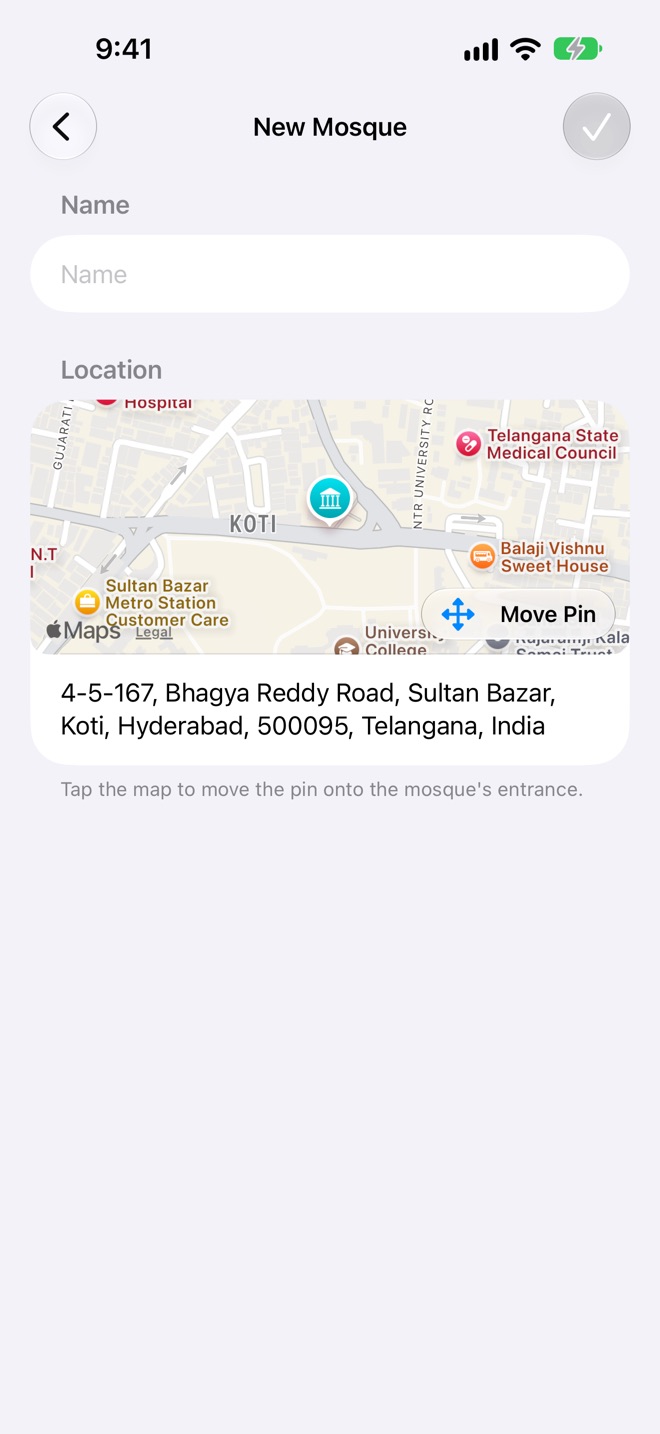
- Tap Add a New Mosque at the bottom of Nearby Mosques, or of the list when you add a mosque to a prayer.
- Type its name.
- Tap the map, then move the map until the pin sits on the mosque's entrance. You can search by name or address. Confirm Location.
- Check the address, which fills in from the pin.
- If Salah Book finds a mosque already listed within 50 metres, it asks Did you mean? Pick it rather than adding it twice.
- Save. The mosque's page opens so you can add its times and facilities. Added while logging a prayer, the prayer is logged there.
Claiming a mosque
Do you run a mosque, as its imam, muezzin, a trustee or on its committee? Claim it to keep its times official, and to share its classes and services.
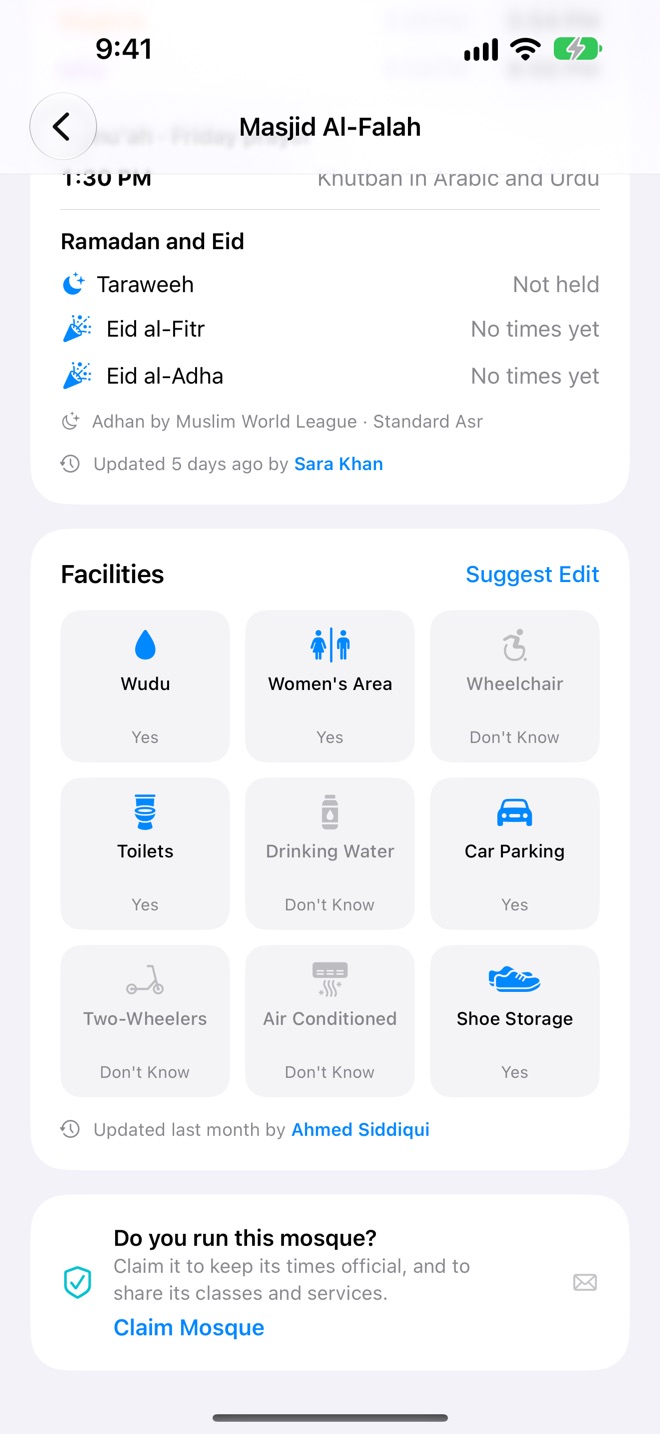
- Open the mosque's page and scroll to the bottom. Tap Claim Mosque.
- An email to us opens, with the mosque and your username filled in. Add your name, your role and a phone number, and send it.
- We confirm it with the mosque and reply by email. Then the page shows You manage this mosque.
Once managed, only the mosque's administrators can change its page, and their edits show as by the mosque. Administrators can add the imam, activities and services, and the Administration card at the bottom of their mosque's page lists who manages it. To add or remove an administrator, email [email protected].
Prayer alerts
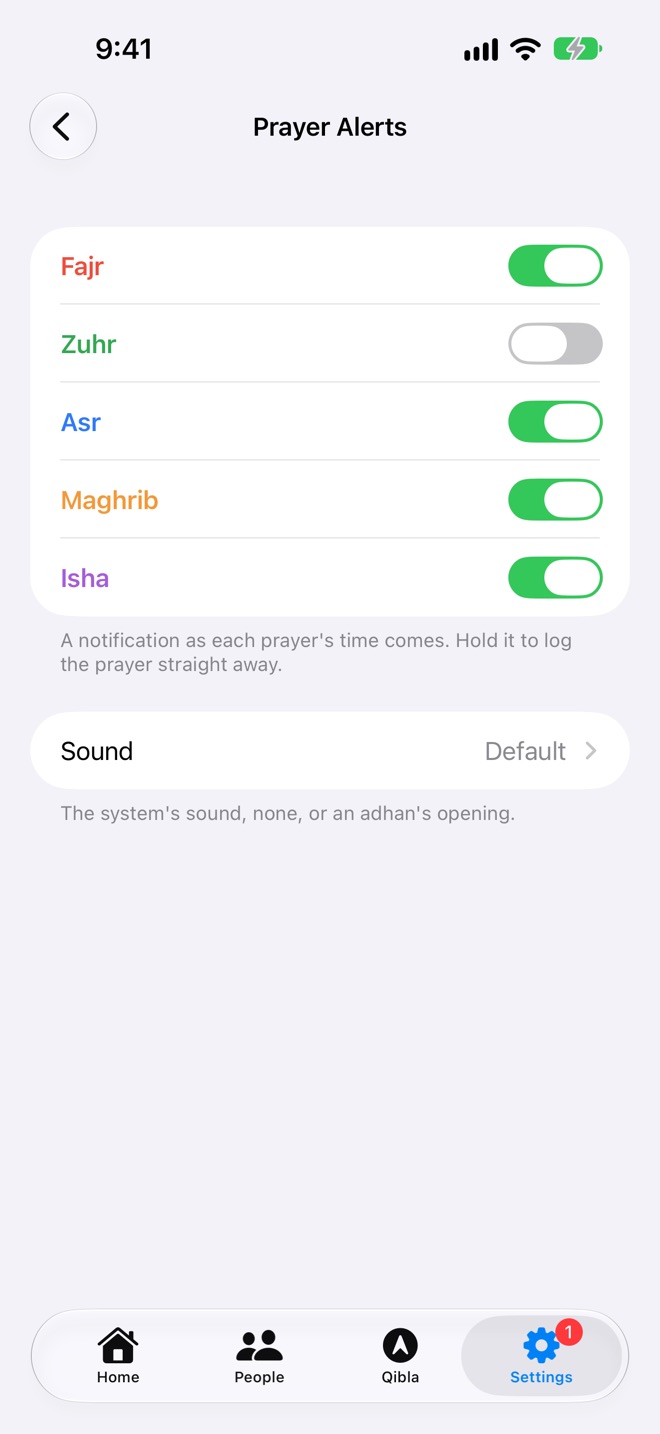
Get a notification as each prayer's time comes, with the system sound, silence, or the opening of an adhan. Turn it on for the prayers you want, in Settings → Prayer Alerts.
 Salahnow
- Alerts are off until you turn them on, and are set for each device. The first switch asks to allow notifications.
- Log from the alert: touch and hold it for Prayed, On Time and In Jama'ah. The prayer is logged without opening the app. Tapping the alert opens Home.
- Alerts come at the start of each prayer's time, worked out on your device, a week ahead. They keep coming even if you don't open the app for a few days.
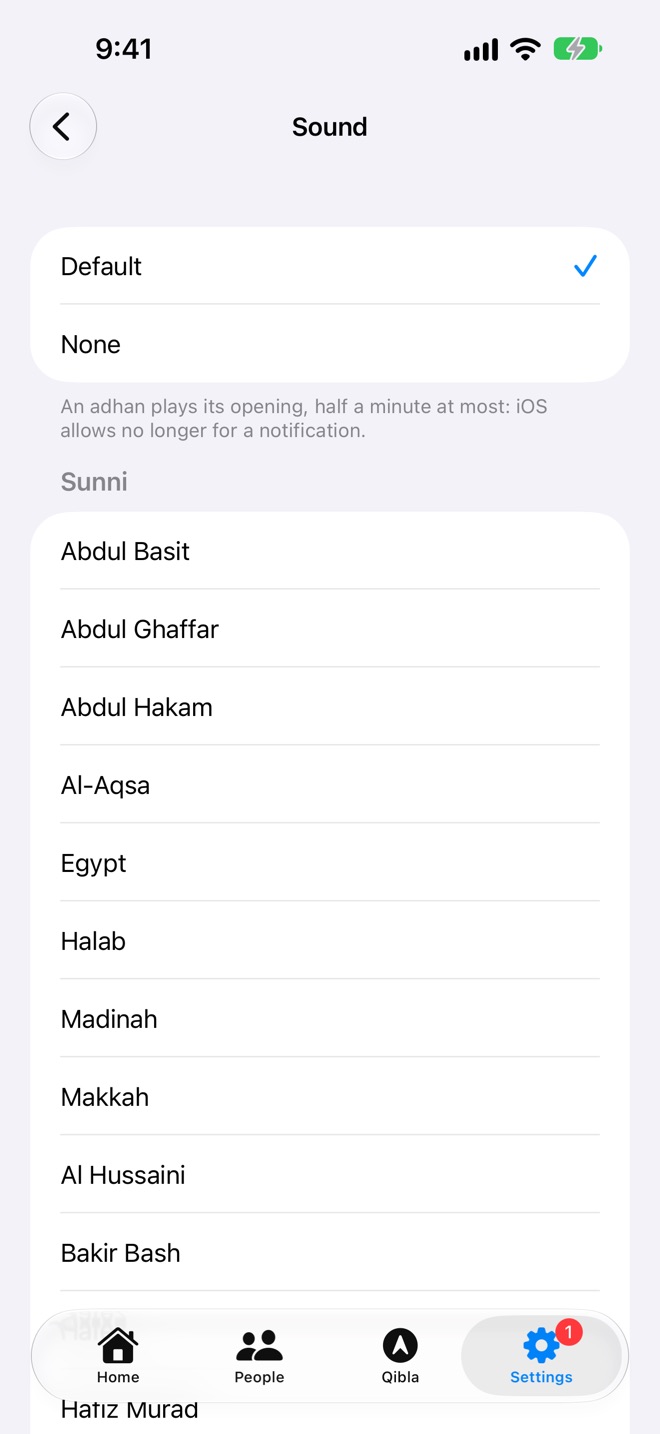
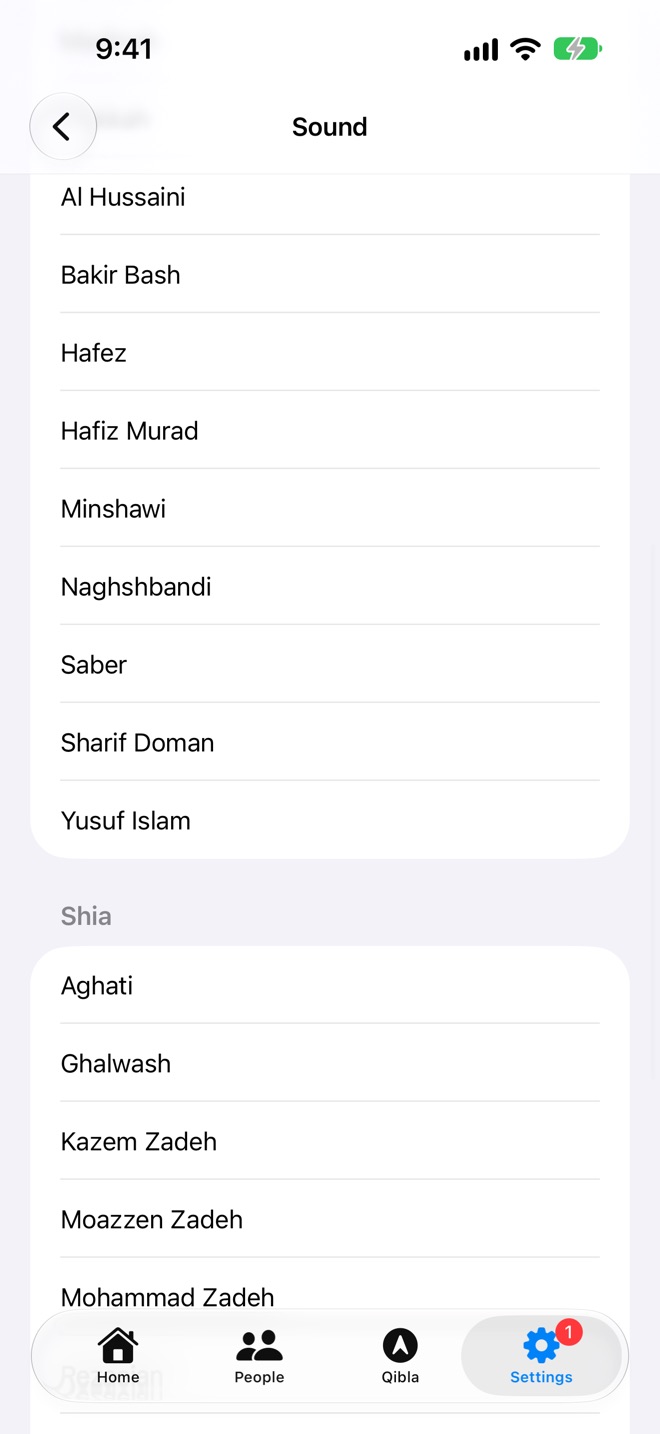
Sound
Tap an adhan to hear it, and tap again to stop. Alerts play its opening, up to 30 seconds, as long as iOS allows for a notification.
Jama'ah reminders
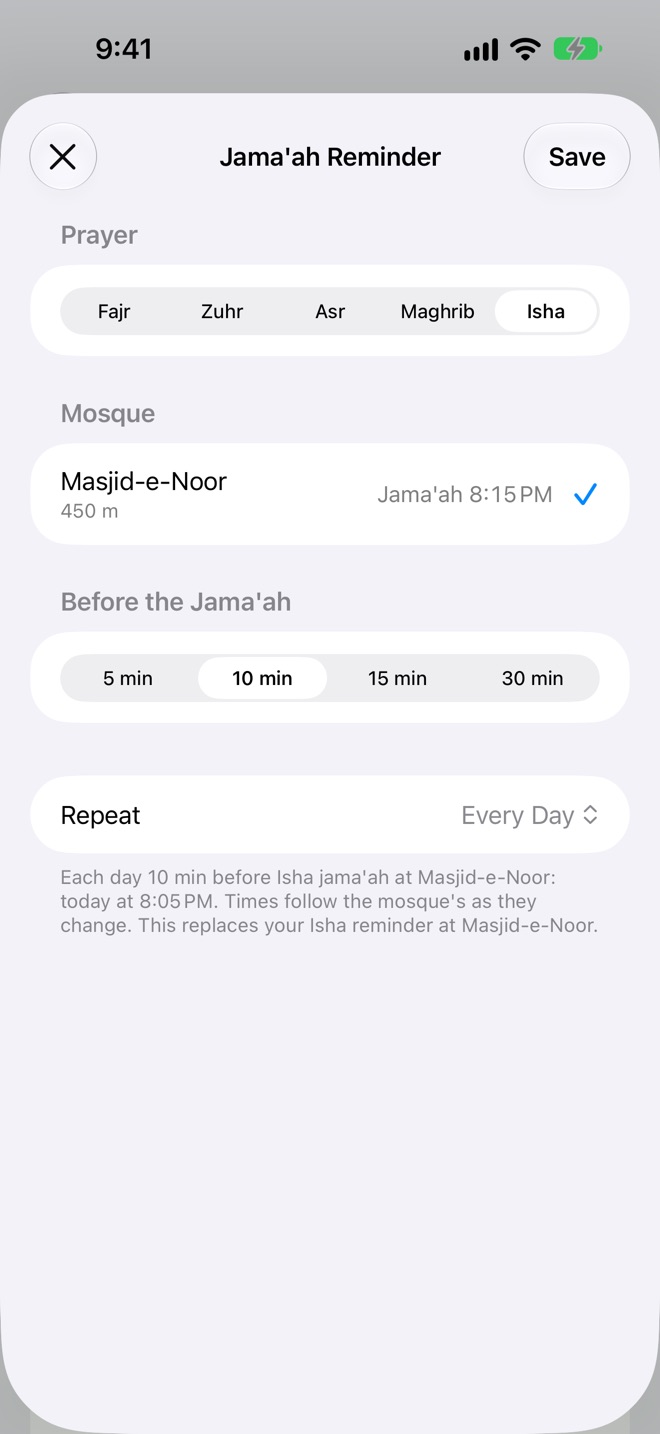
A reminder a few minutes before the jama'ah at a mosque, so you can get there in time. Set one from a prayer's ⋯ menu on Home, or Remind on a mosque's page.
 Salah8:05 PM
- Choose the prayer (from a mosque's page), then the mosque. Your usual mosque for that prayer comes first; Choose on Map shows them all. Mosques without a jama'ah time for that prayer can't be picked.
- Before the Jama'ah: 5, 10, 15 or 30 minutes.
- Repeat: only that day, or Every Day. Every day follows the mosque's times as they change.
- Save. The line at the bottom tells you exactly when it will come.
- One reminder per prayer per day: a new one replaces the old.
- In Jama'ah on the reminder logs the prayer at that mosque.
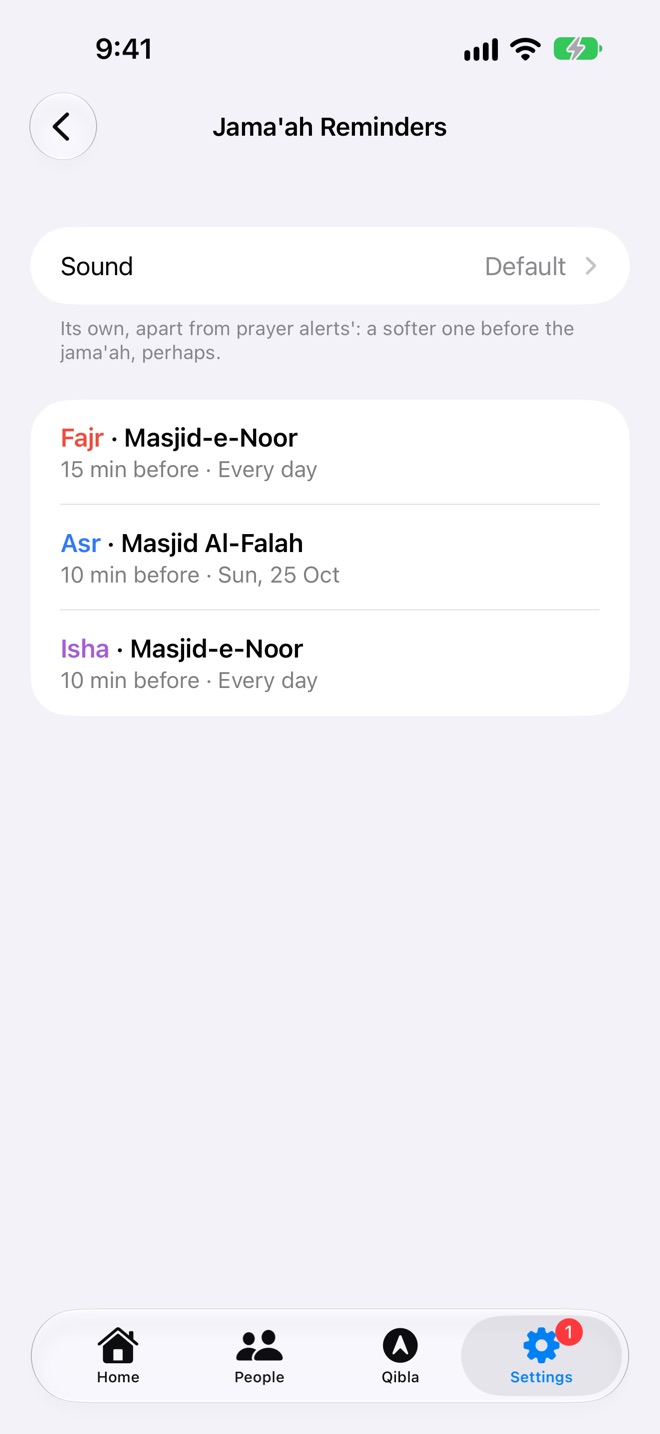
- Settings → Jama'ah Reminders lists them all. Tap one to change it, or swipe it (right-click on a Mac) to remove it. Its Sound is separate from prayer alerts', so it can be softer.
- Reminders stay on the device you set them on, so they don't all go off at once.
The Qibla
The Qibla tab is a compass with the Kaaba on its rim. Hold your phone flat and turn until the needle points up.
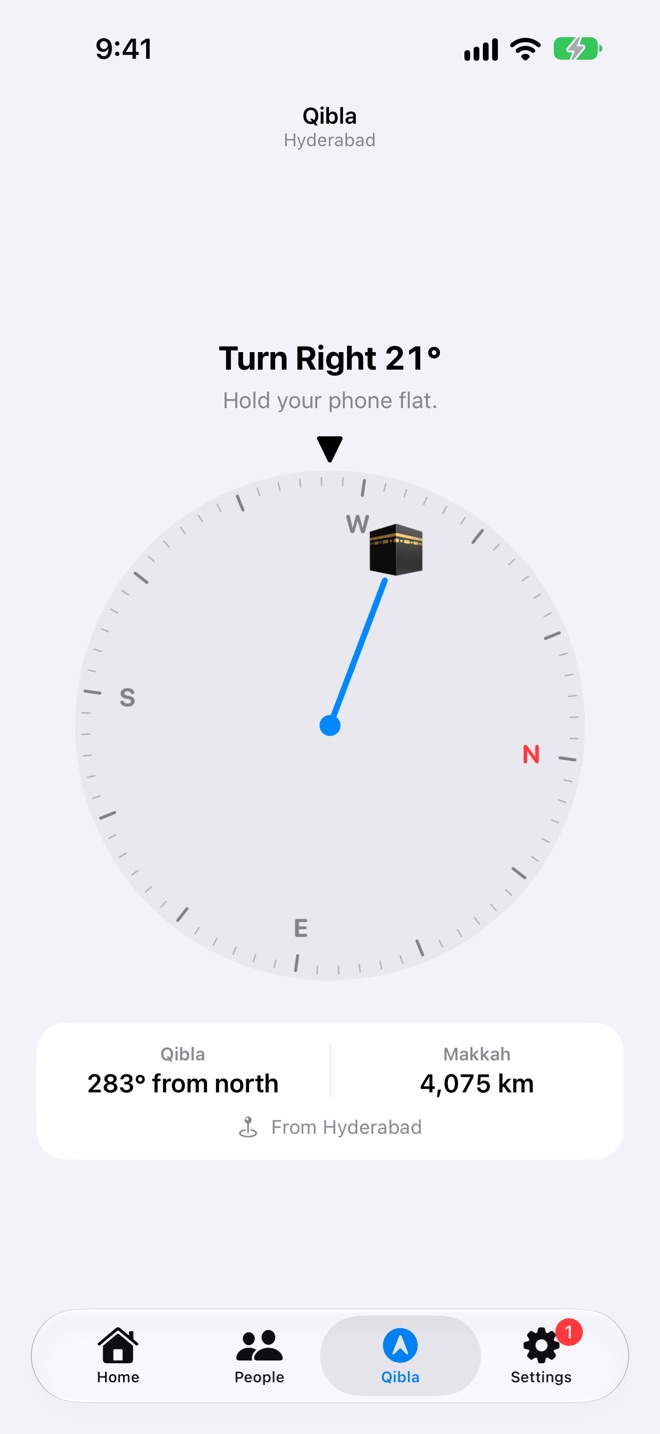
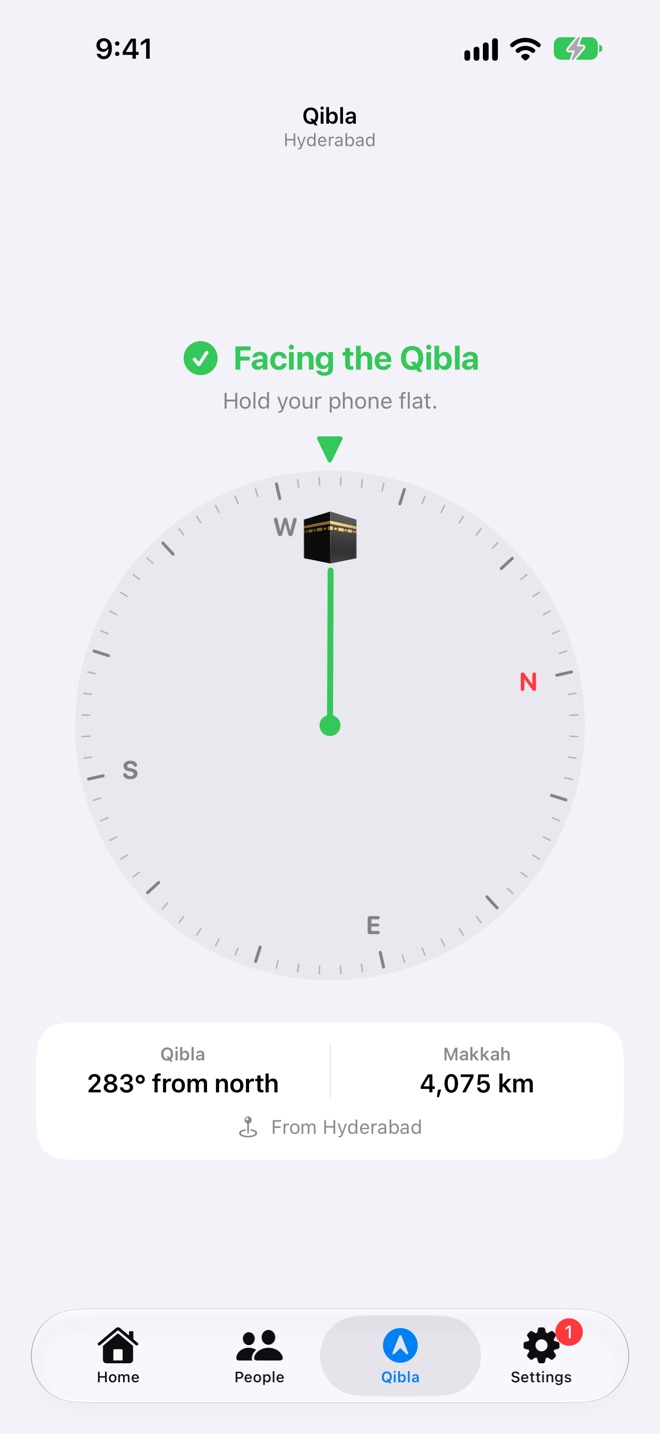
- Turn Right or Turn Left tells you how many degrees. Within 3°, it turns green, says Facing the Qibla, and your phone gives a tap.
- Below: the Qibla's bearing from north, the distance to Makkah, and where it's from.
- Low accuracy: move your phone in a figure 8, away from metal and magnets.
- Without location access, the compass uses magnetic north, which can be a few degrees off. Allow Location Access for true north.
- On iPhone, iPad and Apple Watch. A Mac has no compass.
Your username
A username lets people find you and ask to follow your prayers, and it's the name on your mosque edits. Set or change it in Settings → Account.
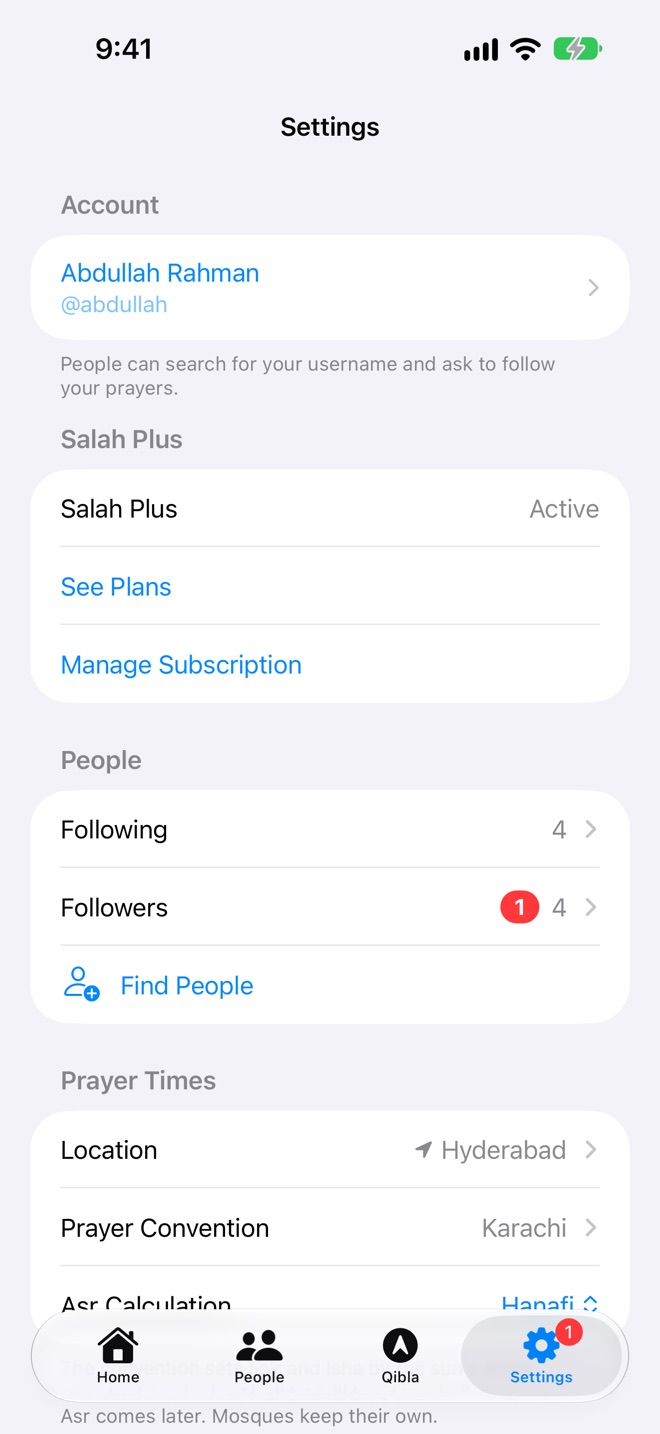
- Username: letters, numbers, _ and ., 3 to 20 characters. Salah Book tells you as you type whether it's Available or Taken.
- Name (optional): shown with your username.
- Let Others Find Me: on, people can search for you. Off, no one can find you by search, but people who already follow you still can.
A username needs iCloud. Your username, name and number of contributions are public, so people can find you and see who edited a mosque.
Following and followers
Follow family and friends to see their prayers on People, and let them follow yours. Nobody follows you until you approve them.
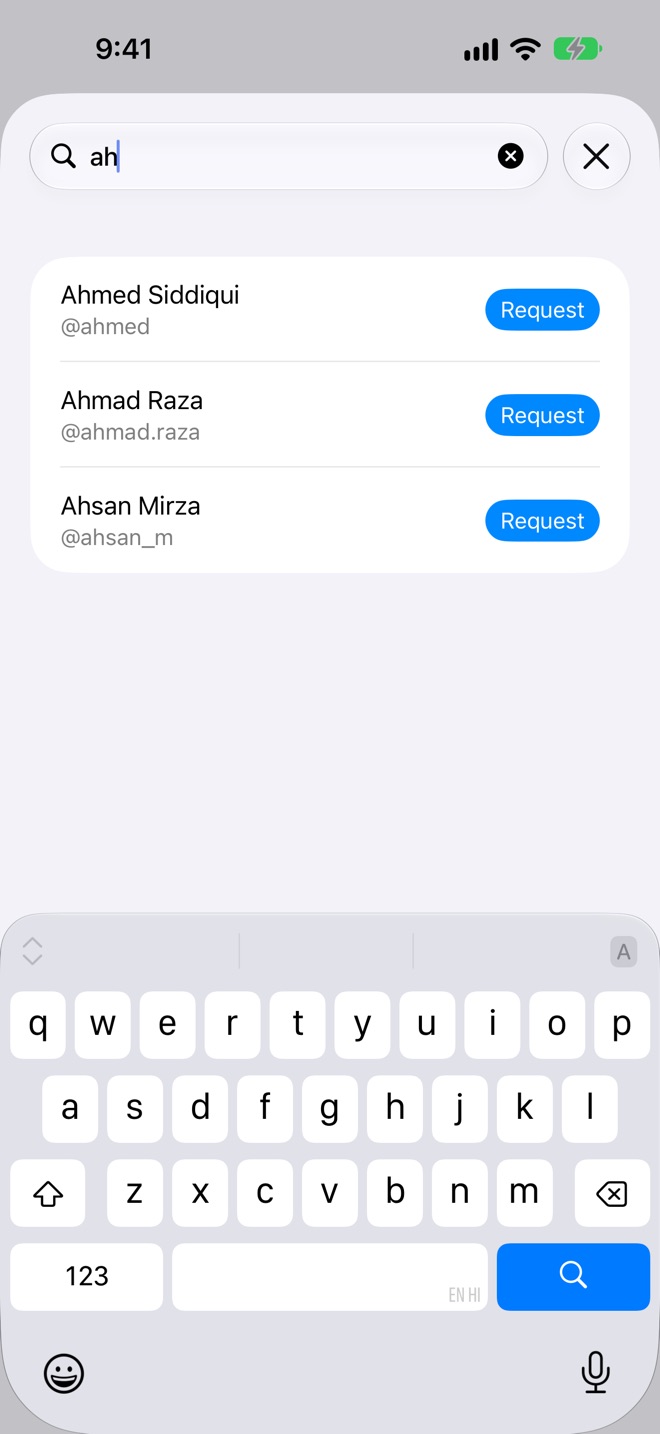
Follow someone
- Settings → People → Find People.
- Type at least two letters of their username or name.
- Tap Request. It shows Requested until they approve, then Following, and their card appears on People.
You can also tap the name under a mosque's update, or a follower, and choose Ask to Follow.
When someone asks to follow you
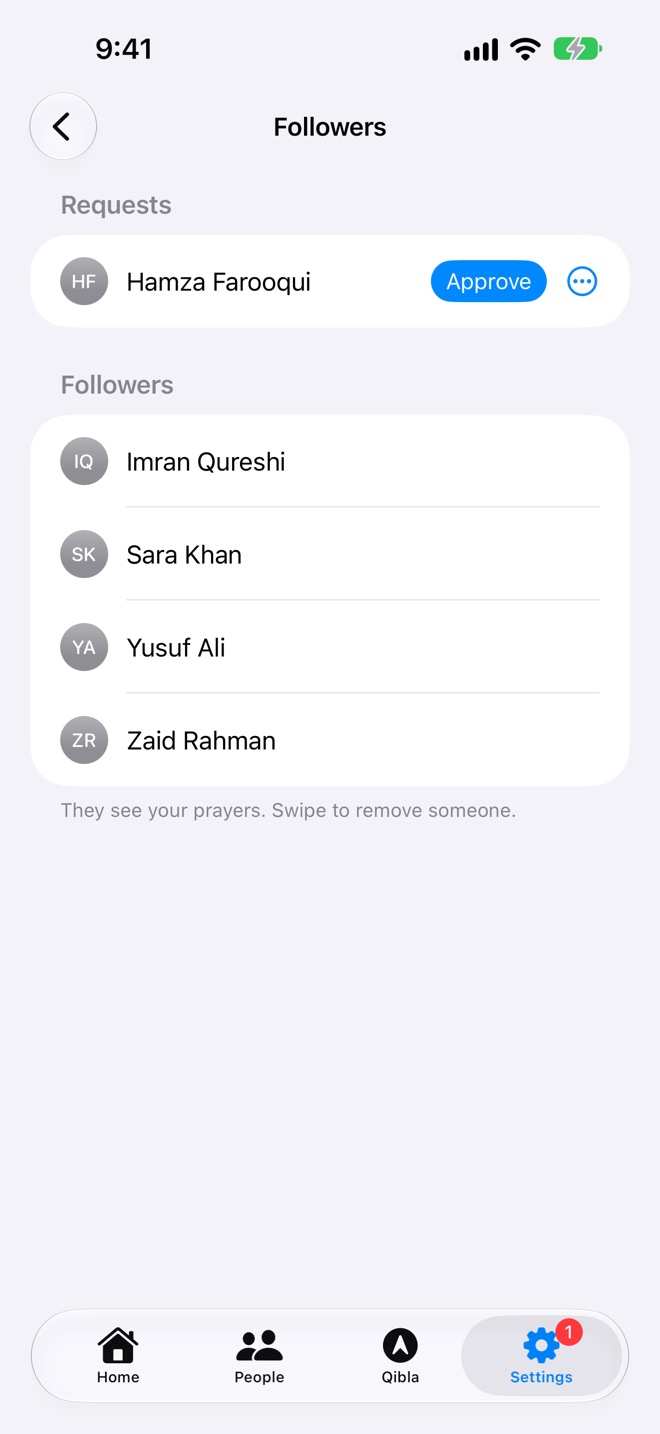
A red badge appears on Settings and on Followers. Under Requests:
- Approve: they can see your prayers.
- ⋯ → Decline: they can ask again later.
- ⋯ → Block: they can't ask again.
Remove, unfollow or cancel
- Remove a follower: swipe them in Followers (right-click on a Mac). They no longer see your prayers, and can ask again.
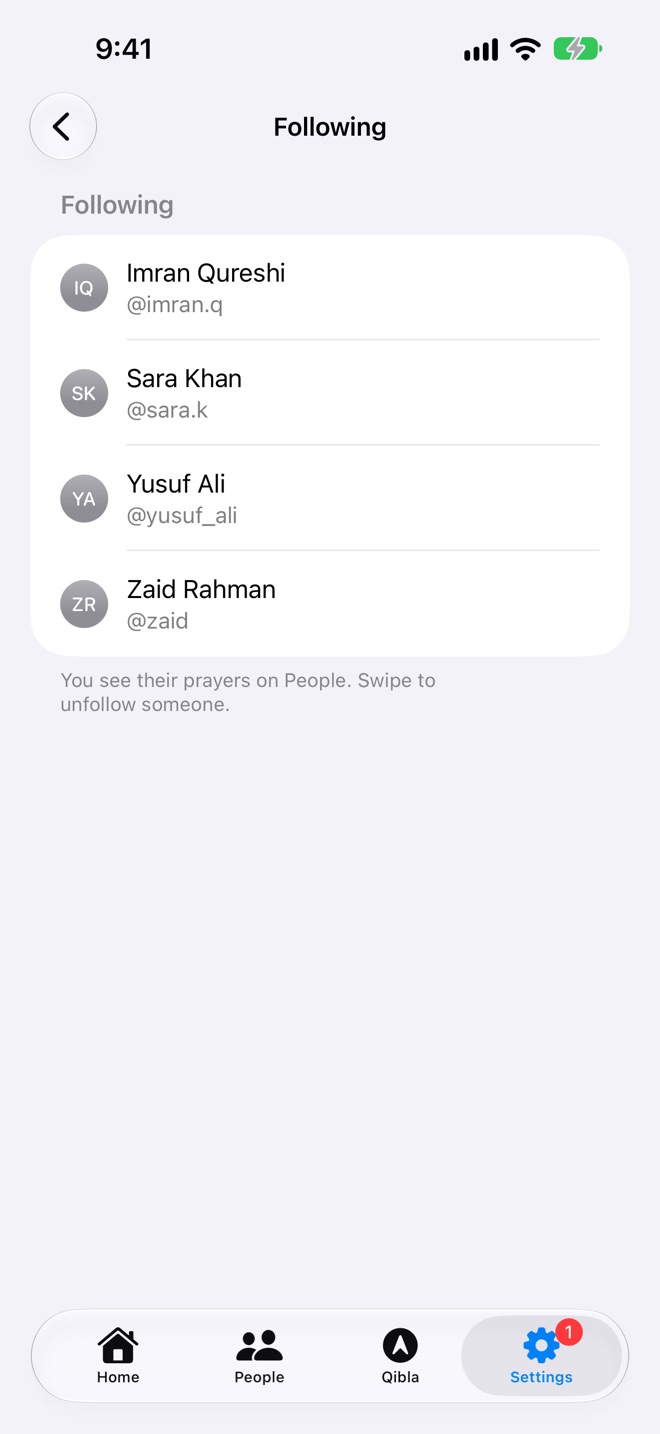
- Unfollow: swipe them in Following. Their prayers go from your devices.
- Cancel a request you sent: Cancel next to it under Requested.
Pull down on Following or Followers to check for new requests and approvals straight away.
What a follower sees
Your prayers (prayed, on time, jama'ah or excused, by day), the mosques you prayed them in, your username and name, your contributions, the day your missed prayers count from, and your prayer convention. Not your reminders, alerts or location.
Names from Contacts
In Settings → Contacts, tap Use Names from Contacts to show people by the names (and photos) you saved for them. The matching happens on your device.
The People tab
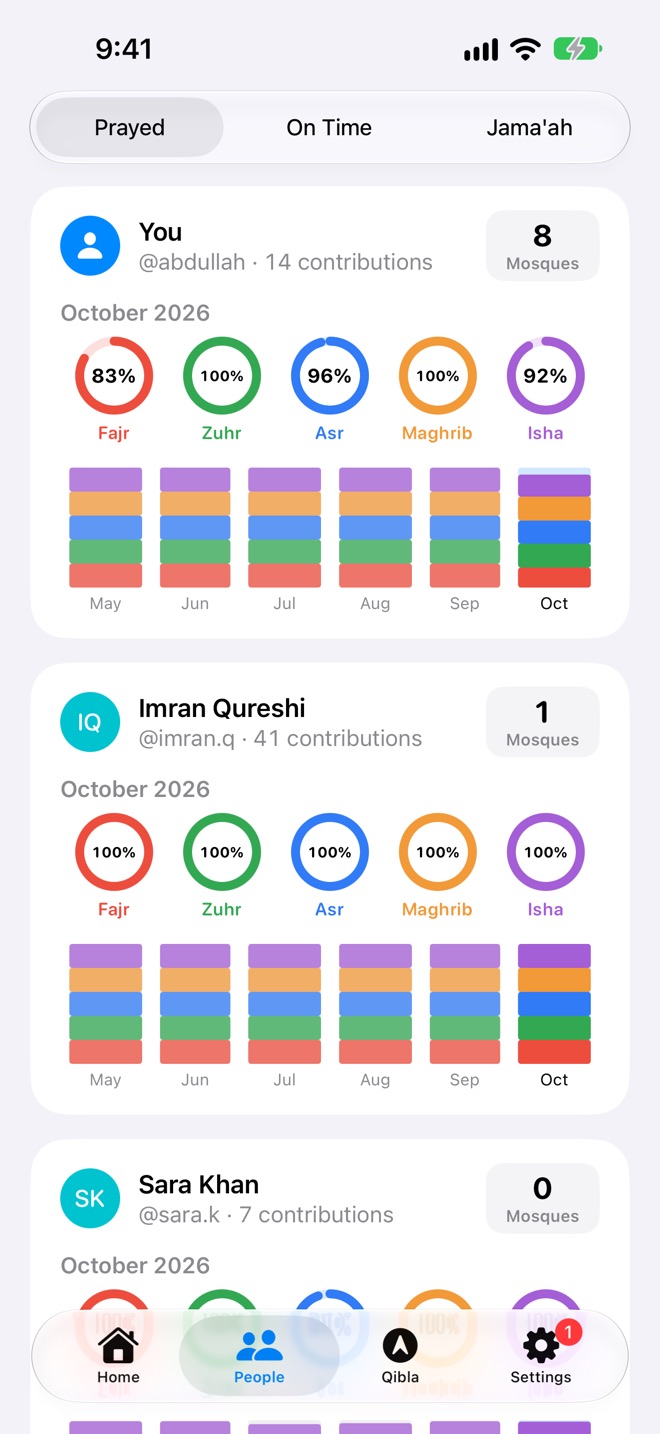
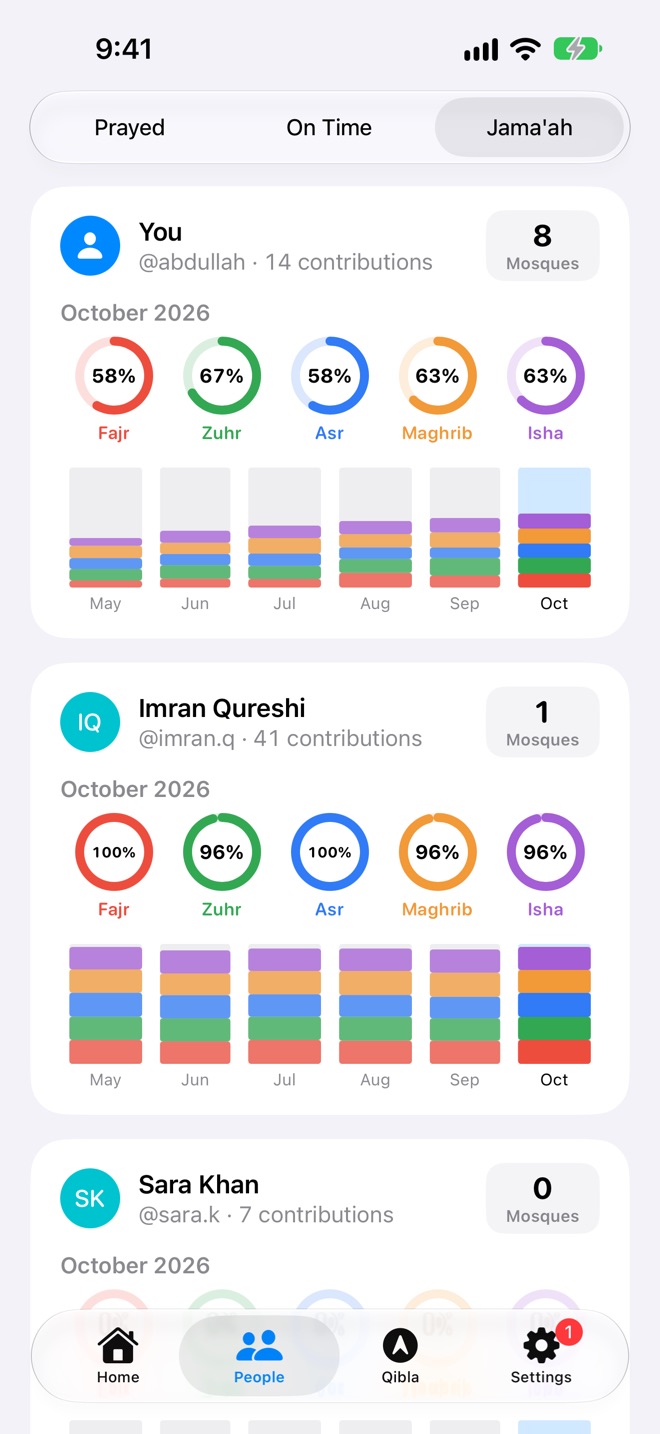
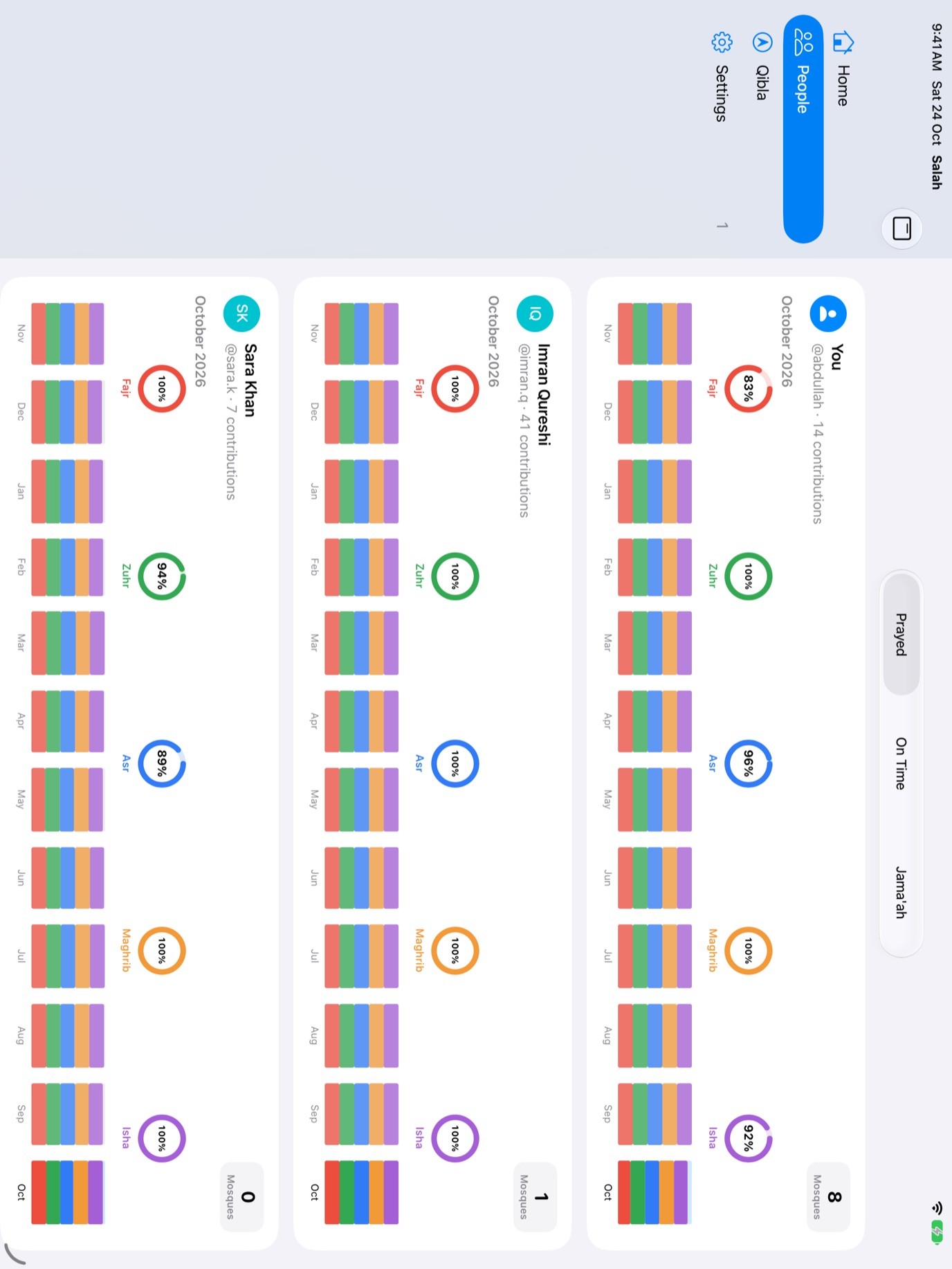
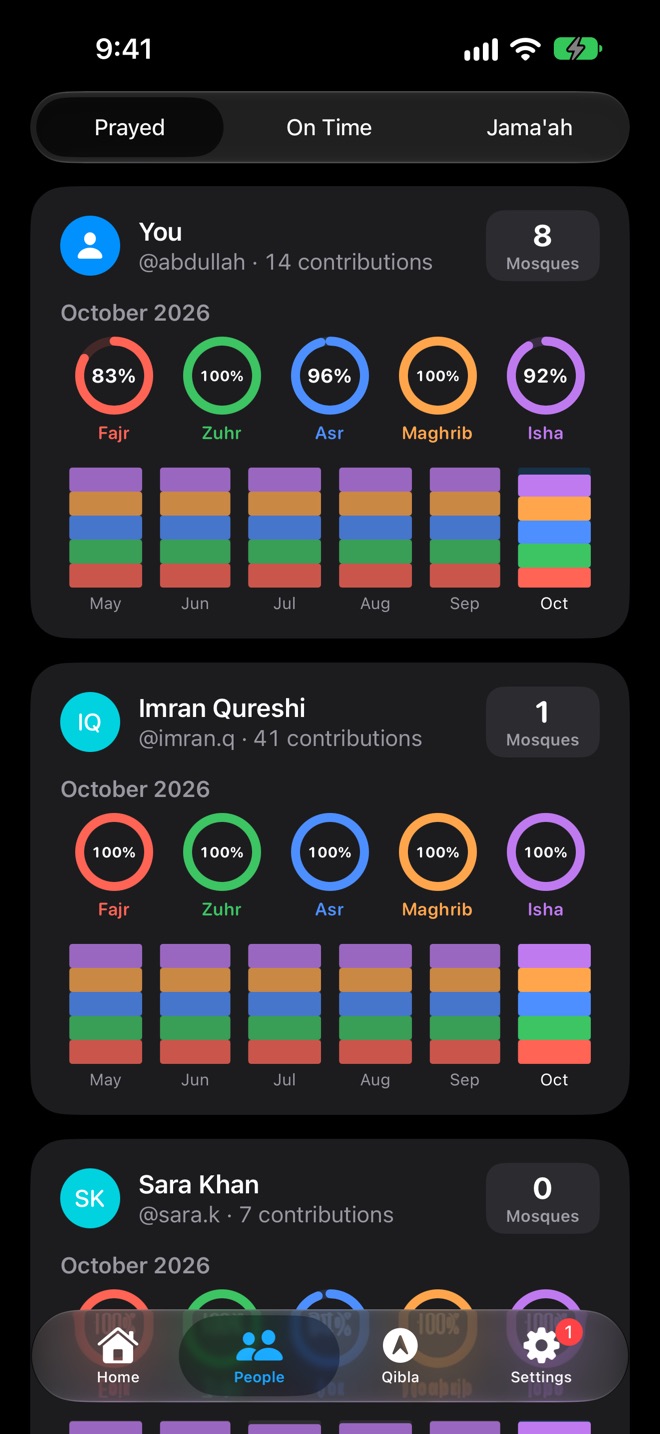
A card for you and each person you follow. Pick Prayed, On Time or Jama'ah at the top to see how each prayer is going at that level.
On each card
- The name and @username · contributions, the number of mosque edits.
- Five rings for the month: how many days each prayer reached that level, out of the days counted, leaving out excused days.
- A bar for each month, about 6 on iPhone and 12 on iPad and Mac. Tap a bar to see that month in the rings. Days before someone's Count From day don't count.
- Mosques: how many different mosques they've prayed in, in jama'ah.
Mosques prayed in
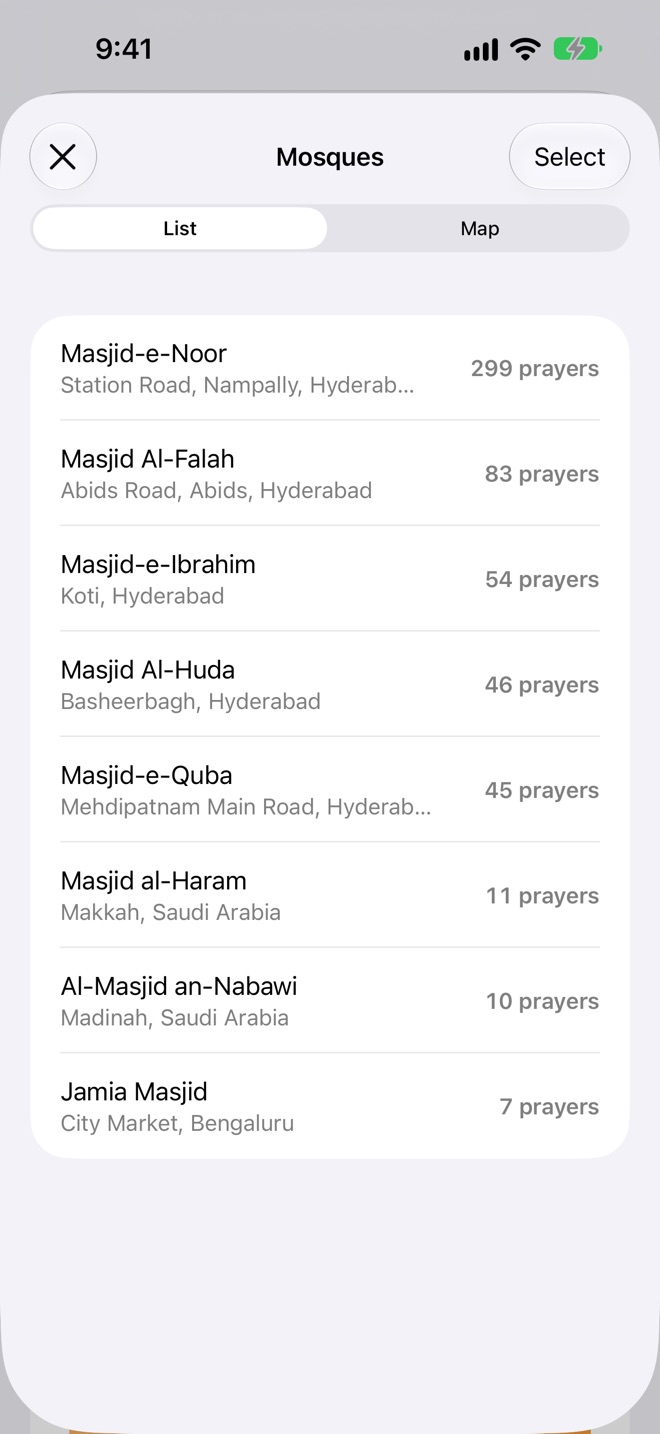
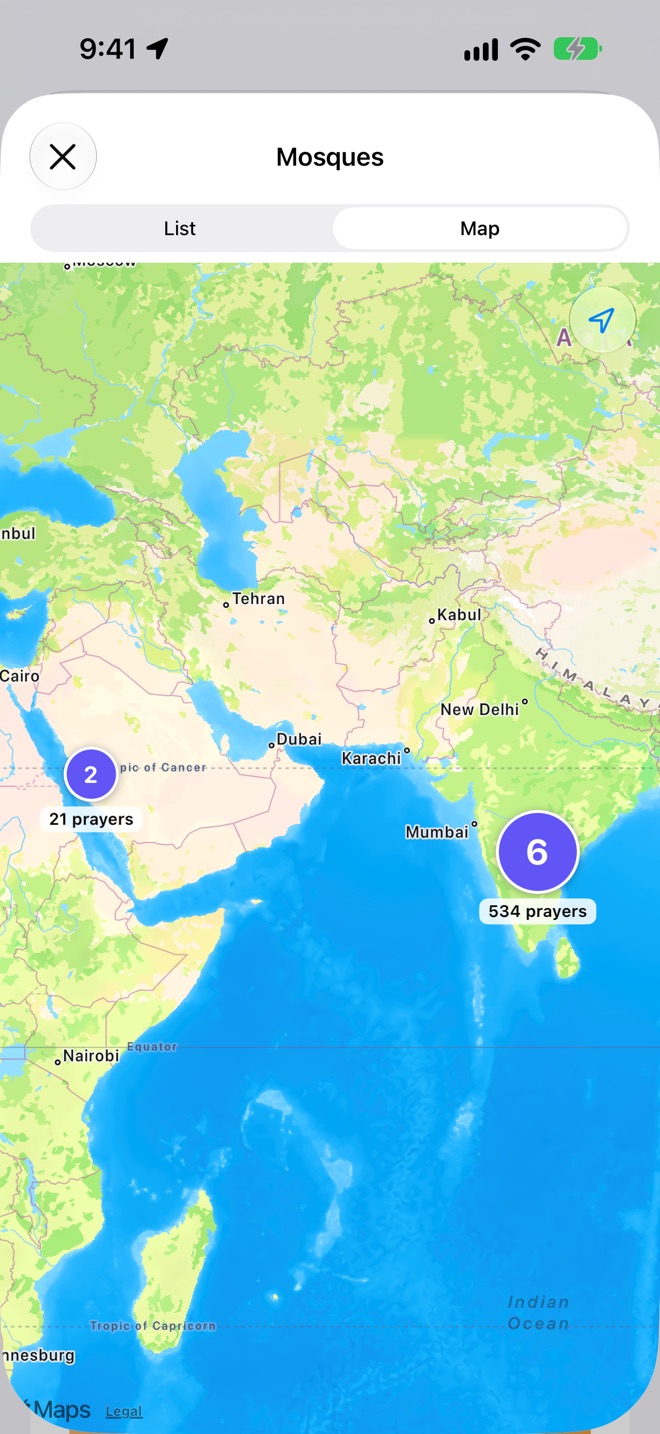
Tap the Mosques box for the list, with the number of prayers at each, or the map, where pins grow with the prayers and nearby mosques group together. Tap a mosque to see each prayer there by day.
On your own card, Select lets you merge mosques that are really the same one, and Salah Book suggests Same mosque? for two of yours within 100 metres of each other: Merge or Not the Same.
Arrange the cards
Drag the cards into the order you like (iOS, iPadOS and macOS 27 or later). The order is kept on that device.
Siri and Shortcuts
Salah Book's shortcuts work with Siri, the Shortcuts app, the Action Button, Back Tap and automations, with nothing to set up. Settings → Siri & Shortcuts lists them all with what to say.
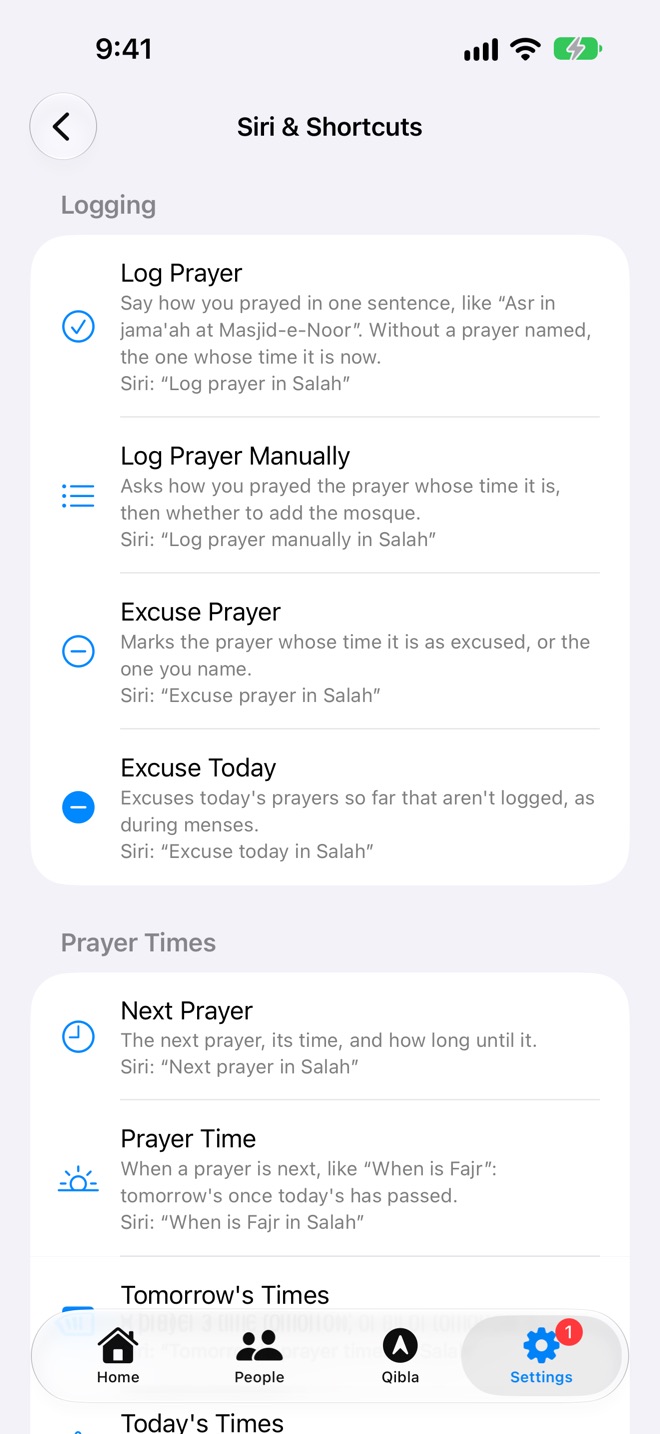
Logging
| Shortcut | Say | What happens |
|---|---|---|
| Log Prayer | Log prayer in Salah | Siri asks How did you pray? Answer in one sentence, like Asr in jama'ah at Masjid-e-Noor. Without a prayer named, it's the one whose time it is now. |
| Log Prayer Manually | Log prayer manually in Salah | Siri asks how you prayed: Prayed, On Time or Jama'ah. For Jama'ah, it offers to add the mosque. |
| Excuse Prayer | Excuse prayer in Salah | Marks the prayer whose time it is, or the one you name, as excused. |
| Excuse Today | Excuse today in Salah | Excuses today's prayers so far that aren't logged, as during menses, and tells you when the next begins. |
Log Prayer uses Apple Intelligence to read your sentence, with the names of the mosques near you to pick from. It also understands prayer names and words like "jama'ah", "mosque" and "on time" in many languages, so it still works when Apple Intelligence isn't available. Siri knows other spellings too: Fajar, Subh, Dhuhr, Zohar, Asar, Magrib, Esha and more.
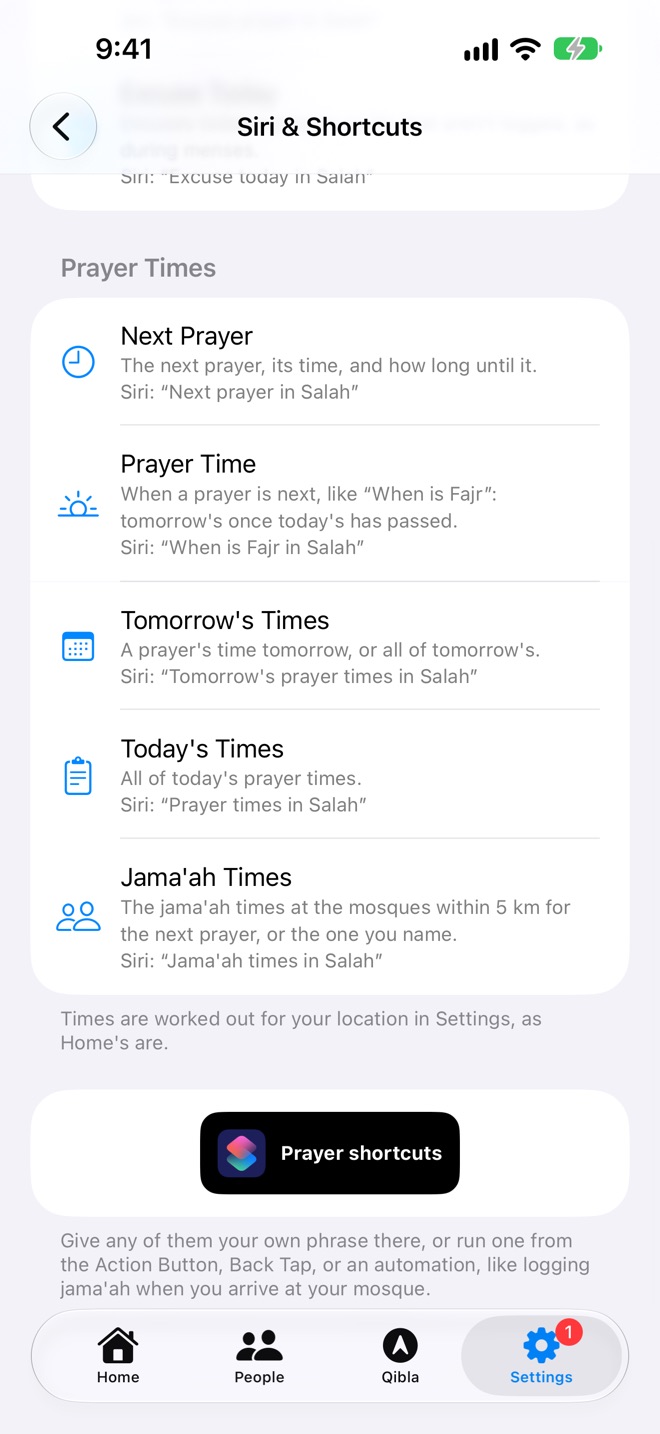
Prayer times
| Shortcut | Say | Siri answers |
|---|---|---|
| Next Prayer | Next prayer in Salah | The next prayer, its time, and how long until it. |
| Prayer Time | When is Fajr in Salah | That prayer's time today, or tomorrow's once today's has passed. |
| Tomorrow's Times | Tomorrow's prayer times in Salah | A prayer's time tomorrow, or all five. |
| Today's Times | Prayer times in Salah | All five of today's times. |
| Jama'ah Times | Jama'ah times in Salah | The jama'ah times at the mosques within 5 km, for the next prayer or the one you name, closest first. |
Make them yours
- Tap Prayer shortcuts at the bottom to open them in the Shortcuts app, and give any of them your own phrase.
- Put Log Prayer on the Action Button (Settings → Action Button → Shortcut) or Back Tap (Settings → Accessibility → Touch → Back Tap).
- Make an automation in Shortcuts, like logging jama'ah when you arrive at your mosque.
Widgets
Touch and hold your Home Screen or Lock Screen, tap Edit then Add Widget, and choose Salah.
| Widget | Sizes | Shows |
|---|---|---|
| Next Prayer | Small, medium; Lock Screen ring, line and card | The next prayer, its time and a live countdown. Medium adds all of today's times, the next one marked. The Lock Screen ring fills from one prayer to the next. |
| Log Prayer | Medium | The prayer whose time it is, with Prayed, On Time, Jama'ah and Excused buttons, and the countdown to the next. |
| Today's Prayers | Large | All five prayers, each with the four buttons. |
- The buttons log the prayer without opening the app, and work like Home's: tap a filled level to clear it. A prayer that hasn't begun is faded until it does.
- Jama'ah from a widget has no mosque. Add it on Home if you like.
- On a Mac, put Next Prayer on your desktop or in Notification Centre. On Apple Watch, see the next section.
Apple Watch
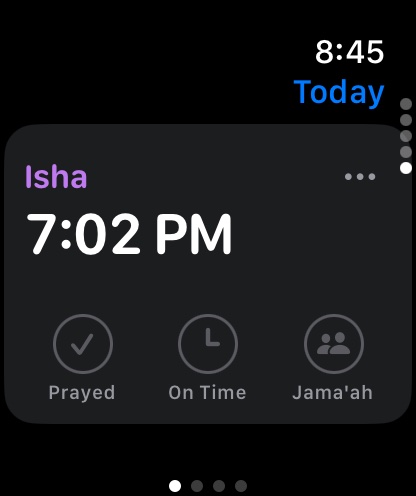
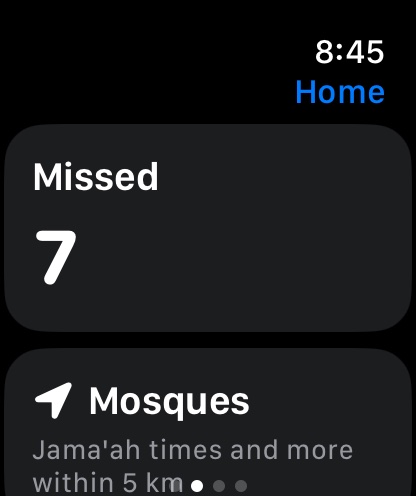
Salah Book on Apple Watch is its own app: it syncs with iCloud directly and works without your iPhone nearby. Swipe sideways between its four pages.
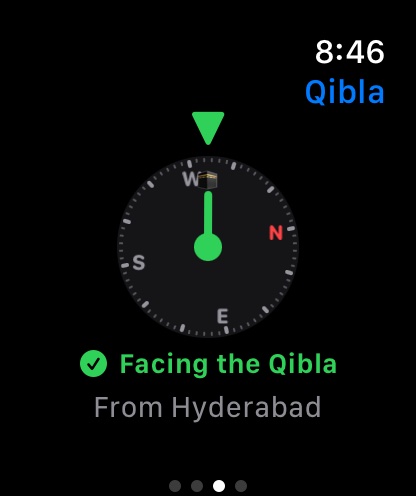
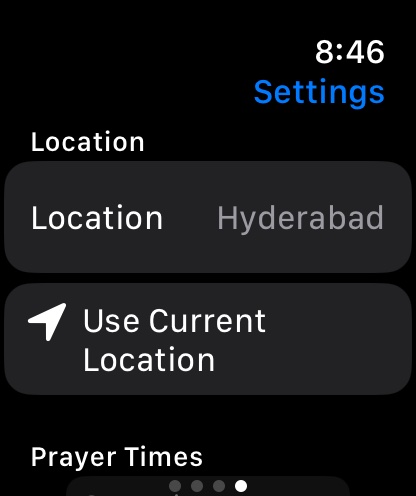
| Page | What's there |
|---|---|
| Today | A card for each prayer, opening on the one whose time it is. Turn the Digital Crown to move between them. Tap Prayed, On Time or Jama'ah. The ⋯ menu marks it excused, or adds the mosque from those within 5 km, your usual one first. |
| Home | Missed: the count; tap for the list by day, and tap a prayer to log it. Mosques: those within 5 km with their next jama'ah; tap one for today's times and Jumu'ah. |
| Qibla | The compass, with a tap on your wrist when you face the Qibla. |
| Settings | Location (current, or a city), Convention and Asr, and Salah Plus. |
On your watch face
The Next Prayer complication comes as a circle with a progress ring, a corner with a curved gauge in the prayer's colour, a line, or a card. Add it from the watch face editor, or find it in the Smart Stack.
Prayer alerts and jama'ah reminders from your iPhone appear on your watch too.
iPad and Mac
iPad
The tabs can become a sidebar. People shows a year of bars, and settings and mosque pages open as sheets. Everything else works as on iPhone, including the Qibla.
Mac
- A native Mac app, with Home, People and Settings in a sidebar. Settings look like System Settings.
- Swipe with two fingers to move a day on Home, or use the arrows to move a week.
- Right-click to remove a follower, a reminder or someone you follow.
- Prayer alerts and jama'ah reminders come as Mac notifications. They're scheduled each time you open the app, so open it now and then.
- Shortcuts appear in the Shortcuts app and Siri by themselves.
- No Qibla: a Mac has no compass.
iCloud and syncing
Salah Book uses your own iCloud account to keep your devices in step, and to share your prayers with the people you approve. There's no account to create.
- Sign in to iCloud with the same Apple Account on each device. That's all.
- Changes sync by themselves, usually within moments, including from the people you follow.
- Everything is saved on your device first, so Salah Book works offline.
If something's wrong, Settings tells you
| Message | What to do |
|---|---|
| Not Signed In to iCloud | Your prayers are kept on this device. Sign in to iCloud in the Settings app and they'll sync. |
| iCloud Is Unavailable | Usually temporary. Your prayers sync once it's back. |
| iCloud Storage Is Full | Your prayers won't reach your other devices or your followers until you free up space or upgrade your iCloud storage. |
| Data from Another iCloud Account | The prayers on this device came from a different iCloud account. Remove Data… clears this device so it can use the current account's. The other account keeps its copy. |
Coming from Salah Book 3
Nothing to do. The first time Salah Book syncs with your iCloud account, it brings in every prayer you logged in Salah Book 3: prayed, on time, in jama'ah and excused, and the mosques you prayed in.
- It happens once for each iCloud account, on whichever of your devices gets there first.
- Each prayer stays on the day you logged it.
- Your old data is only read, never changed.
Accessibility, languages and appearance
- VoiceOver reads every prayer, its time and how it's logged, and each day as, for example, "3 of 5 prayed, 1 excused".
- Dynamic Type: text follows your size.
- Reduce Motion: the circles don't bounce.
- Differentiate Without Color: the calendar's unlogged arcs are thin and excused ones dotted.
- Dark Mode on every screen, following your device. The Watch is always dark.
- 49 languages, following your device's language, including Arabic, Urdu, Persian, Turkish, Indonesian, Malay, Bengali, Hindi, Tamil, Malayalam, French and German. Change Salah Book's own language in Settings → Apps → Salah → Language.
Every setting, explained
| Setting | What it does |
|---|---|
| Account | Your username, name and whether people can find you. More |
| Salah Plus | Your free week or plan, Get Salah Plus, See Plans and Manage Subscription. More |
| Following, Followers | The people you follow and who follow you, with requests waiting. More |
| Find People | Search by username or name. |
| Location | Where prayer times are for. More |
| Prayer Convention | How Fajr and Isha are worked out. |
| Asr Calculation | Standard or Hanafi. |
| Prayer Alerts | Which prayers alert, and their sound. More |
| Jama'ah Reminders | Your reminders, and their sound. More |
| Siri & Shortcuts | Every shortcut and what to say. More |
| Count From | The day missed prayers are counted from. More |
| Contacts | Show people by the names in your Contacts. |
Salah Plus
Prayer times, alerts, the Qibla, logging, missed prayers and mosques are free, for good. Salah Plus adds the conveniences. Everyone gets a free week of it, from the day they first download Salah Book, with nothing to sign up for.
| Salah Plus adds | Without it |
|---|---|
| The Apple Watch app | The watch shows the plans. |
| Widgets and complications | Widgets show a lock. |
| Siri and Shortcuts | Siri says they're part of Plus. |
| Log from prayer alerts | Alerts come without buttons. |
| Follow more than 2 people | The first 2 in your order show; others are locked cards. |
| More than 2 jama'ah reminders | The first 2 go off; others are paused. |
| Your whole history | The calendar shows the last 6 months. |
Yearly ($4.99 a year) or Lifetime ($19.99 once). Prices may vary by country. Both work with Family Sharing, so one purchase covers your family. Nothing is ever deleted when Plus ends.
- Buy from Settings → Salah Plus, or wherever a locked feature offers it.
- Restore Purchases on the plans if a purchase doesn't show.
- Manage Subscription to change or cancel.
Help and troubleshooting
Email [email protected], or visit Salah Book Support.
The prayer times don't match my mosque
Check Settings → Prayer Times: the Location, the Prayer Convention your community uses, and Standard or Hanafi Asr. Your mosque's own adhan and jama'ah times are on its page.
I'm not getting prayer alerts
Turn on the prayers in Settings → Prayer Alerts, and make sure notifications for Salah are allowed in the Settings app. Focus modes can hold notifications back. On a Mac, open Salah Book now and then so it can schedule the next week.
The Missed count is bigger than I expected
It counts from the first prayer you logged, or the day in Settings → Missed Prayers → Count From. Any day in between with nothing logged misses all five. Log them, mark them excused, or choose a later day to count from.
No mosques show near me
Nearby mosques need location access and a connection. Try a bigger distance, clear the filters, or add your mosque for everyone with Add a New Mosque.
I can't edit a mosque
Editing needs a username and iCloud. If the mosque is managed by its administrators, only they can change it.
The Qibla points the wrong way
Hold your phone flat, away from metal and magnets, and move it in a figure 8 to calibrate. Allow location access so the compass uses true north.
My prayers aren't showing on my other device, or for my followers
Check both devices are signed in to iCloud with the same Apple Account and online, and look at the top of Settings for a message about iCloud.
Someone can't find me
You need a username, and Let Others Find Me on, in Settings → Account.